How to View Orders
-
First, log in using your Admin credentials.
-
Click Fulfillment.
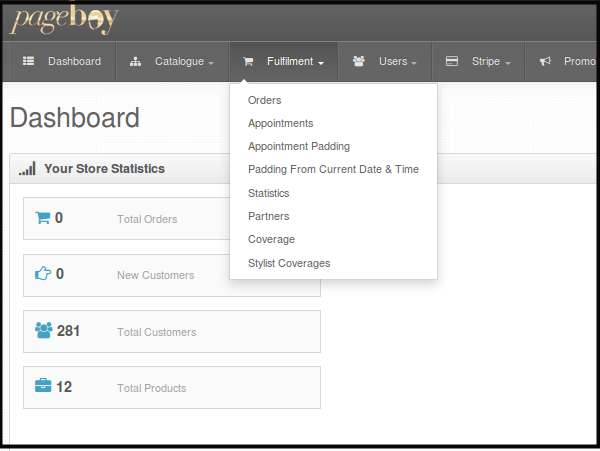
-
Click Orders.
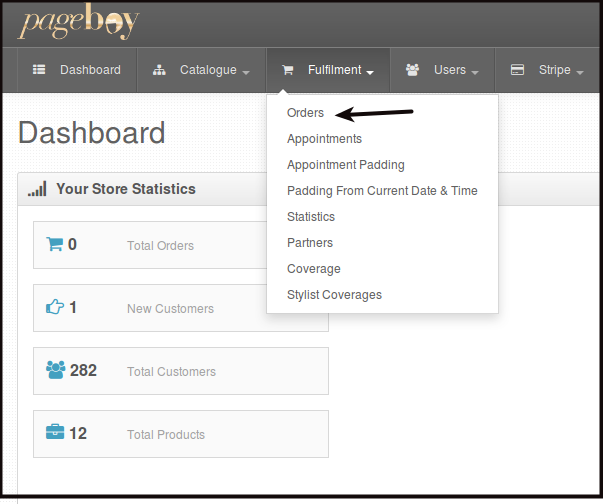
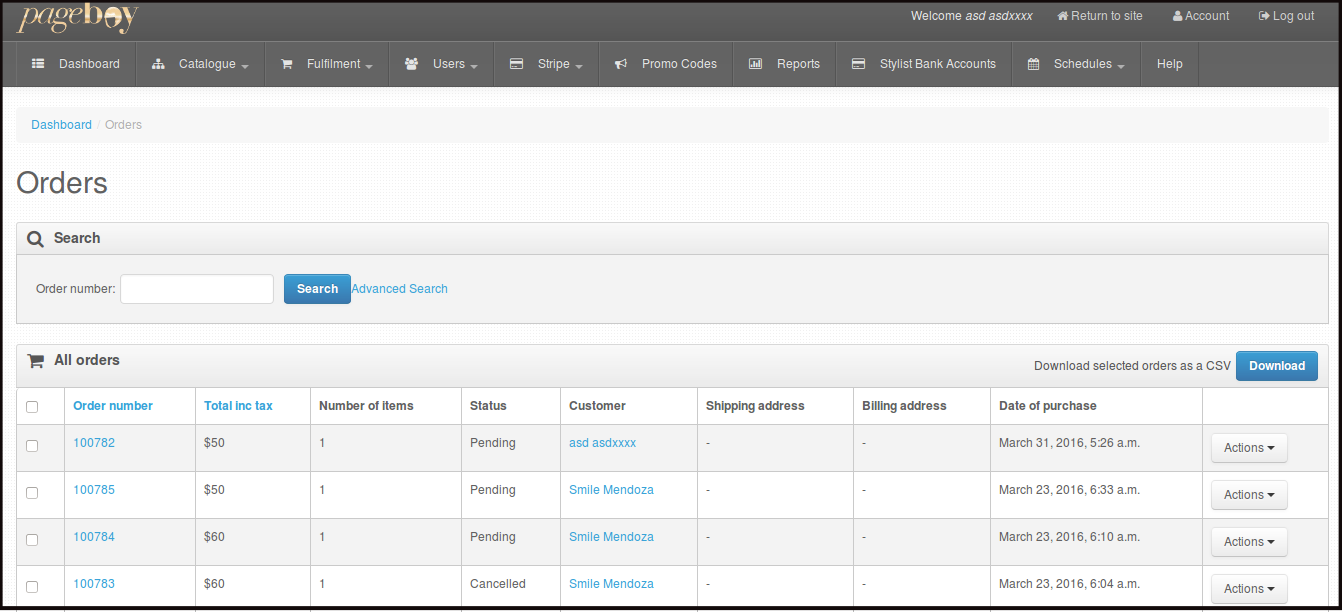
Then you will be directed to this page.
-
You will see order details, this is the page where you will see all the orders made on the app.
-
Order Number - This is a numbering system on how many orders are made.
-
Total Inc Tax - Total Price including tax.
-
Number of Items - This is the total number of services/products ordered.
-
Status - This will indicate if the order was fulfilled or not yet
-
Customer - This is the name of the customer who ordered the service.
-
Date of Purchase - The date when the order was made on Pageboy App.
-
How to View Order Details of Specific Order
-
First, log in using your Admin credentials.
-
Click Fulfillment.
-
Click Orders.
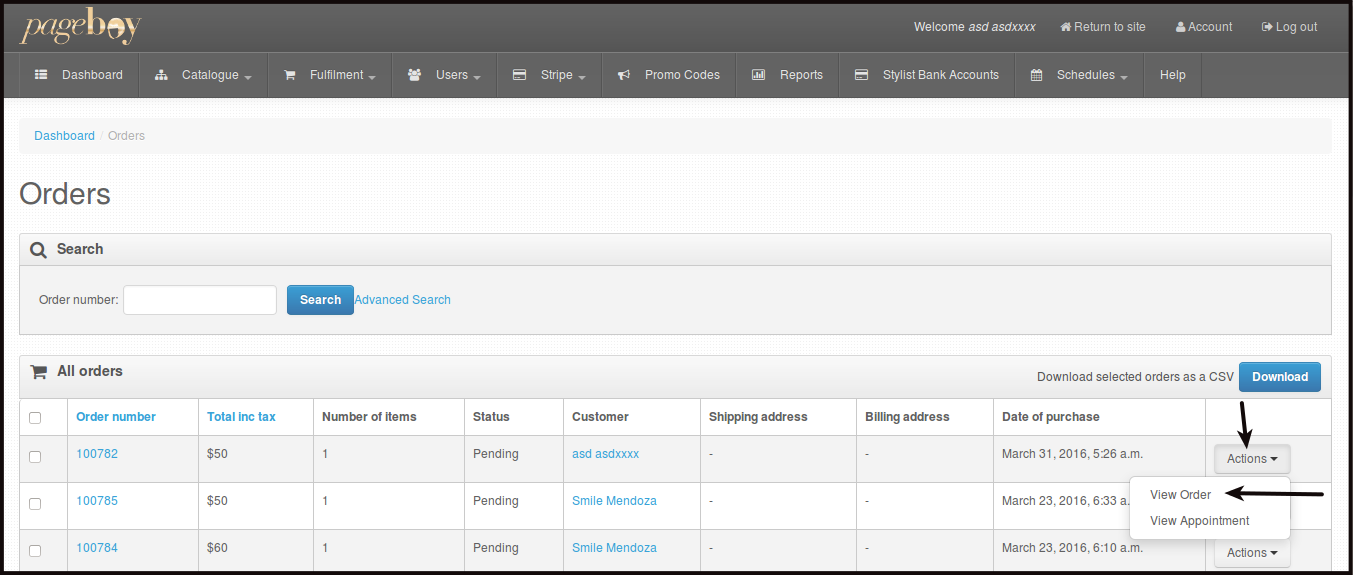
Then you will be directed to this page.
-
There are 2 ways on how you can view Order Details of a specific order you want to check.
- Click the Order Number.
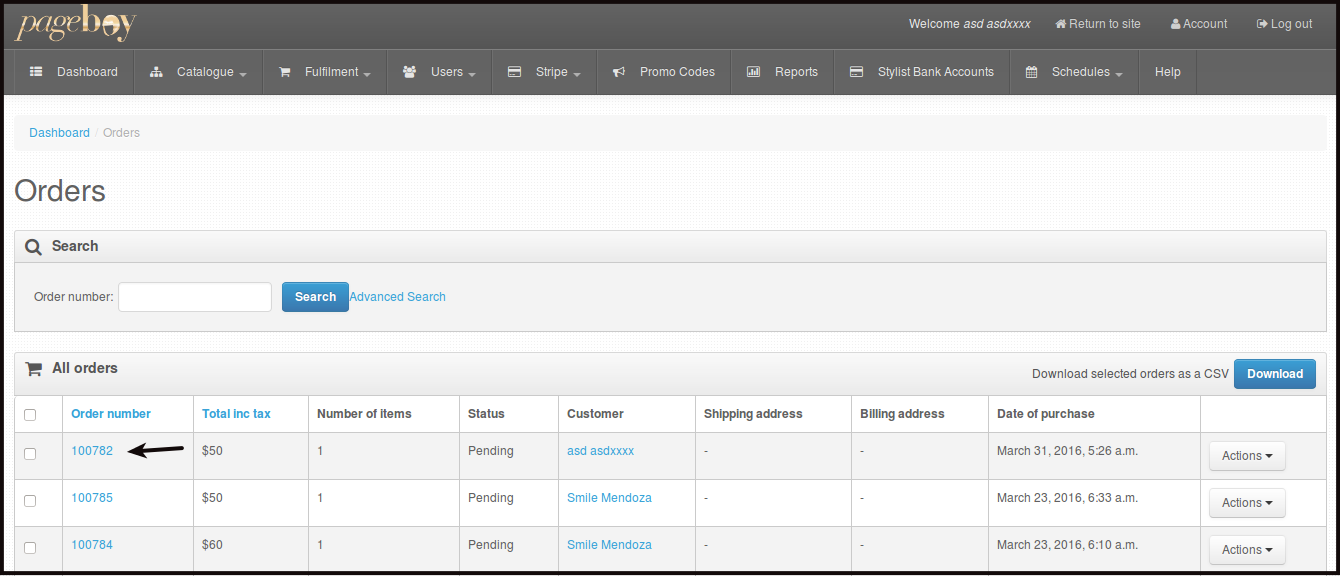
- Click Actions beside the order number you want to check, then click View Orders.
-
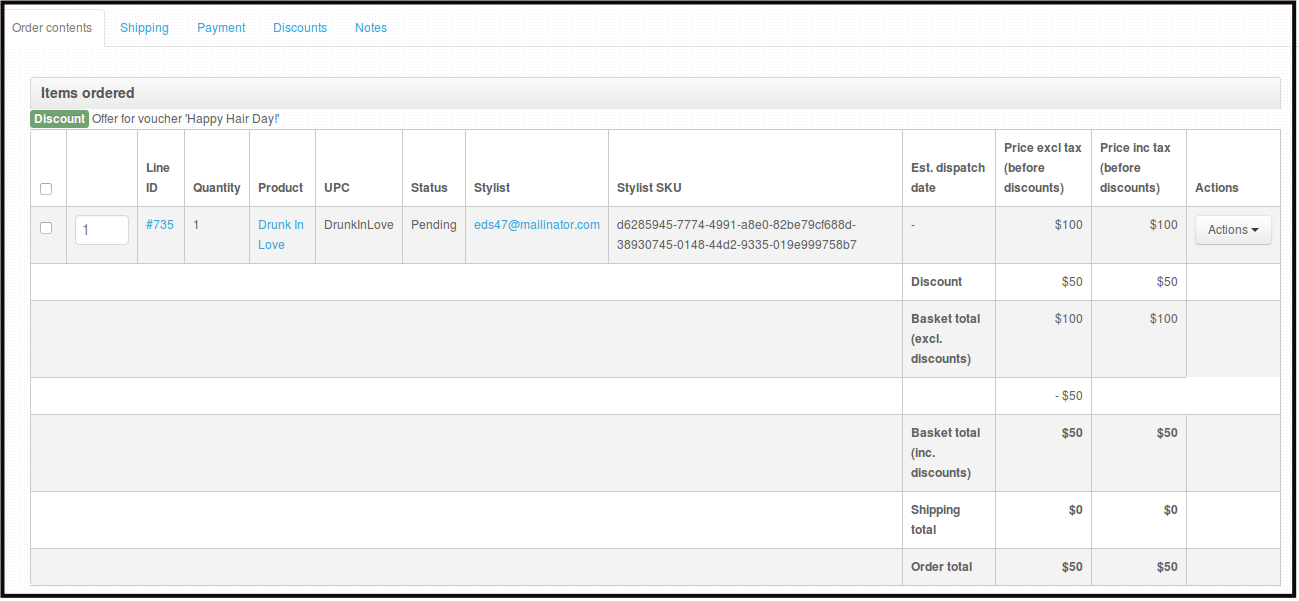
Any of the two ways will direct you to this page. Here you can see the complete order details of the specific order.
- Customer Information - This is where you will see customer's name and Email address of the person who ordered the service/product.

- Order Information - This is where you will see the total price of the order, date it was purchased, time it was purchased and its status.

- Order Details - This is where you can see the price of the product/service, if there are any promotions used by the customer and total amount paid by the customer.
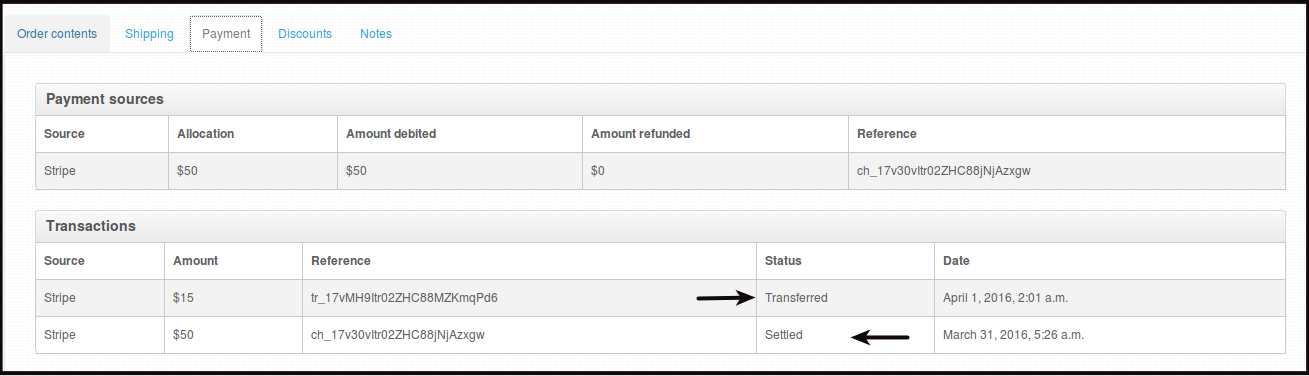
Payment tab will show payment transactions. The Amount Transferred is the money being transferred to the Stylist. The Amount Settled is the money paid by the customer.
Discount Tab will show you what promotions is or was used by the customer if there are any.

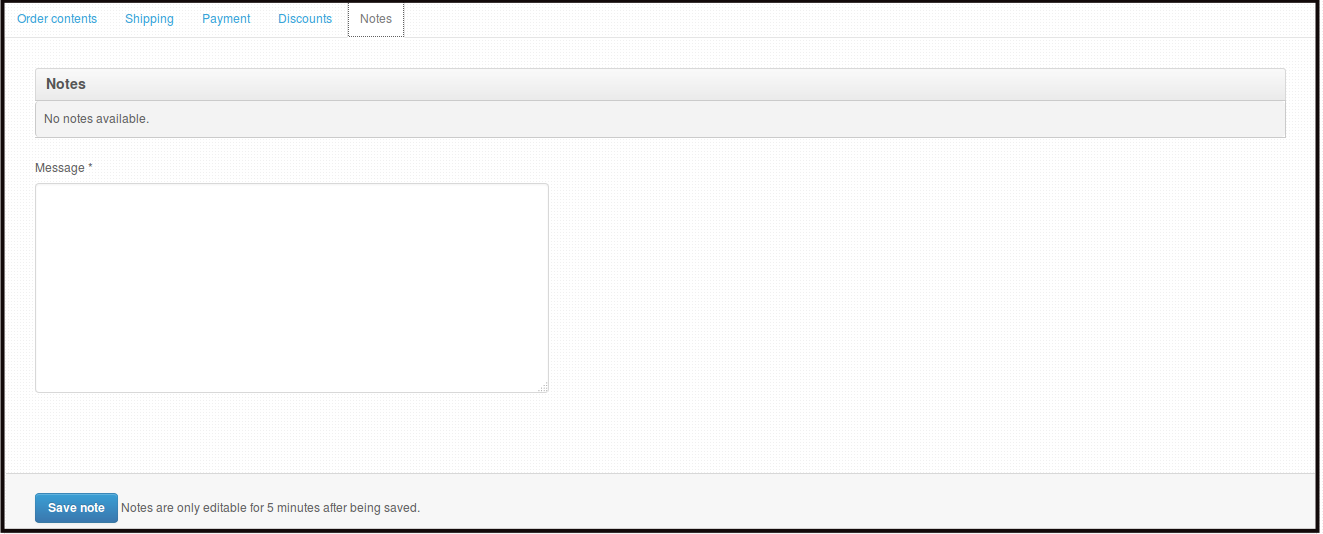
Notes Tab this is where you will see any notes regarding the order. Please be reminded that after 5 minutes, any notes that is put on this tab will be a permanent note on the order.
How to View Appointment Details of an Order
-
First, log in using your Admin credentials.
-
Click Fulfillment.
-
Click Orders.
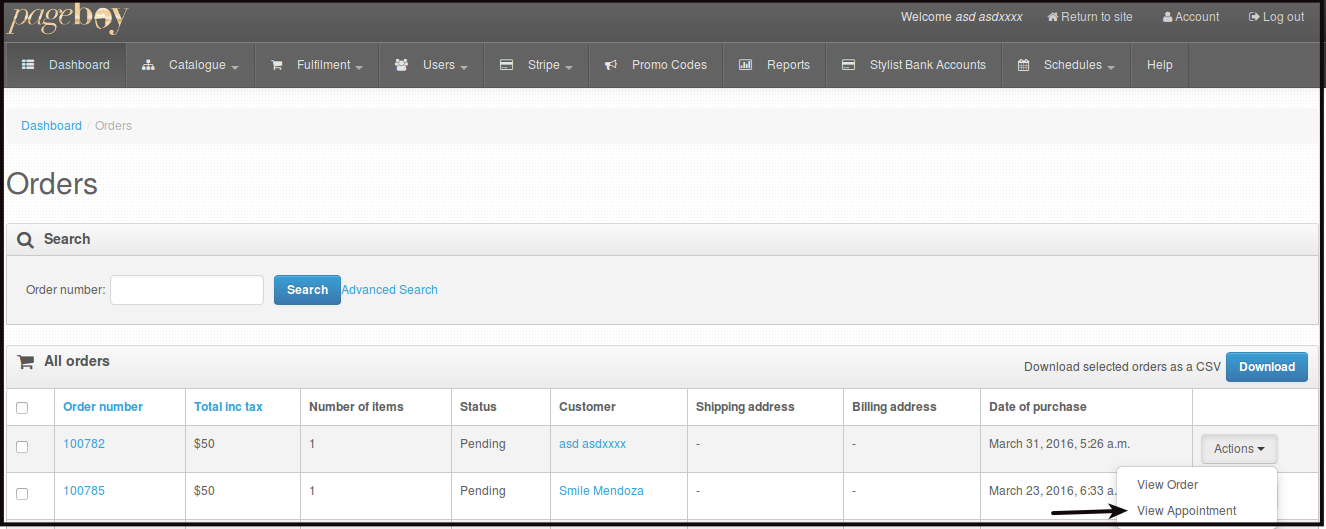
Then you will be directed to this page.
-
Click Actions beside the order number you want to check the appointment.
-
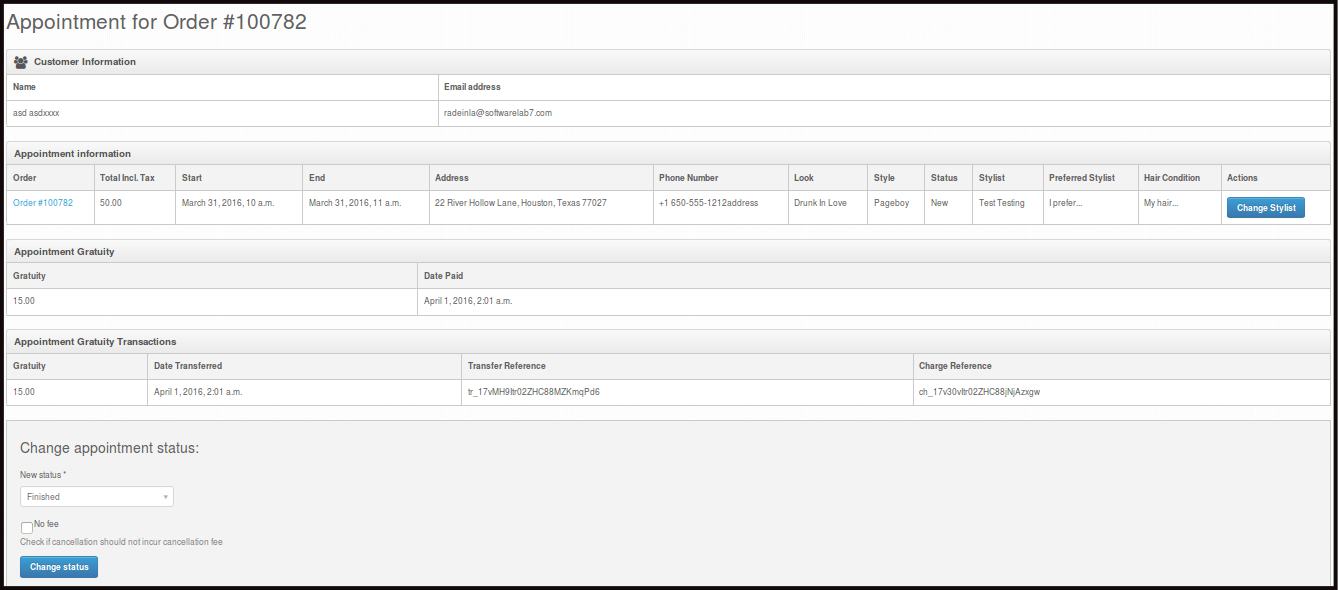
You will see the appointment details of the order.
-
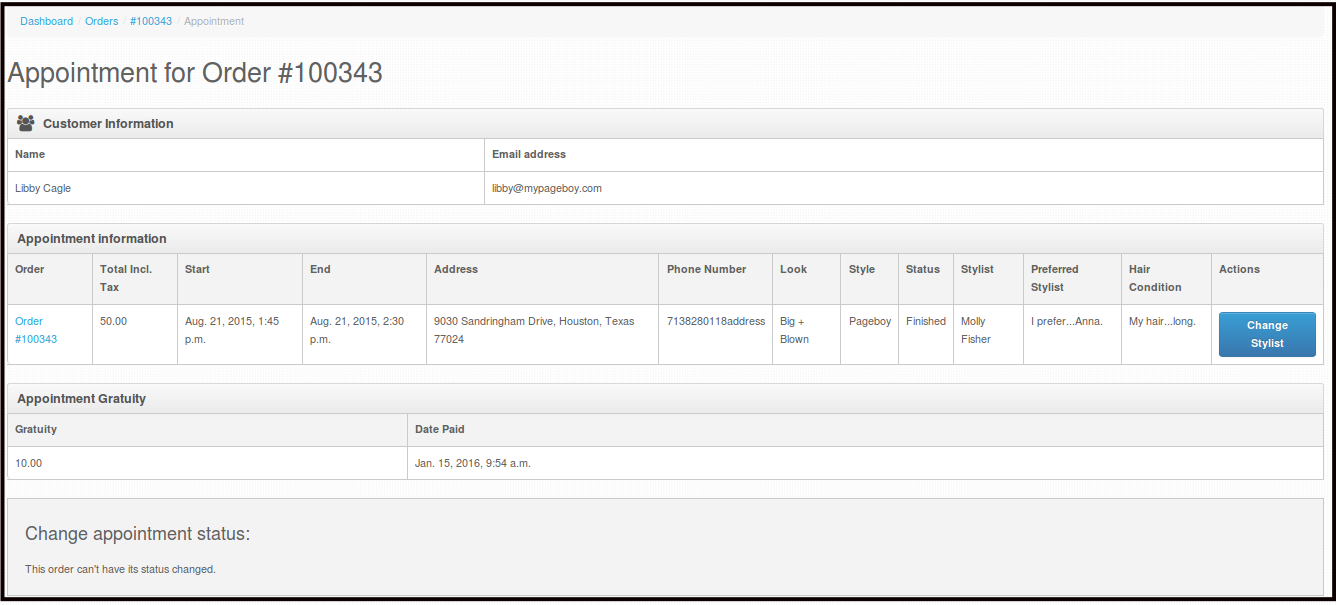
You will see Customer information, Appointment information wherein you can see the order number (Order), the total payment made by the customer (Total Incl Tax), the date it was ordered to be done (Start and End time), Address where the appointment is or will be done, Phone number of the customer, look or service/product that was ordered, stylist who cattered the service or product, preferred stylist of the customer and the hair condition according to the customer.
-
Appointment Gratuity is the amount transfered to the stylist who tend the order/service/product.
-
Appointment Gratuity Transactions is when it was paid to the stylist.
-
Change appointment status is where you can change the appointment status, please note that after an hour that the whole appointment time is done, the appointment status will be automatically changed by the system to Finished.
-
-
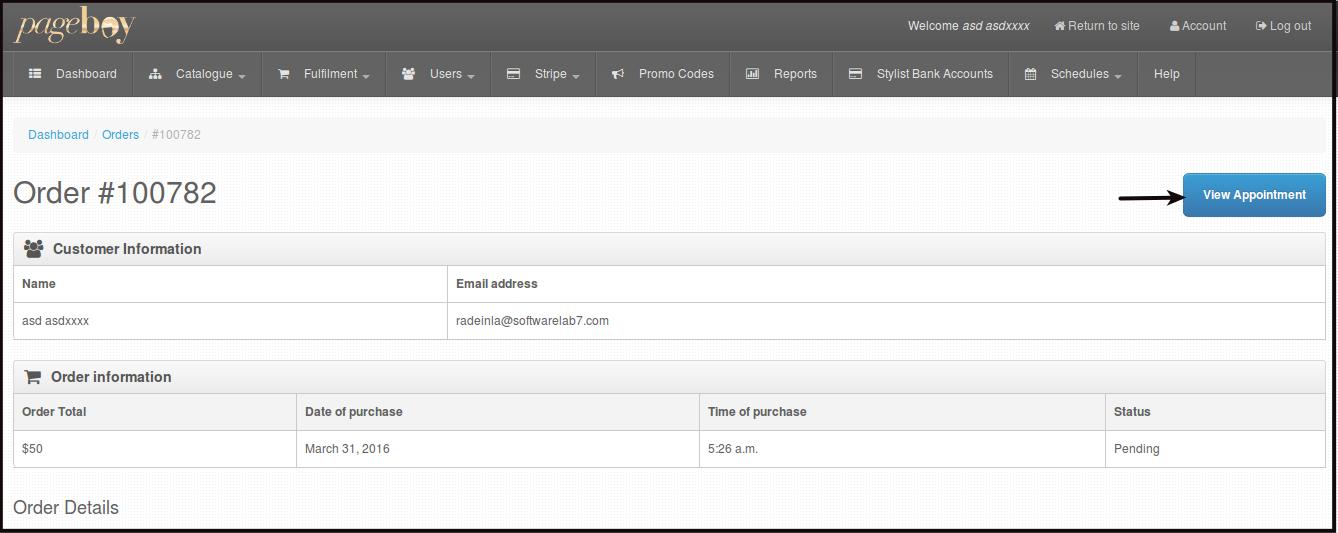
Other way to view appointment is to follow How to View Order Details of Specific Order then click View Appointment.
How to View All Appointments
-
First, log in using your Admin credentials.
-
Click Fulfillment.
-
Click Appointments.
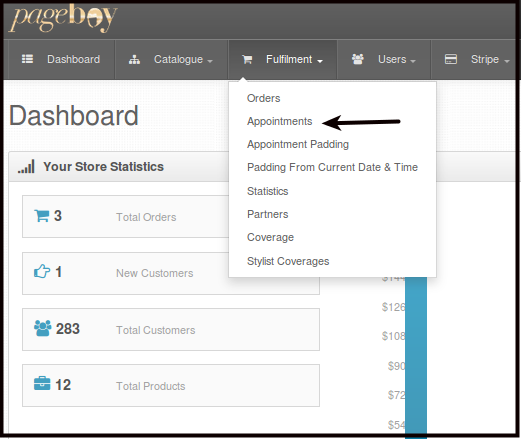
Then you will be directed to this page.
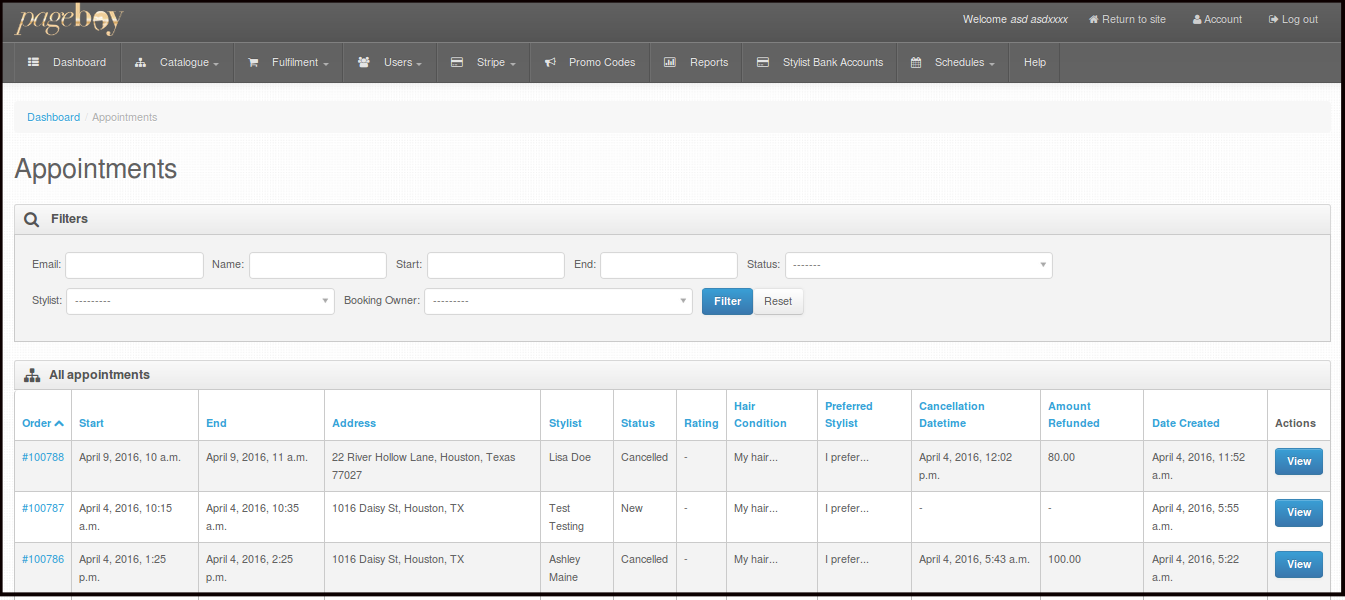
Here you will see the following:
-
Order number -This is a numbering system on how many orders are made.
-
Start Time and End time - This is the Start and End time of the appointment.
-
Address - This is the address where the service/product will be served.
-
Attending Stylist - Name of the attending Stylist.
-
Ratings - Survey Ratings for the attending Stylist.
-
Preferred Stylist - A note from the customer who he/she wants to be his/her stylist.
-
Cancellation Datetime - The time when the customer cancelled his/her appointment, if the appointment got cancelled.
-
Amount Refunded - The amount being brought back to the customer's bank account if the appointment was cancelled before 3hrs and Date Ordered.
-
-
Click View beside the order number to be able to see the specific schedule of an order.
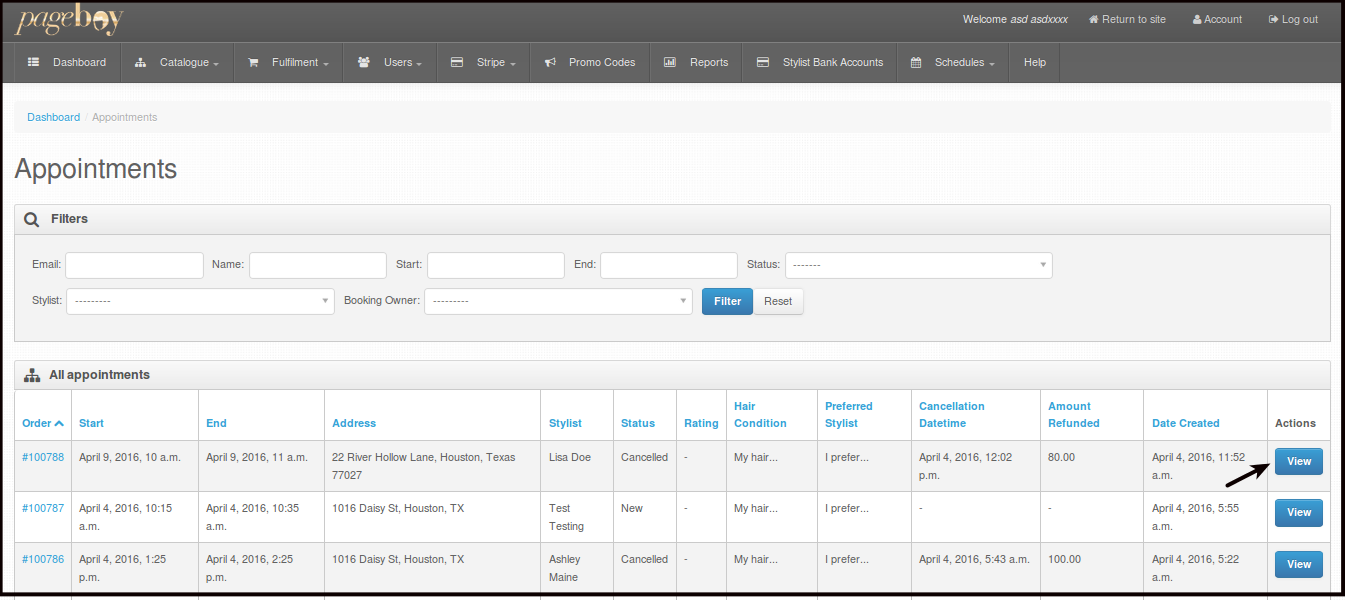
You will be directed to this page.
Appointment Status of an Order
There are 2 Status for an appointment of an order or service or product.
-
Finished - if the order was done or finished by the stylist.
-
Cancelled - if the customer cancelled the appointment via Pageboy app or if they call in to cancel the appointment. There are 2 types of appointment cancellation.
-
Cancellation before 3hrs of the appointment time and date - This will have no cost and will have full refund.
-
Cancellation of appointment within 3 hrs or less of the appointment time and date, this will be charged 100% of the whole service/product.
-
How to Cancel an Appointment via Web
-
First, log in using your Admin credentials.
-
Click Fulfillment.
-
Click Orders.
Then you will be directed to this page.
-
Click Actions beside the order number you want to check the appointment.
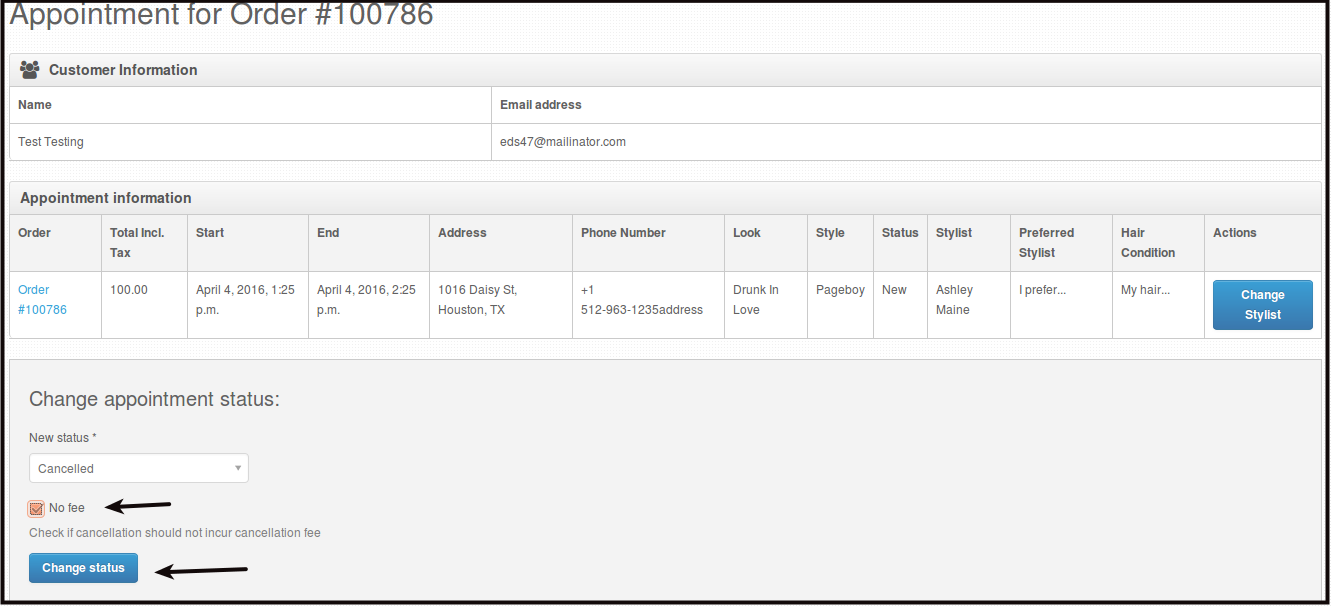
You will be directed to this page.
-
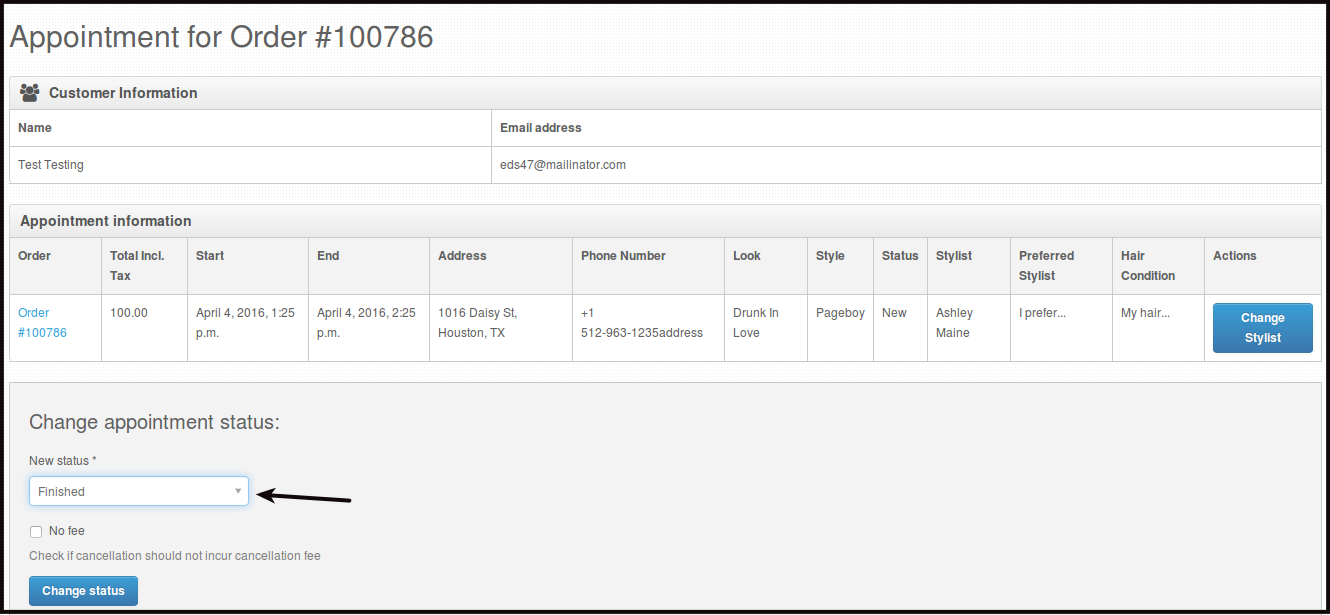
Click New Status, select Cancelled this way you can cancel the appointment.
Please let the customer calling in to be aware of our cancellation policy.
-
Cancellation before 3hrs of the appointment time and date - This will have no cost and will have full refund.
-
Cancellation of appointment within 3 hours or less of the appointment time and date, this will be charged 100% of the whole service/product.
If the customer calls in and cancels the appointment 3 hours or more before the appointment time and date, Click the check box No Fee. If the customer calls in less than 3hrs before the appointment time and date, Do Not check the check box No Fee.

- Always inform our customer about our cancellation policy and ask them if they really want to cancel before cancelling the appointment.
-
-
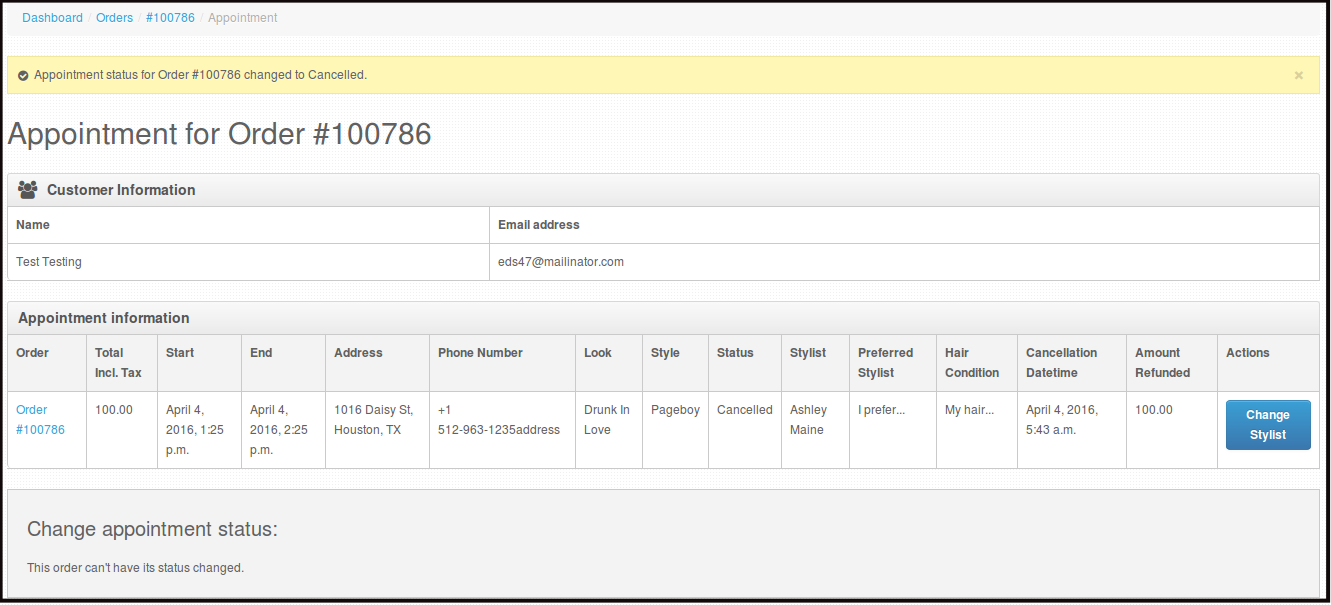
Click Change Status to confirm the cancellation of appointment. You will see a confirmation like the image below.
How to Change Attending Stylist of a Certain Appointment
-
Stylist of each order are randomly selected by the system. Sometimes we have customers who are requesting for a certain stylist or when our stylist have some emergency we will need to change the stylist attending to a certain appointment. Here is how to change attending stylist.
-
First, log in using your Admin credentials.
-
Click Fulfillment.
-
Click Orders.
Then you will be directed to this page.
-
Click Actions beside the order number you want to check the appointment.
-
Click Change Stylist.
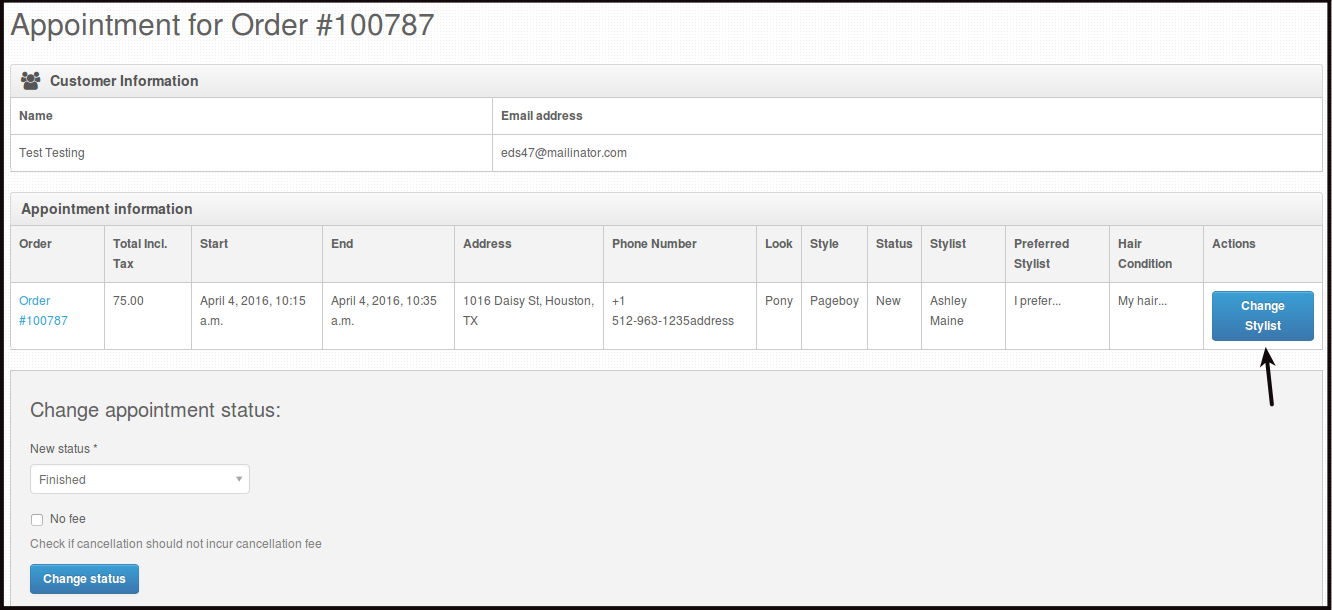
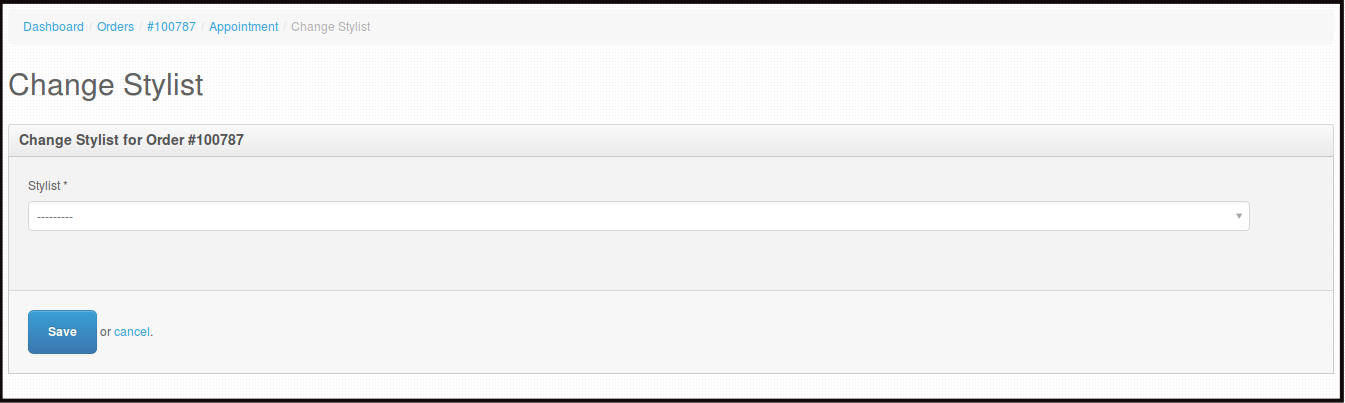
You will be directed to this page.
-
Click Stylist. You will see a drop down of all the stylist available for that time and date.
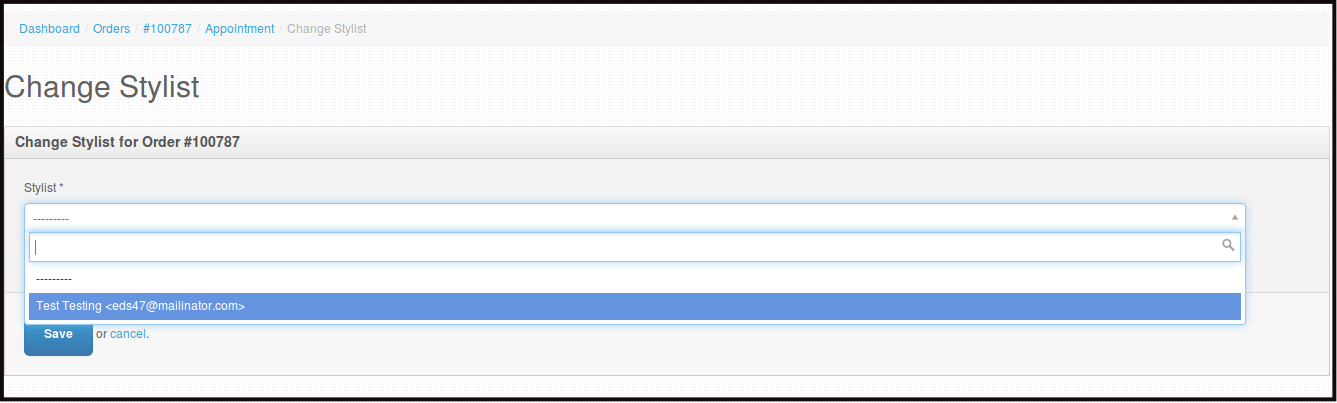
Note: The list of names you will see on this dropdown, are the stylists who don't have any appointment at that date and time of the order. If there are none, it just means that all stylist have an appointment at that time.
-
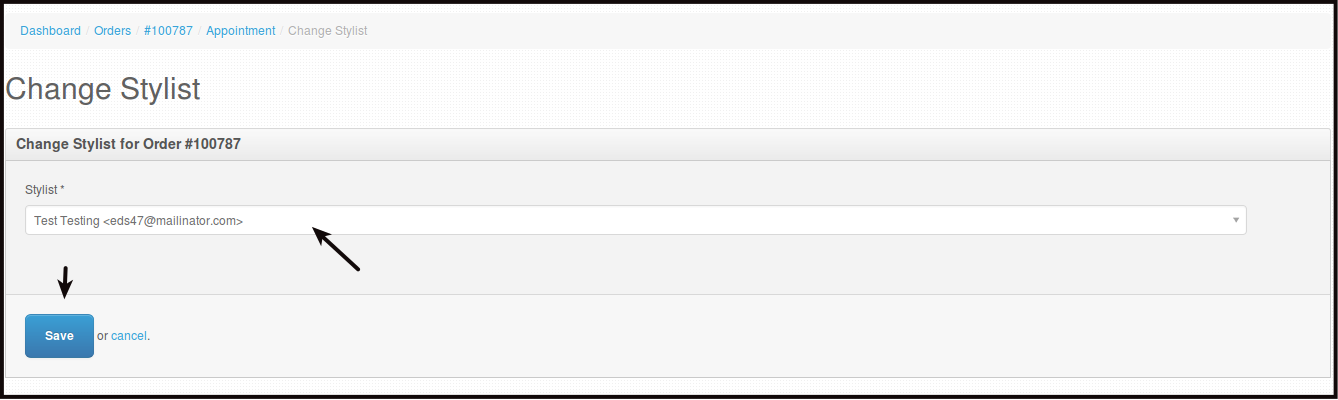
Click the name of stylist, then click Save to change the stylist.
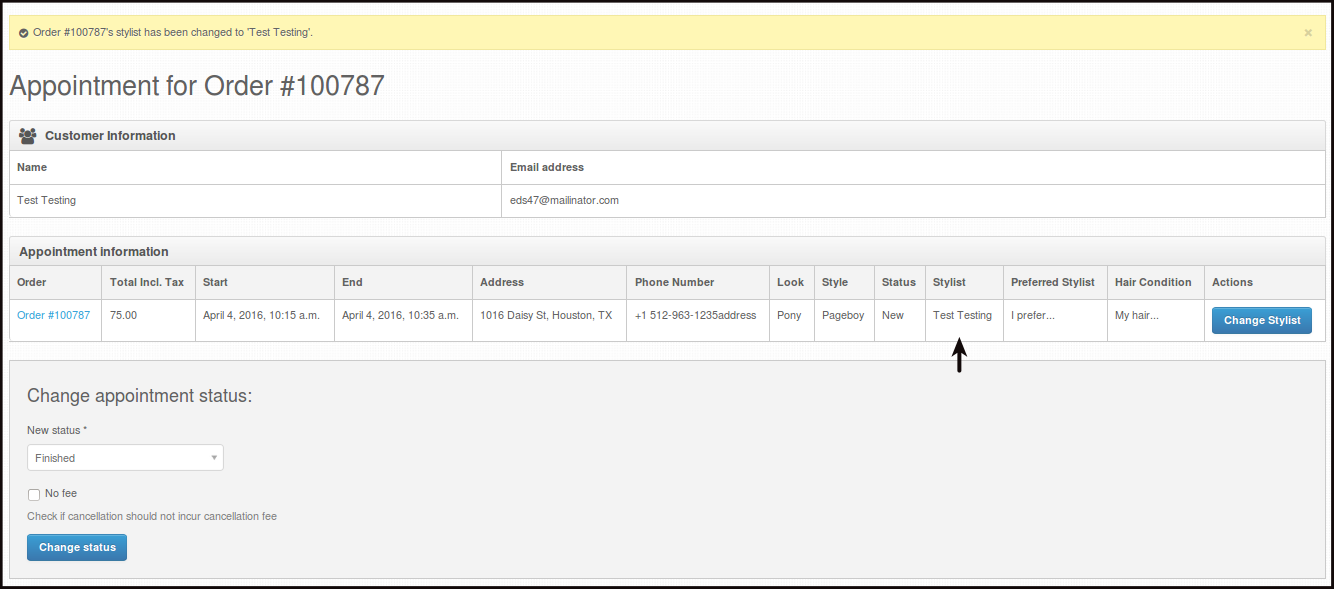
You will see a confirmation that the stylist was changed. From Ashley Maine to Test Testing.
-