Time Padding
There are 2 types of time padding that we have on this system.
-
Appointment Padding - This is the time interval for booking appointments. It is normally set in minutes and used for booking time interval from one Booking schedule to the next booking schedule.
- Example: Appointment padding is set to 15 minutes. The booking times will start at 7am-8am, the next booking schedule will be 8:15am to 9:15am, the next one will be 9:30am to 10:30am and so on and so forth.
- Example: Appointment padding is set to 15 minutes. The booking times will start at 7am-8am, the next booking schedule will be 8:15am to 9:15am, the next one will be 9:30am to 10:30am and so on and so forth.
-
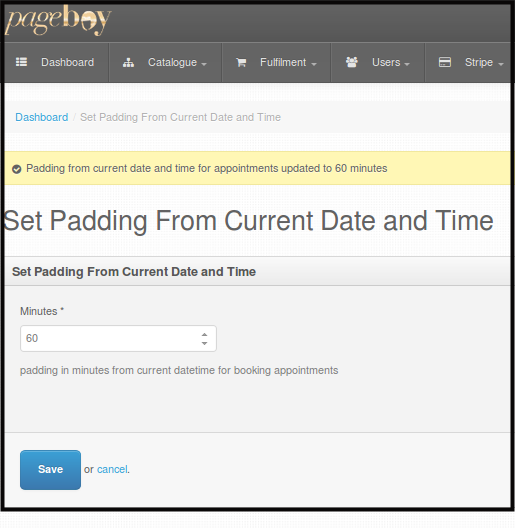
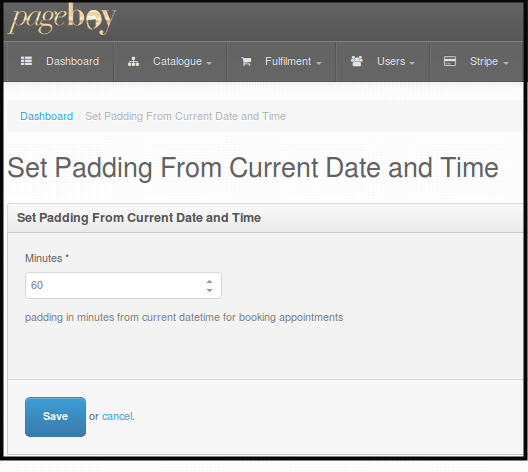
Set Padding From Current Date and Time - This is the time interval for a user before he/she would be able to book an appointment from the current time. It is normally set in minutes.
- Example: The time as of now is 7am and you are using your Pageboy App, if the Set Padding From Current Date and Time is 60 minutes, you can only book 8am schedules onward.
- Example: The time as of now is 7am and you are using your Pageboy App, if the Set Padding From Current Date and Time is 60 minutes, you can only book 8am schedules onward.
How to Set Appointment Padding
-
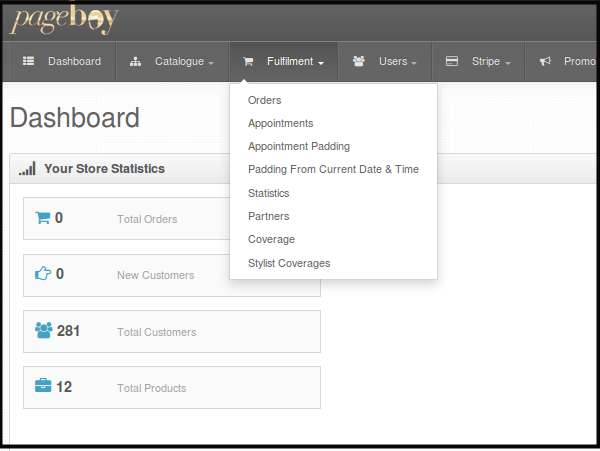
Click Fulfillment.
-
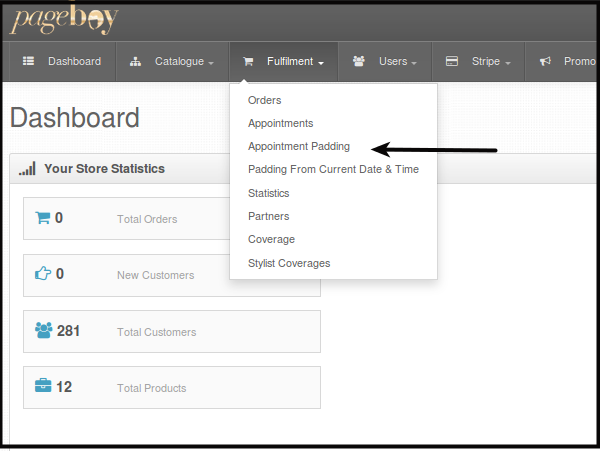
Click Appointment Padding.
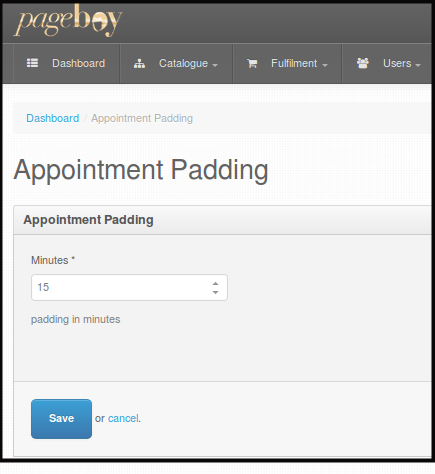
You will be directed to this page.
-
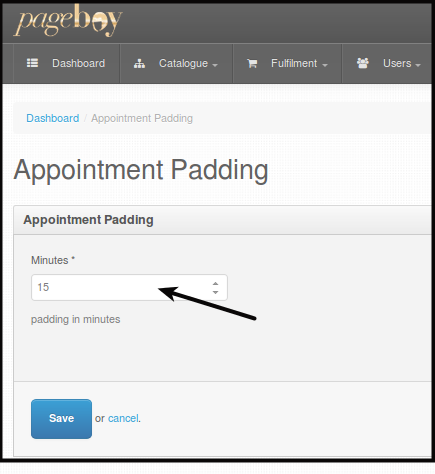
Set the time interval or padding you want to set per booking by entering the number of minutes the padding will be.
-
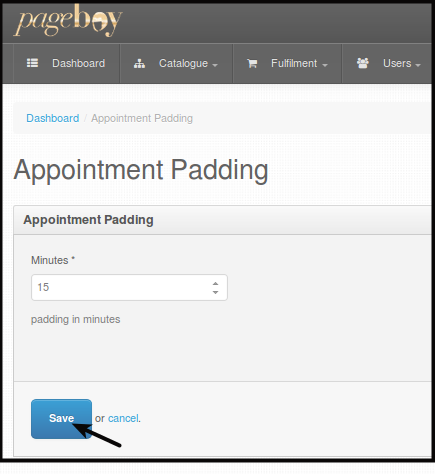
Click Save. This will save the time padding interval per booking.
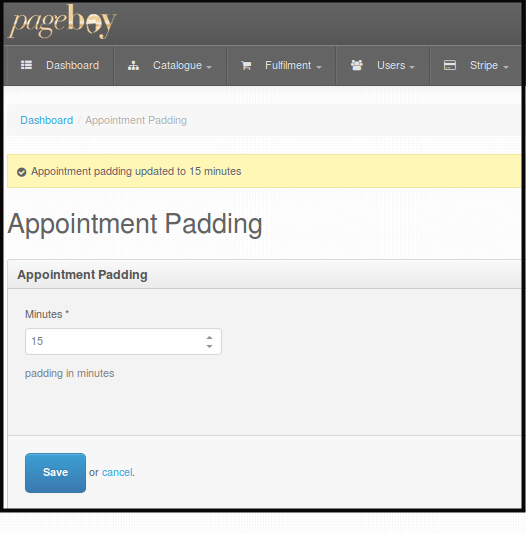
You will see a confirmation message that the time padding or interval was saved.
How to Set Padding From Current Date and Time
-
Click Fulfillment.
-
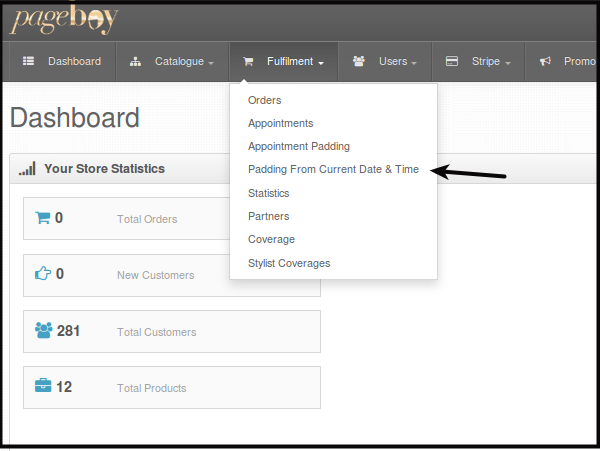
Click Set Padding From Current Date and Time.
You will be directed to this page.
-
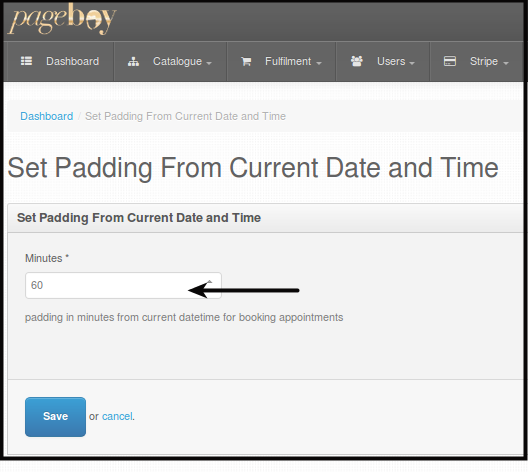
Set the time interval or padding you want to set before the a user can book a schedule from the current date and time by entering the number of minutes the padding will be.
-
Click Save. This will save the time padding interval per booking.
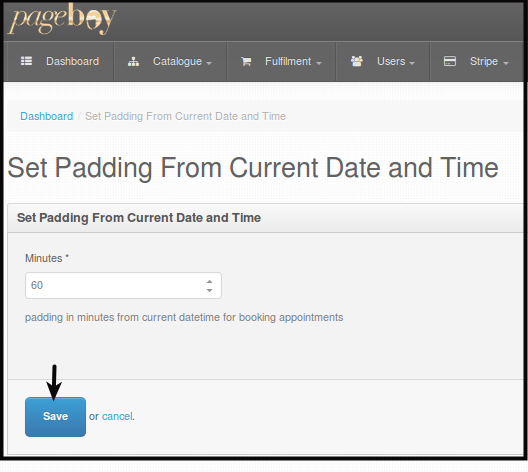
You will see a confirmation message that the time padding or interval was saved.