All about Stylist Management
-
Partners - These are the stylists.
-
Stylist Coverages - These are the coverage set by the stylist, how far they can go to cater the service needed in radius.
-
Stylist Schedules - These are the booked schedules of the stylist for the day, week or month.
-
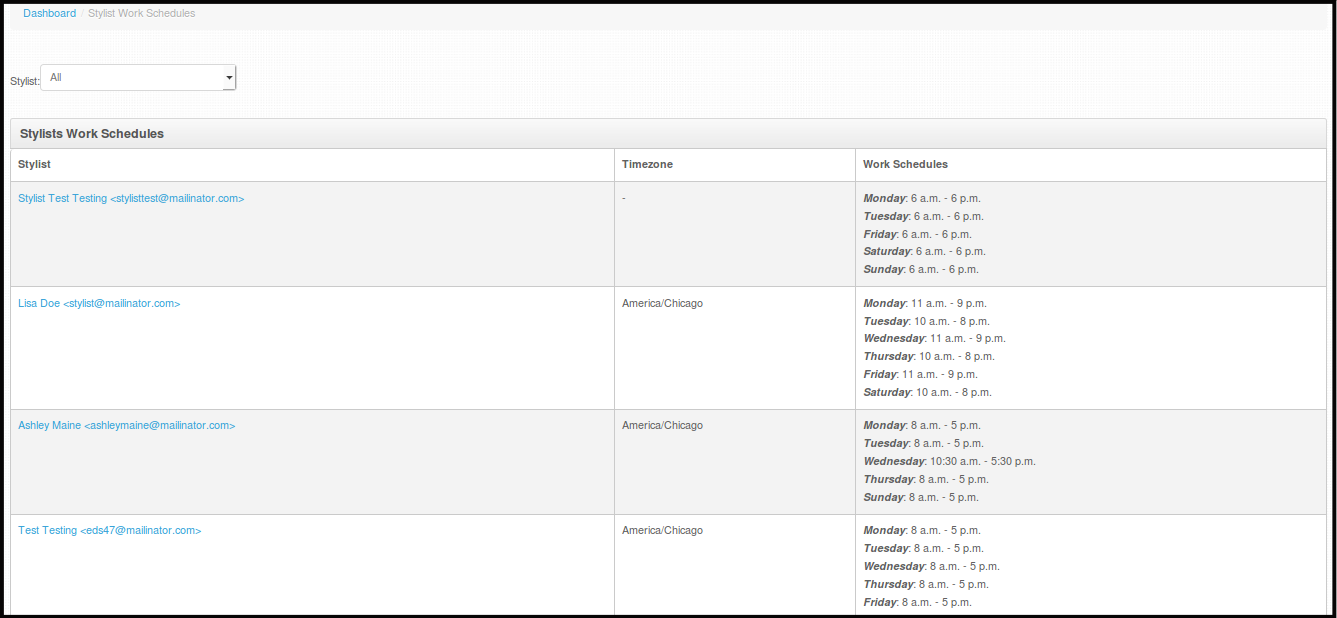
Stylist Work Schedules - These are the schedules set by the stylist on their Pageboy App.
-
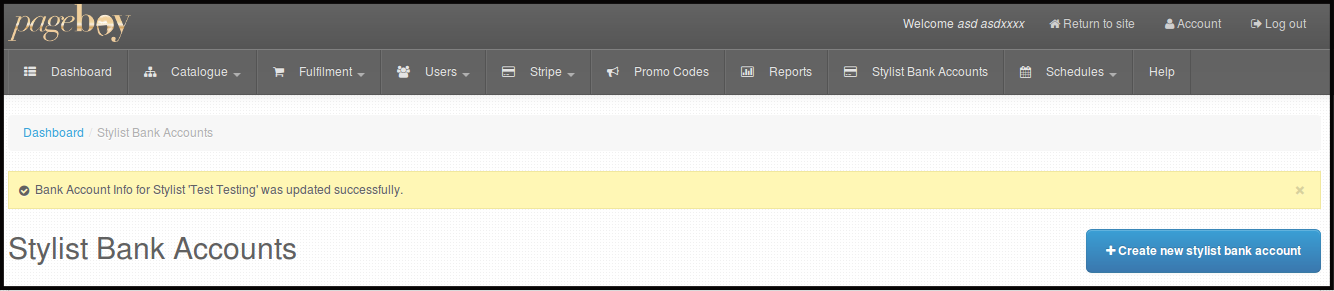
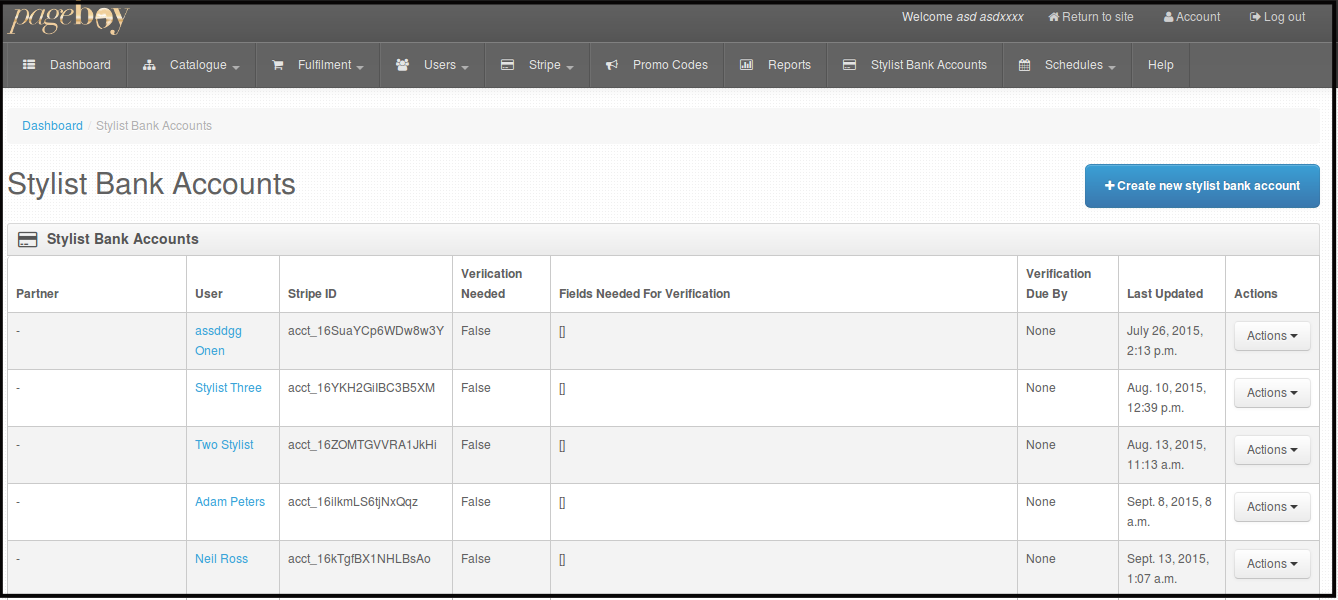
Stylist Bank Accounts - This is set by the stylist on their Pageboy app. This is where they are going to be paid.
Partners or Stylists
-
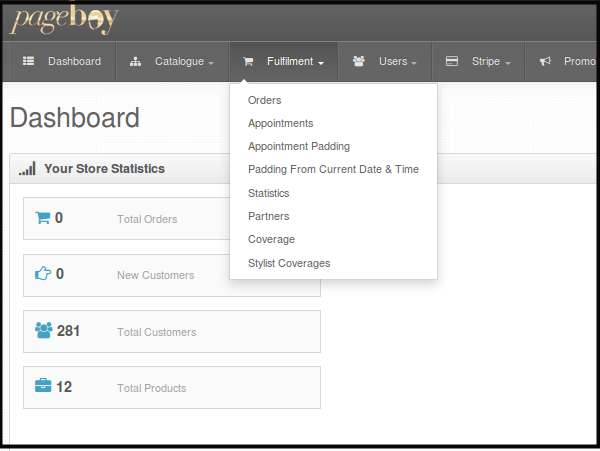
Click Fulfillment.
-
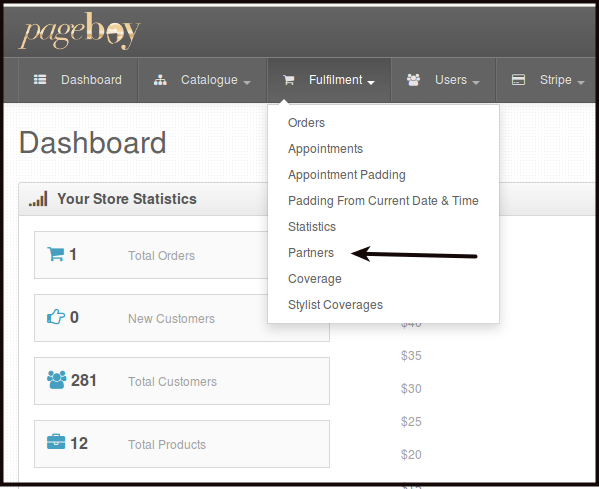
Click Partners.
You will be directed to this page, wherein you will see all the active stylist on Pageboy App.
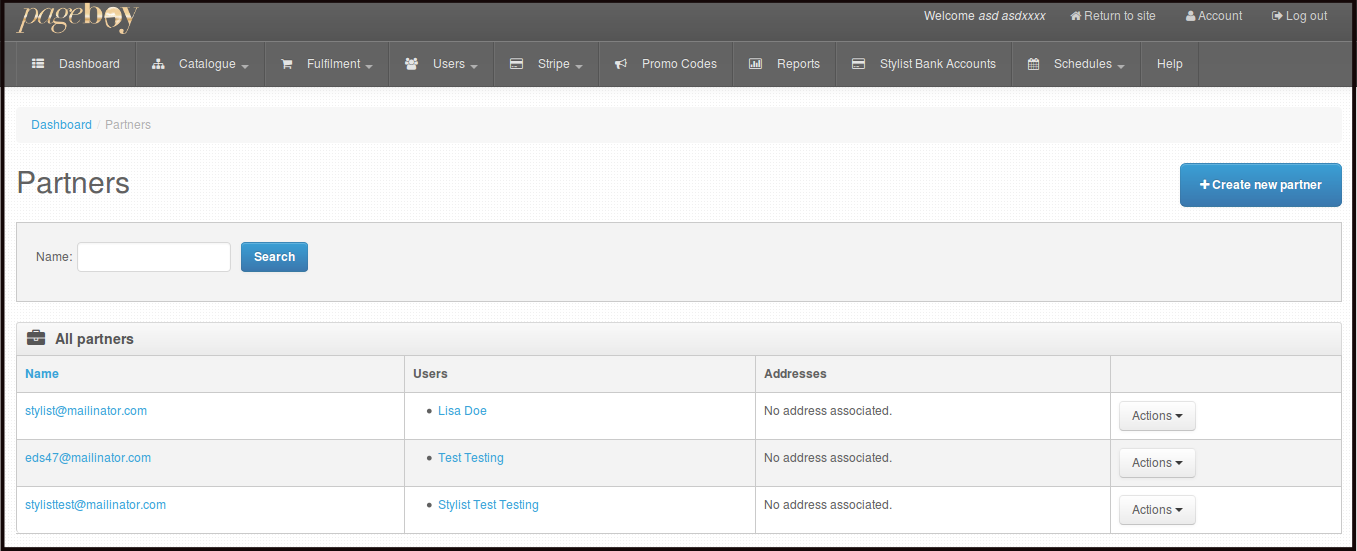
Note: Stylist accounts are registered via Pageboy app. See Register As Stylist
Set Stylist Account As Reviewed
-
Click Users.

-
Click Users.

You will be directed to this page, where you will see all users on the system.
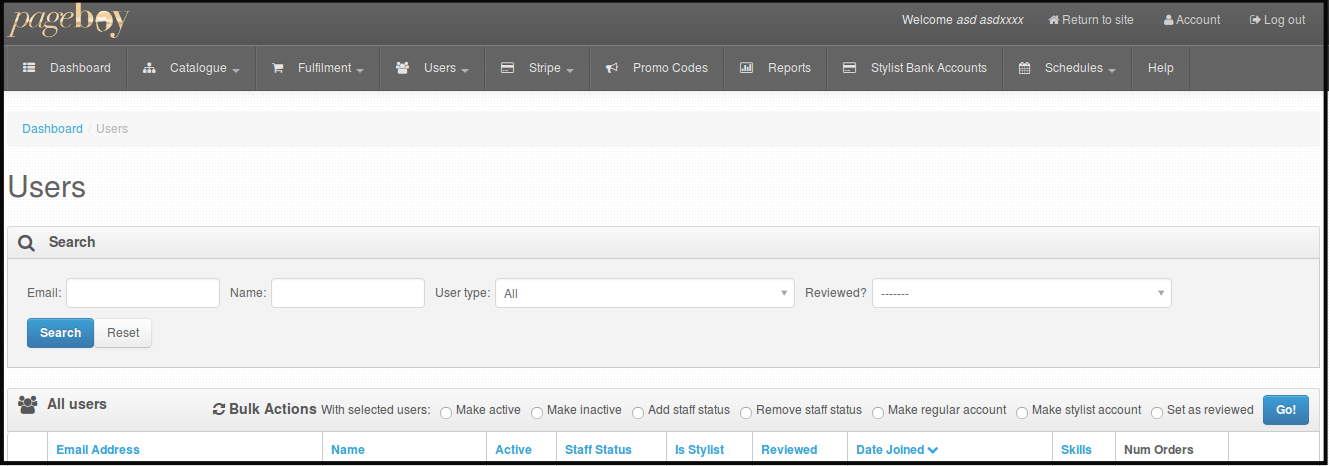
-
Click Check box beside the email address of the user you want to change Status or User Type or both.
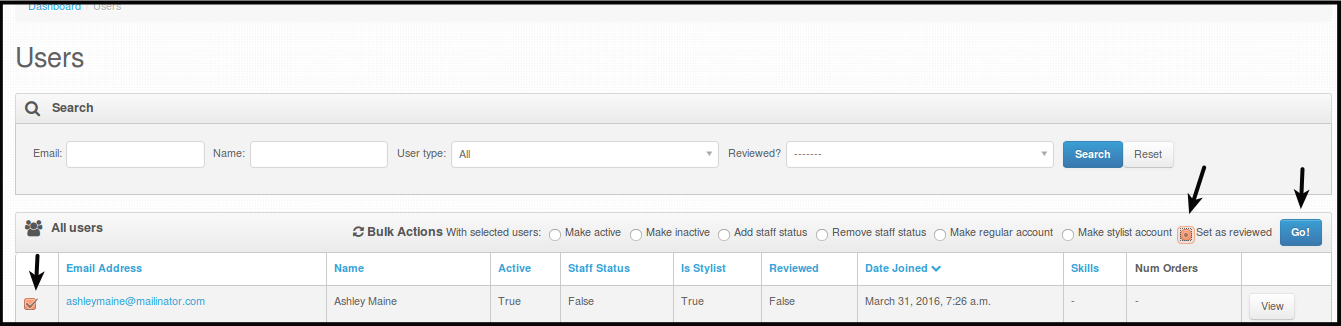
-
Click Go to set the account as reviewed.
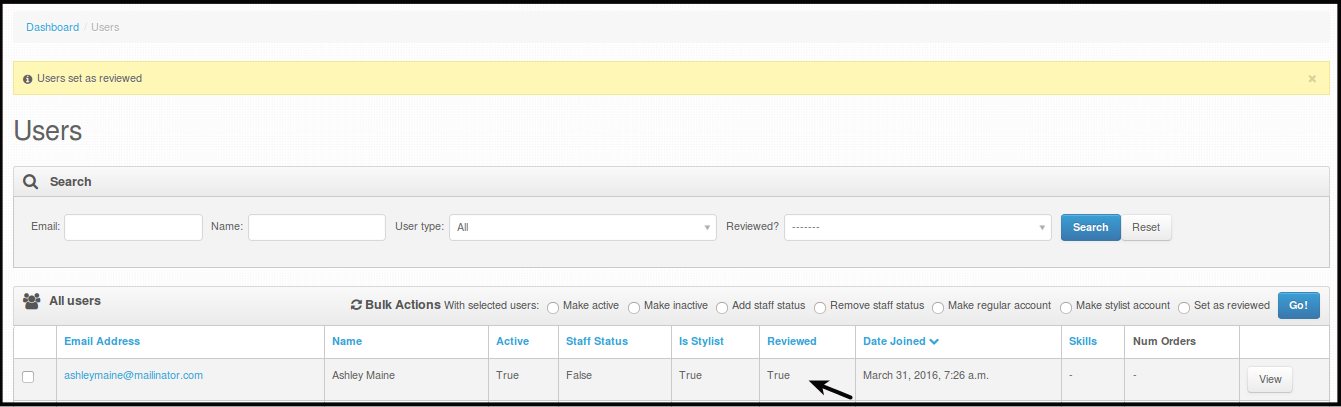
You will be directed to the same page but look at the account review status, it will be set to review.
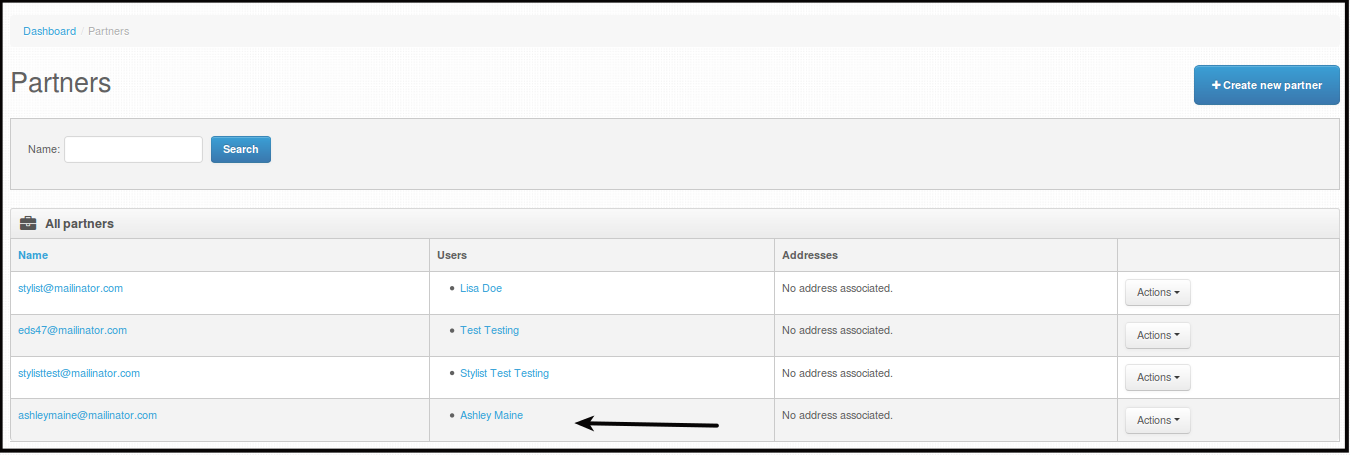
To check if everything is up and working for the stylist, go to Partners. You should see the name of the person you have Set as Reviewed. Meaning you have confirmed that, that person is one of your stylist.
How to Check Stylist Coverage
-
Click Fulfillment.
-
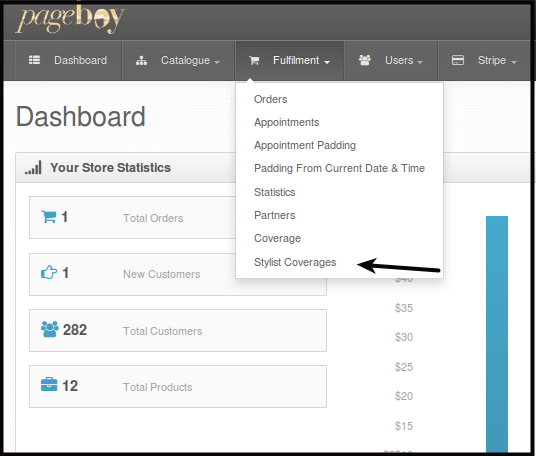
Click Stylist Coverages.
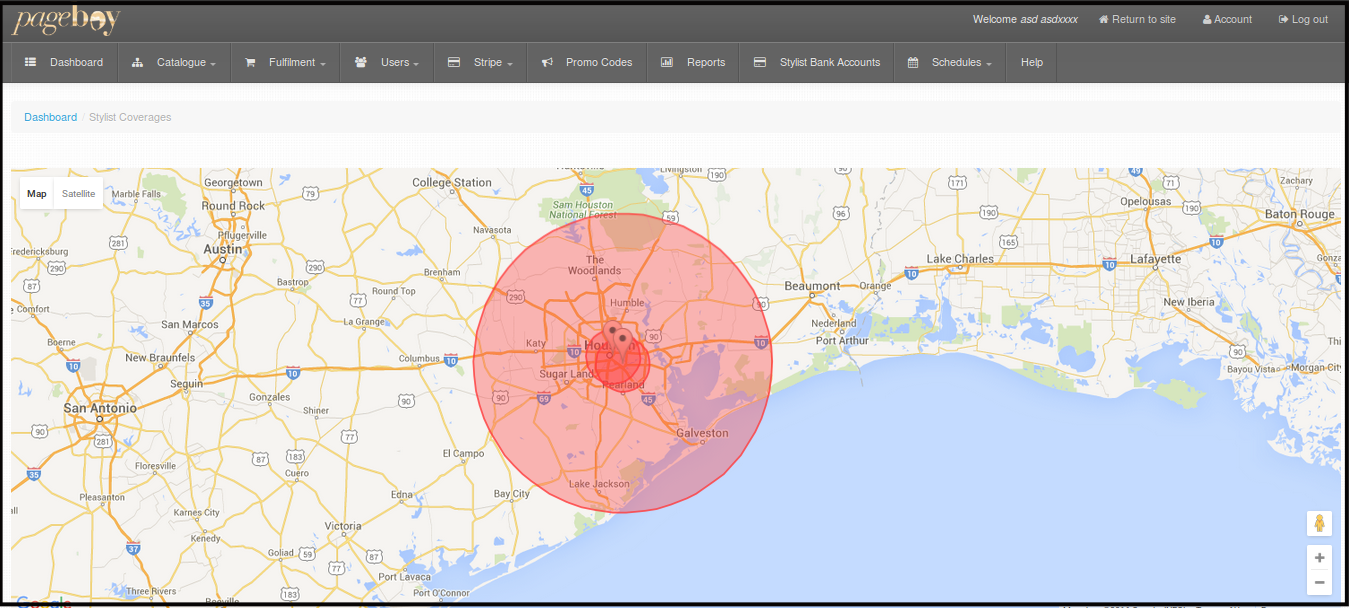
You will be directed to this page, wherein you can see a map and the radius of coverage of each of your stylist.
-
The red circles are your stylist coverage, now if the addresses of your stylist are near each other, they might overlapped. If that is the case, you may zoom in to see all the stylist coverage by scrolling your mouse forward or clicking + sign on the lower right corner of your screen.
These two addresses are near each other reason why they overlapped. We zoomed in so we can see each icon individually.
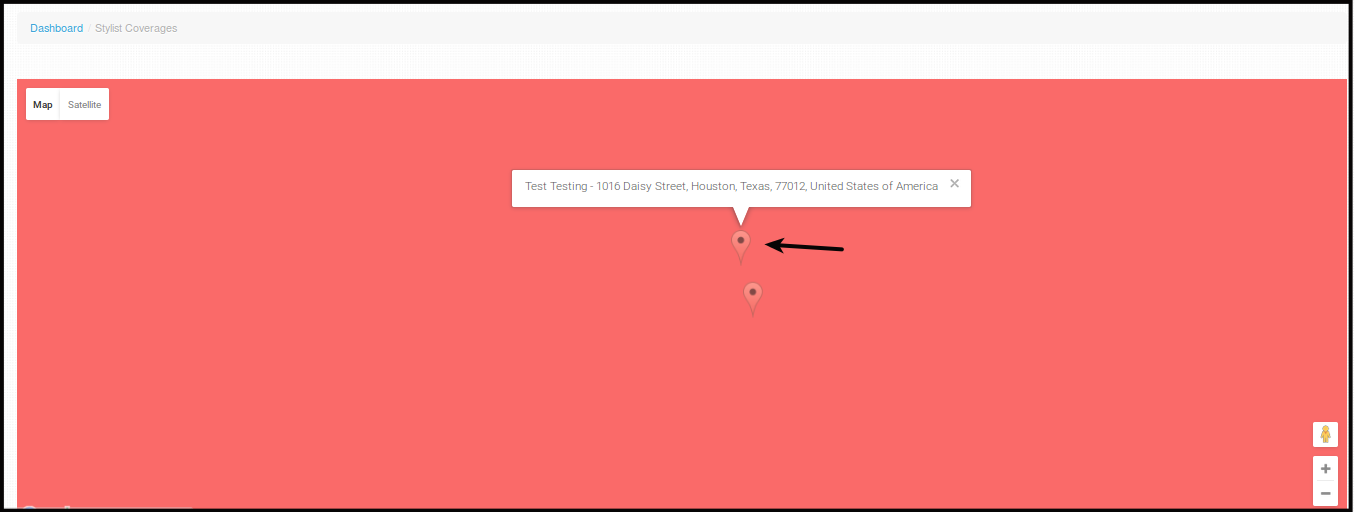
Click the Icon for you to be able to see the address and username of the stylist.
-
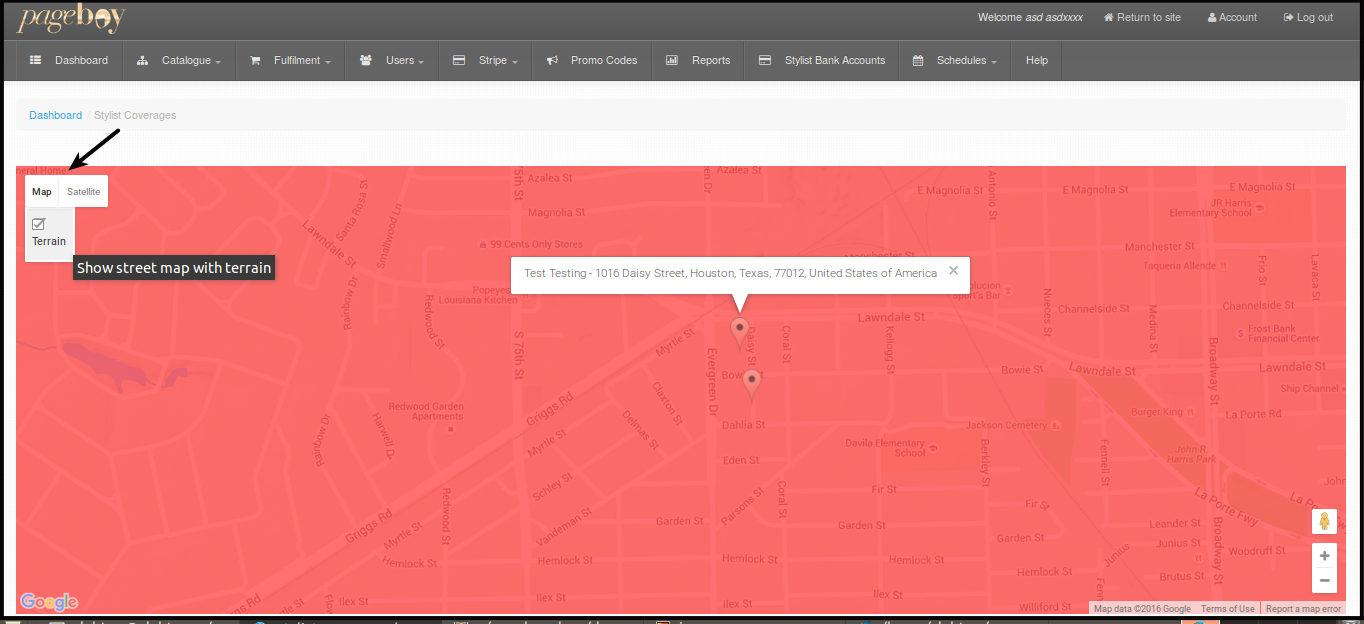
As we can see, we can only see red picture with icons since we have zoomed in to the red picture, now to be able to see the streets. Click Map. Then click Terrain. Then you will see the streets.
How to View Stylist Schedules
-
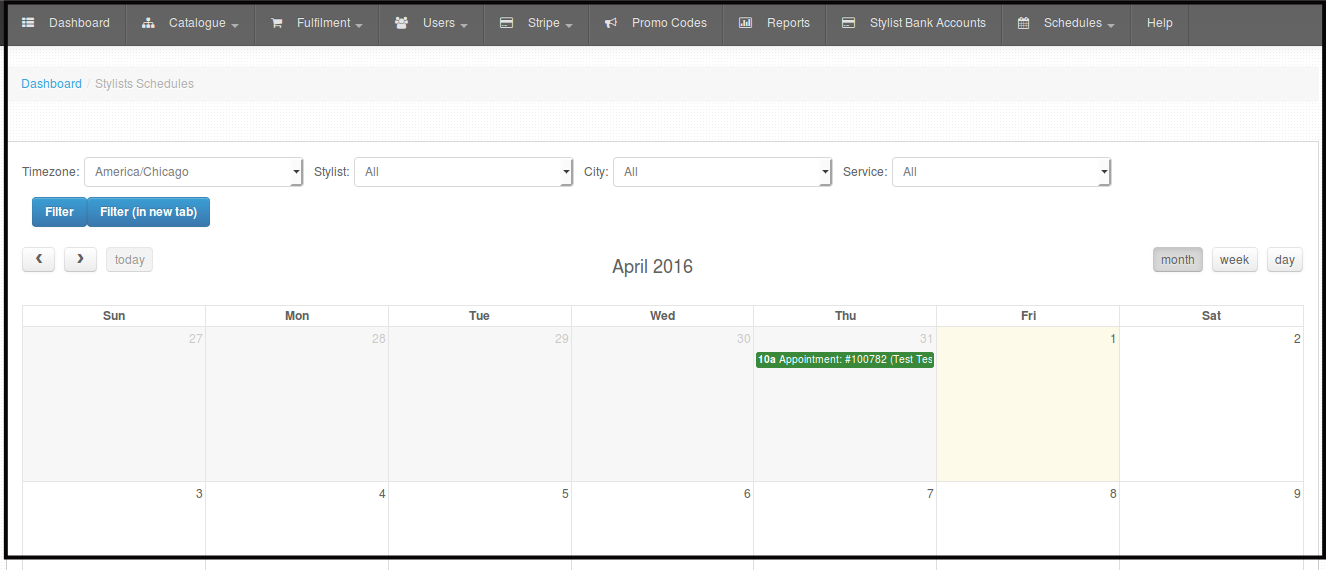
When a stylist is booked for a job, it will generate a schedule that we can see on the web using admin/staff access. Here is how to view the booked schedules.
-
Click Schedules.

-
Click Stylist Schedules.

You will be directed to this page.
-
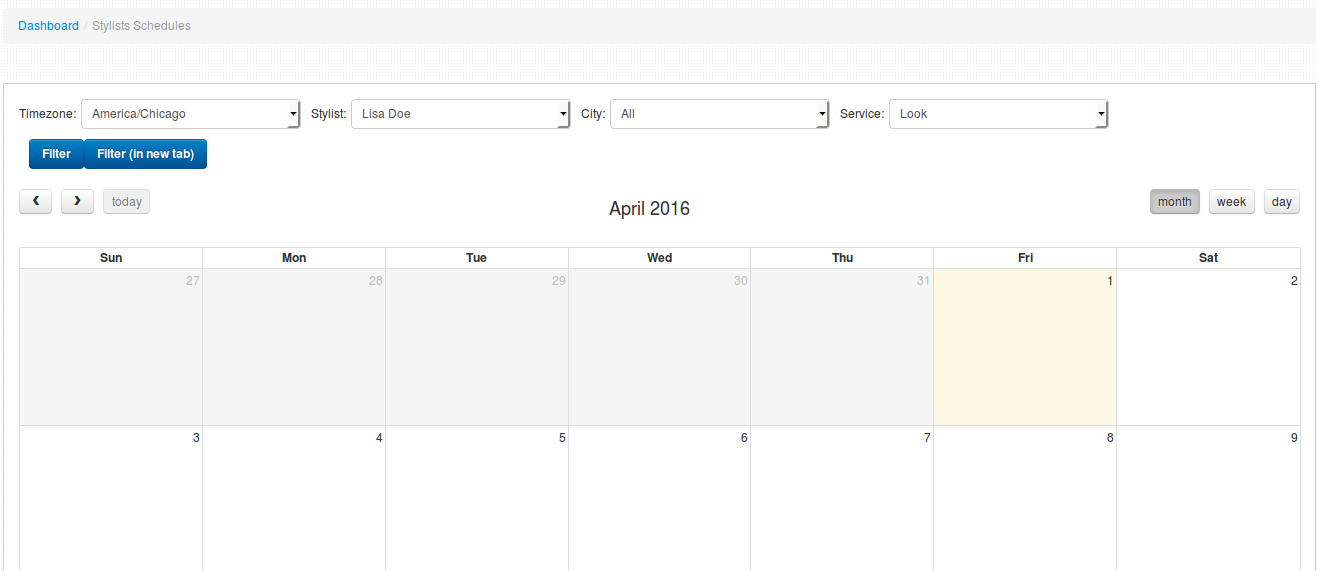
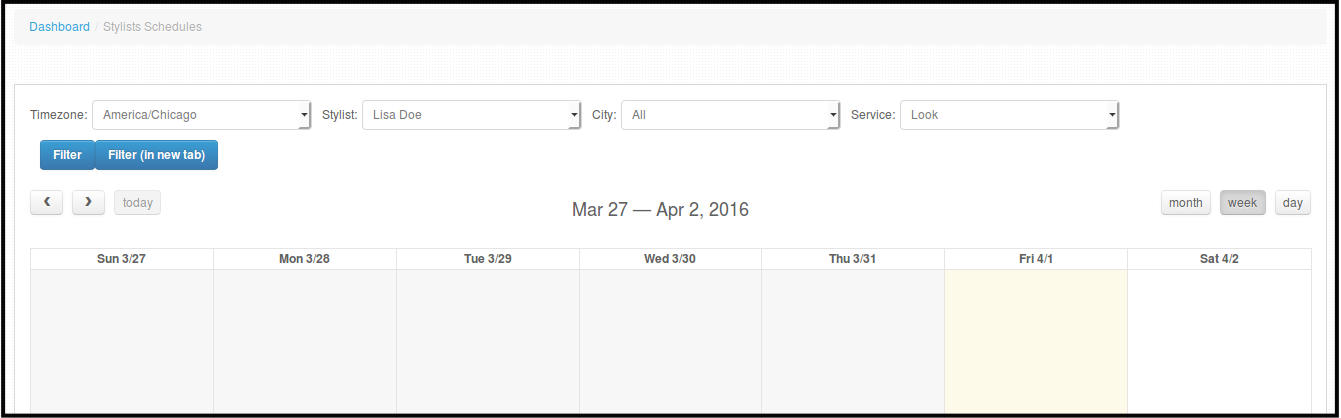
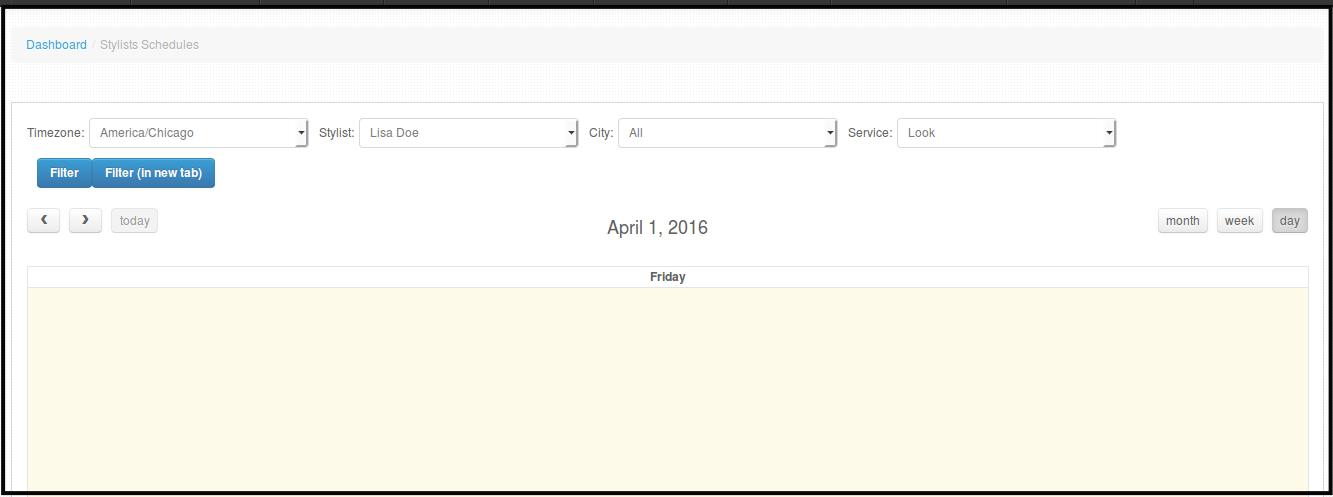
From here you can filter the name of the Stylist you want to check schedules for the month, week or day. You can also filter this via city and or service. Just click Filter to be able to see the page you want to see.
How to see Stylist Work Schedules
-
Stylist Work Schedules are made by stylists on their IOS app. As admins/Staff we can also see their schedule via this web.
-
Click Schedules.
-
Click Stylist Work Schedules.

You will be directed to this page wherein you will see the schedules of all of your stylists.
Stylist Bank Account
-
Stylist Bank accounts are normally created using Pageboy App. On the web we can see if the stylist updated their account using Pageboy app or not yet. Their name will appear on the screen.
-
See Setting up your Stylist Account via App for more details how to create one.
How to Update Stylist Bank Account via Web
-
Click Stylist Bank Account.

You will be directed to this page.
-
Click Actions.

-
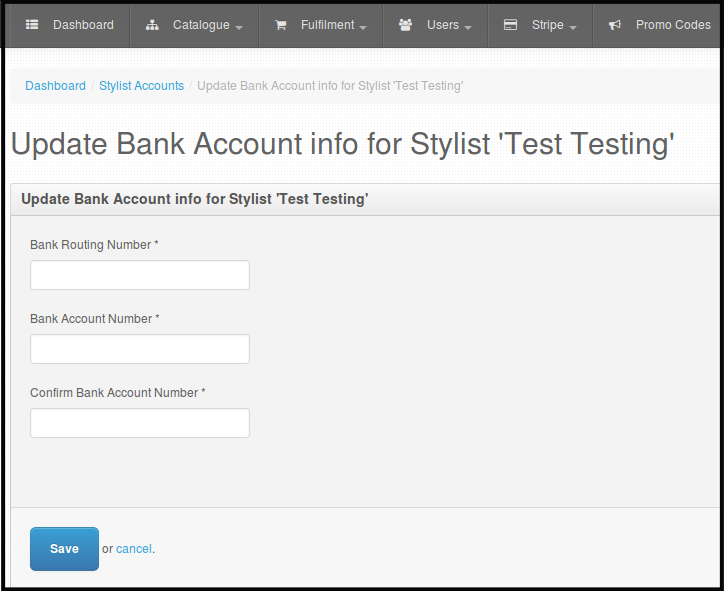
Click Update Bank Account.

You will be directed to this page.
-
Fill out the form with the new bank account the stylist have, then click Save.
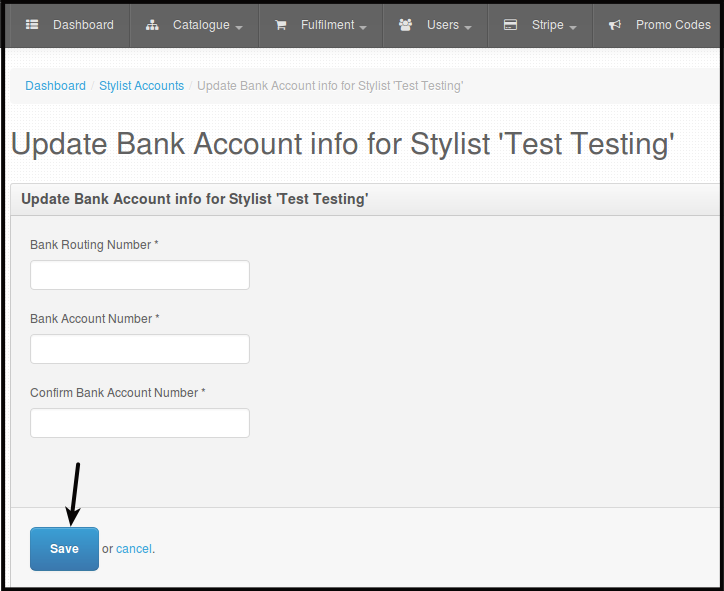
Confirmation will be seen.