Reports
-
There are different types of report that can be generated from the system.
-
Appointment Set - This report is where you will see all the orders made on the app with their details, from the time duration you have put in on the Date From to Date to.
-
User Purchases - This report is where you will see the customer's name, contact number, email, purchased product (Finished or Newly ordered but not cancelled.), and total spent of the customer with gratuity, from the time duration you have put in on the Date From to Date to.
-
Looks and Appointment Counts - This report is where you will see all the products/services on the system and how many orders was placed on each products, categorized if the appointment is cancelled or finished/new, from the time duration you have put in on the Date From to Date to.
-
Ordered Placed - This report is where you will see all orders made on the app with their details; regardless if the order was cancelled finished or new; from the time duration you have put in on Date From to Date to.
-
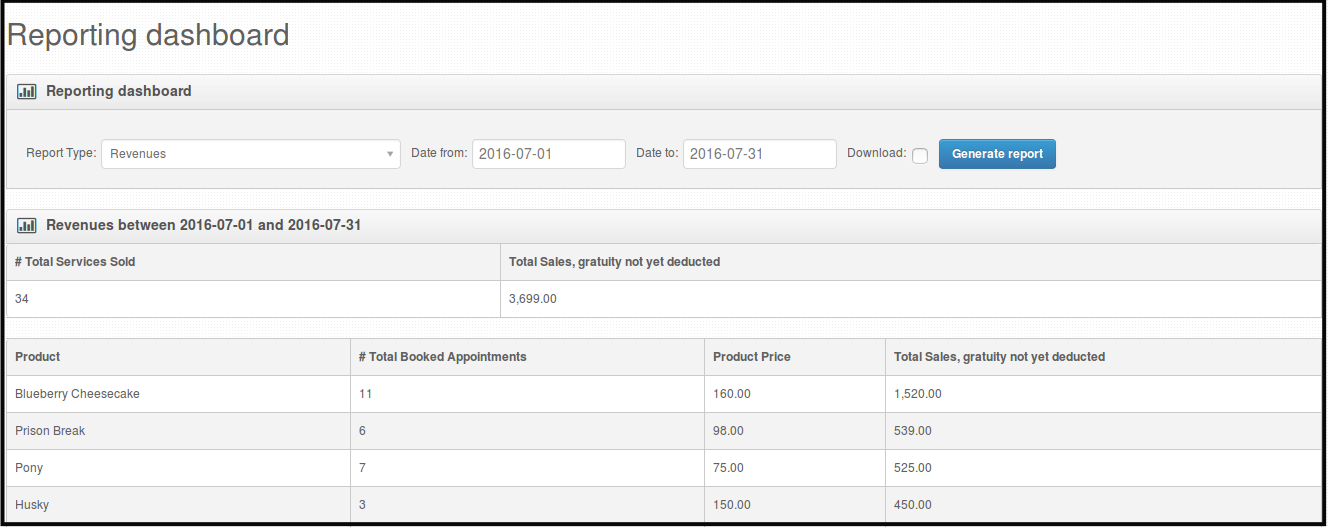
Revenues - This report is where you will see the total service sold per product and the total services sold overall, from the time duration you have put in on Date From to Date to.
-
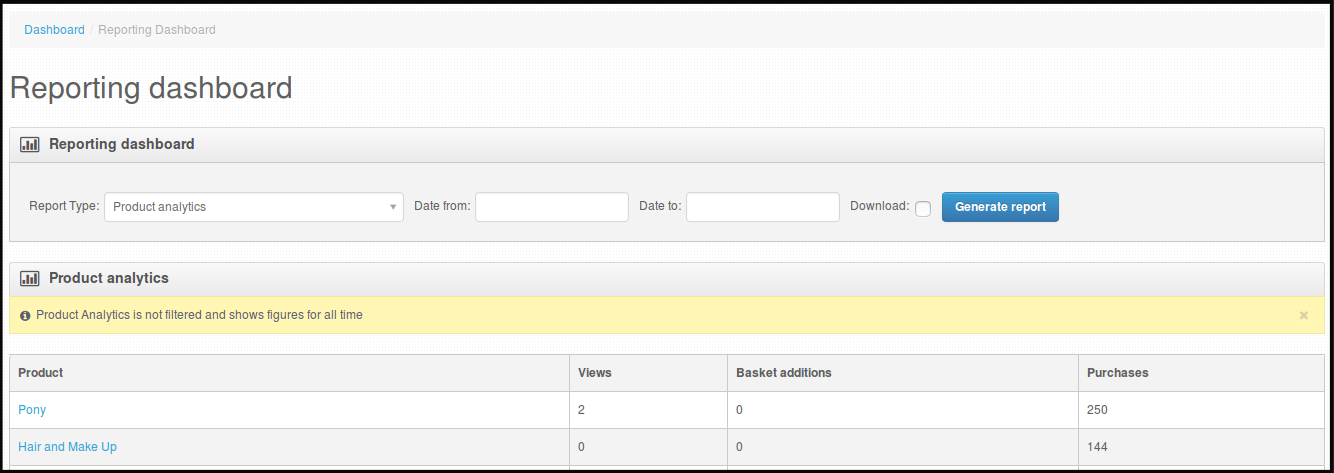
Product Analytics - This report is where you will see all the products, how many times they are viewed and how many times they are ordered, from the start the App is up to the time present. this report is not filtered by dates. This report is very useful to see what product sells most.
-
User Analytics - This report is where you will see all the users, date of registration, product views and their purchase made on the app, from the start the App is up to the time present. this report is not filtered by dates.
-
Open Baskets - This report is where you will see all the open baskets or orders from your app, from the time duration you have put in on Date From to Date to.
-
Submitted Baskets - This report is where you will see all the submitted baskets or orders from your app, from the time duration you have put in on Date From to Date to.
-
Voucher Performance - This report is where you will see how many times your promotion/voucher was used and added to a basket. How much discount was used. This will reflect the promotion/voucher performance from the start the App is up to the time present. this report is not filtered by dates.
-
Offer Performance - This reports is where you can see the promotions you have offered from the time duration you have put in on Date From and Date to. This report will show you the amount of discounts your promotion/voucher have reached.
-
Statistics - This report is where you can see the breakdown of all the orders made on your app. How many are Confirmed, cancelled, pending and processed. This includes the total revenue and the total orders made on the app.
-
NOTE: User Analytics, Products Analytics and Voucher Performance Reports are not filtered by date. Those reports are records from the start the App is operating till the present time.
How to Run Reports by Date Range
The reports that can be run by date range are the following reports:
-
Appointments Set
-
User Purchases
-
Looks and Appointment Counts
-
Order Placed
-
Revenues
-
Open Baskets
-
Submitted Baskets
-
Offer Performance
Here is how to run the reports on the system
-
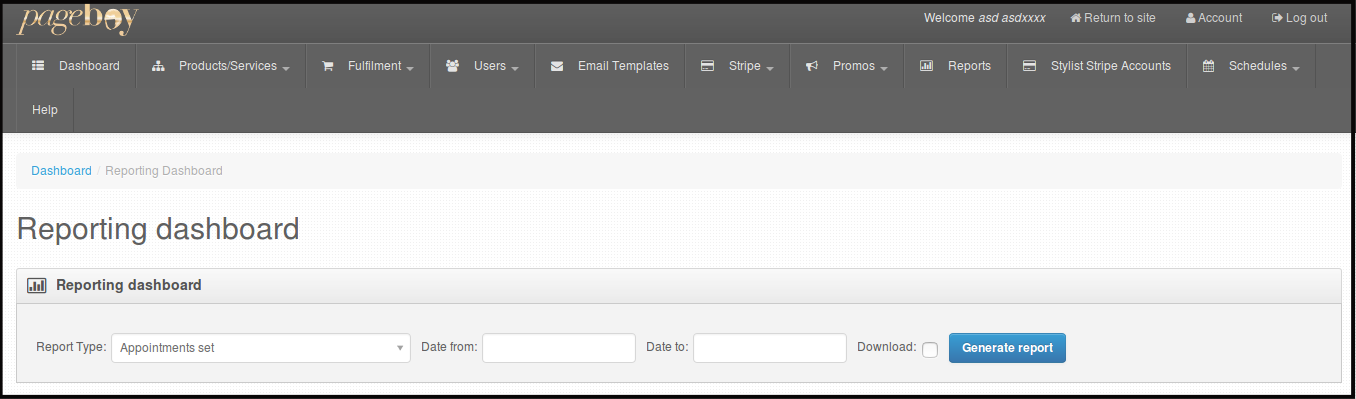
Click Reports.

You will be directed to this page.
-
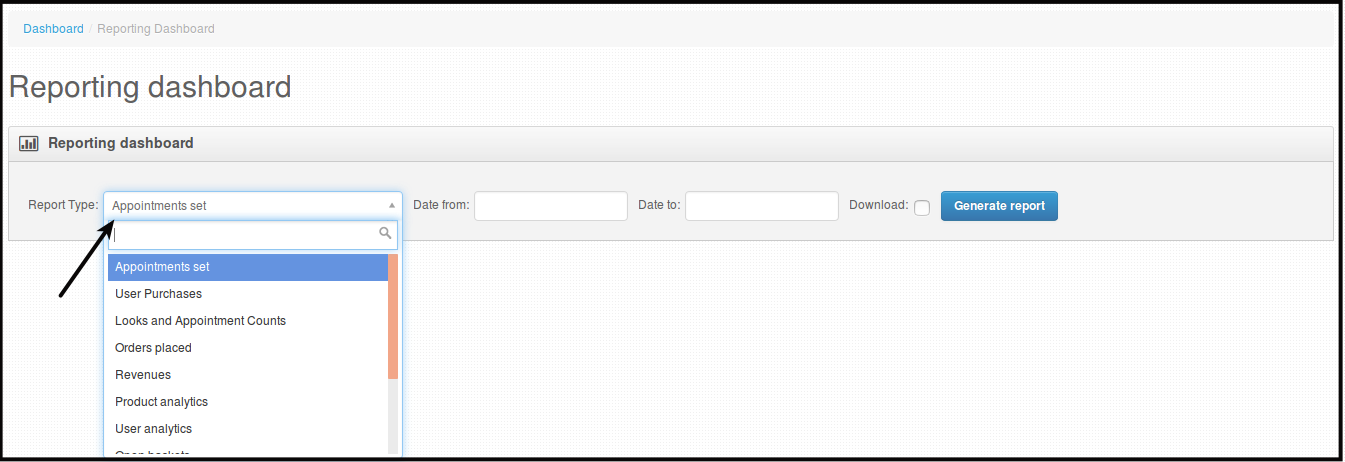
Click the box beside Report Type.
-
Choose from the drop down the report you want to run.

-
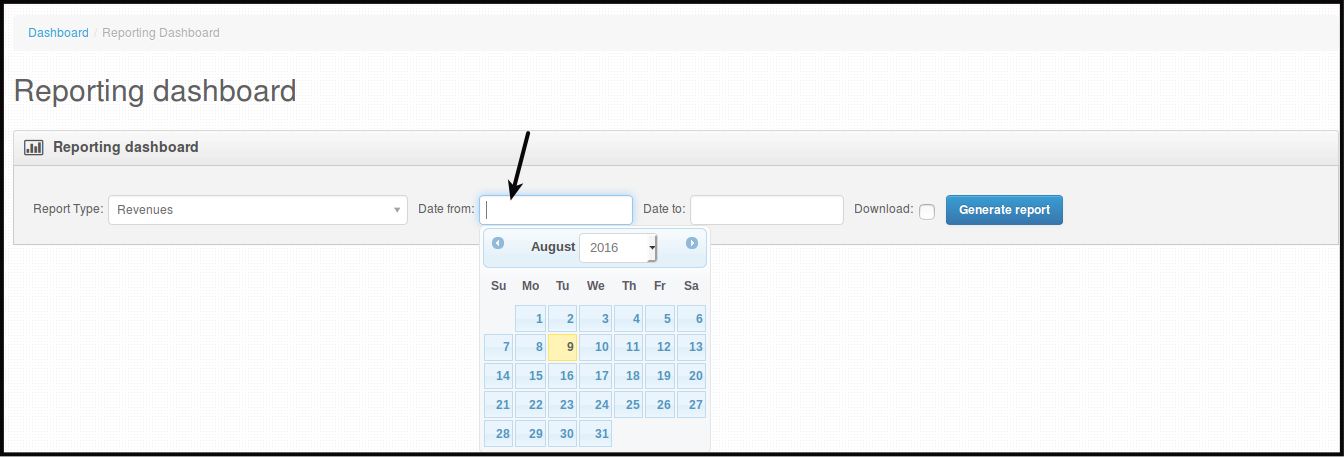
Select Date From and Date to by clicking the box beside them.
And
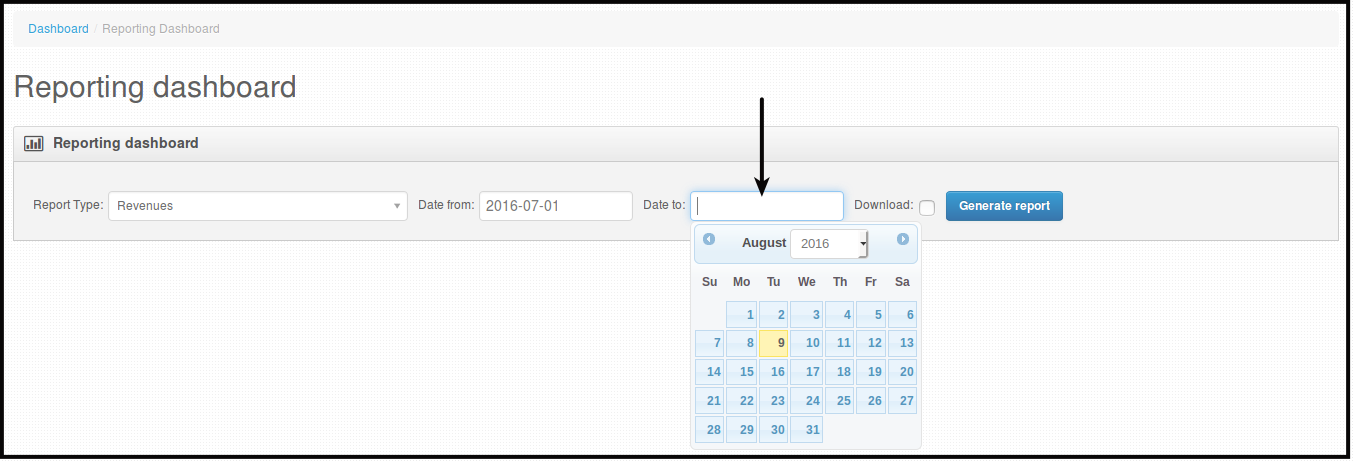
-
Click Generate report.

You will be directed to this page.
How to Run Reports that don't require Date Range
The Reports that are for all time are the following reports:
-
Product Analytics
-
User Analytics
-
Voucher Performance
Here is how to run these type of reports.
-
Click Reports.
You will be directed to this page.
-
Click the box beside Report Type.
-
Choose from the drop down the report you want to run.

-
Click Generate Report.

You will be directed to this page.
How to Download Reports
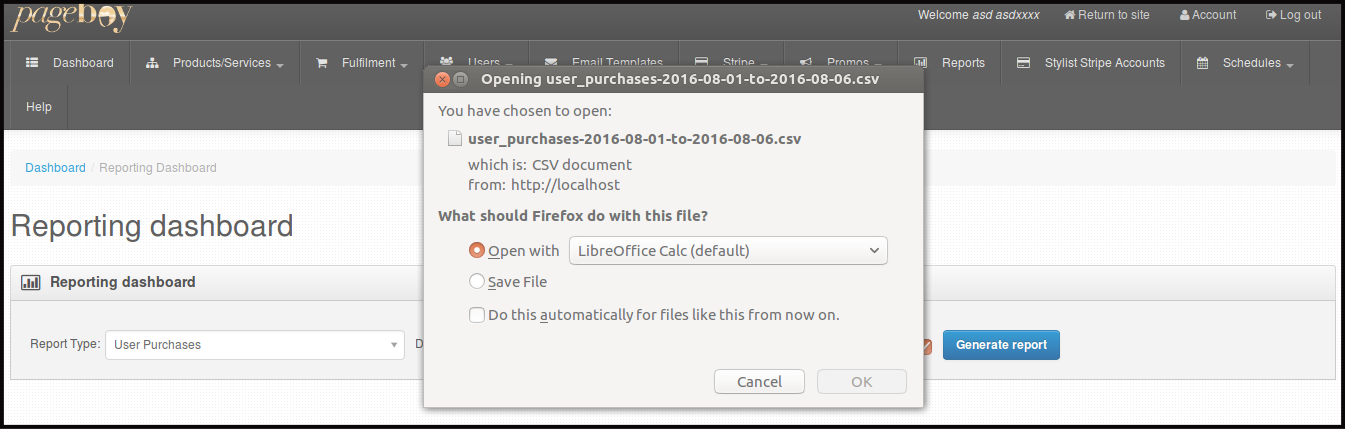
If you want to download the report that you are generating all you have to do is to click the small box beside Download before clicking Generate Report.

You will be prompted to save the report or to open the report.