Product Management (Catalogue)
-
Under Catalogue there are several categories where you can manage your products.
-
Looks
-
Add Product/s
-
Edit Product Information
-
Product Details
-
Attributes (Time duration for the service to be done)
-
Images
-
Product Pricing
-
-
Delete Product/s
-
-
Ranges
-
Looks Products/Services
-
Looks - this is where you can add, edit or delete products/services that you offer on your app; this will be directly be reflected on your IOS Pageboy app.
-
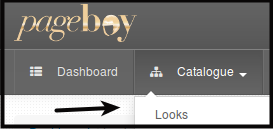
Click Catalogue
-
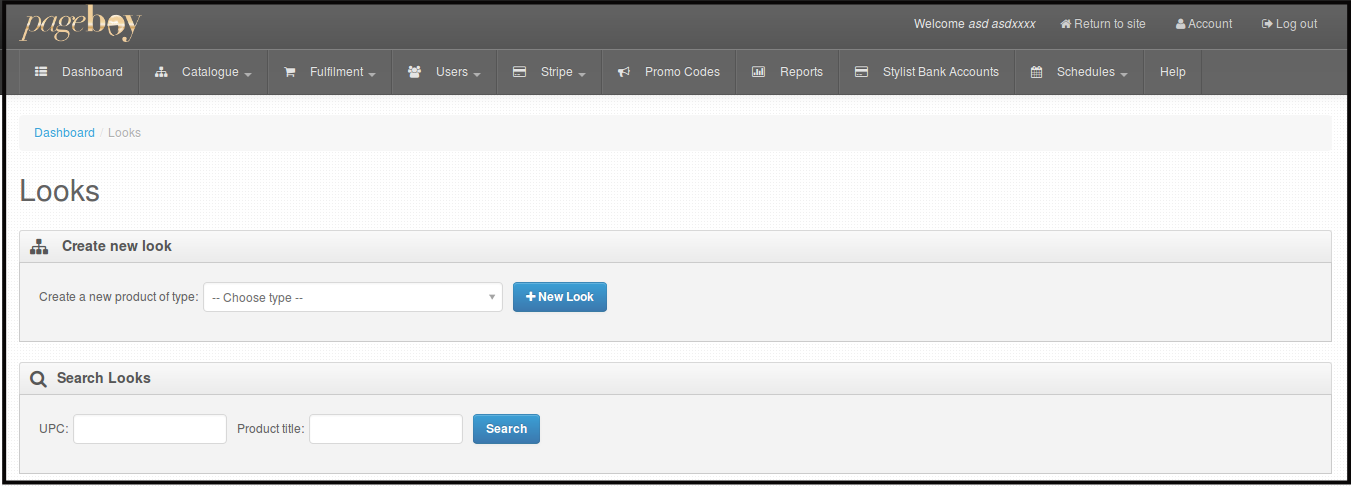
Click Looks . You will see the image below.
-
From here you can Add new products, Edit products and Delete products.
-
How to Add New Service or Product
-
Click Catalogue then click Looks, you will be directed to the image below.
-
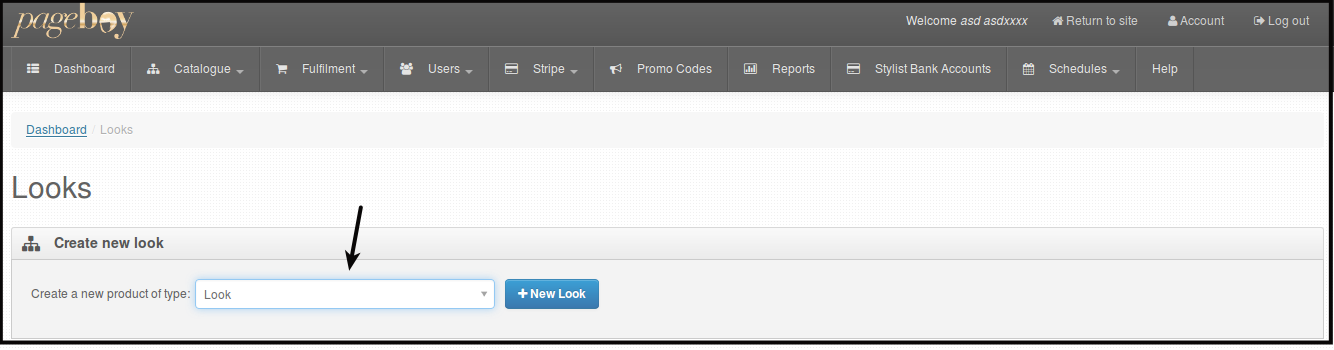
Choose Create a new product of type by clicking the drop down. Choose Look.
-
Click + New Look. You will be directed to this page below.
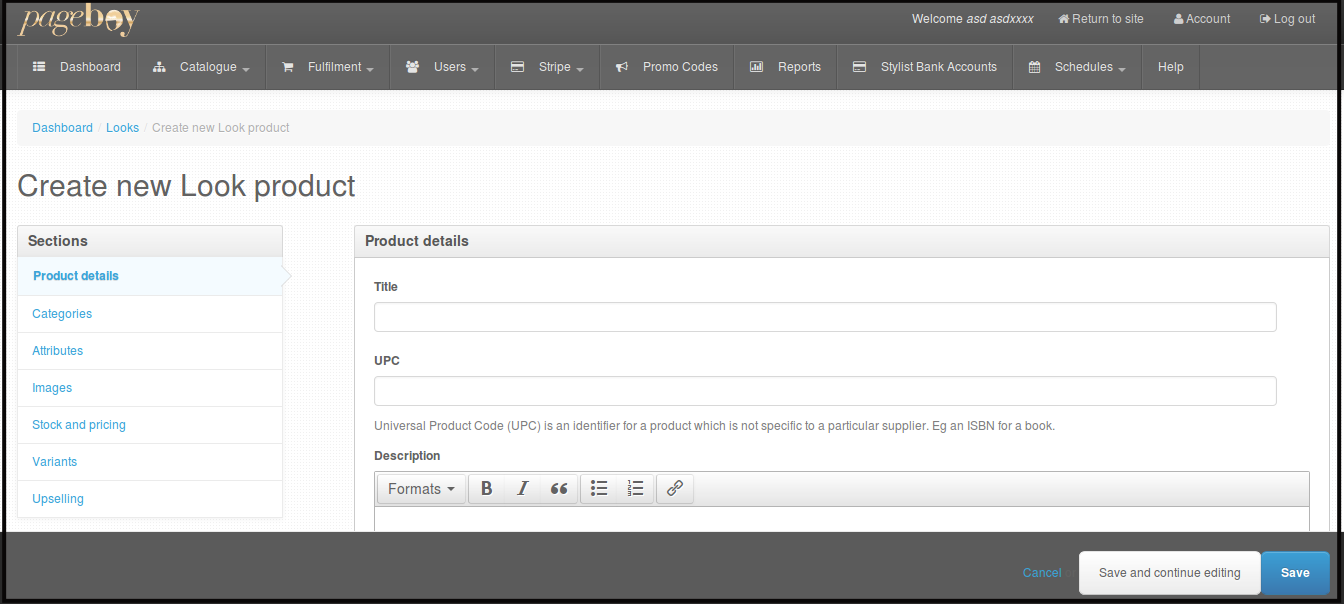
You will see Product Details
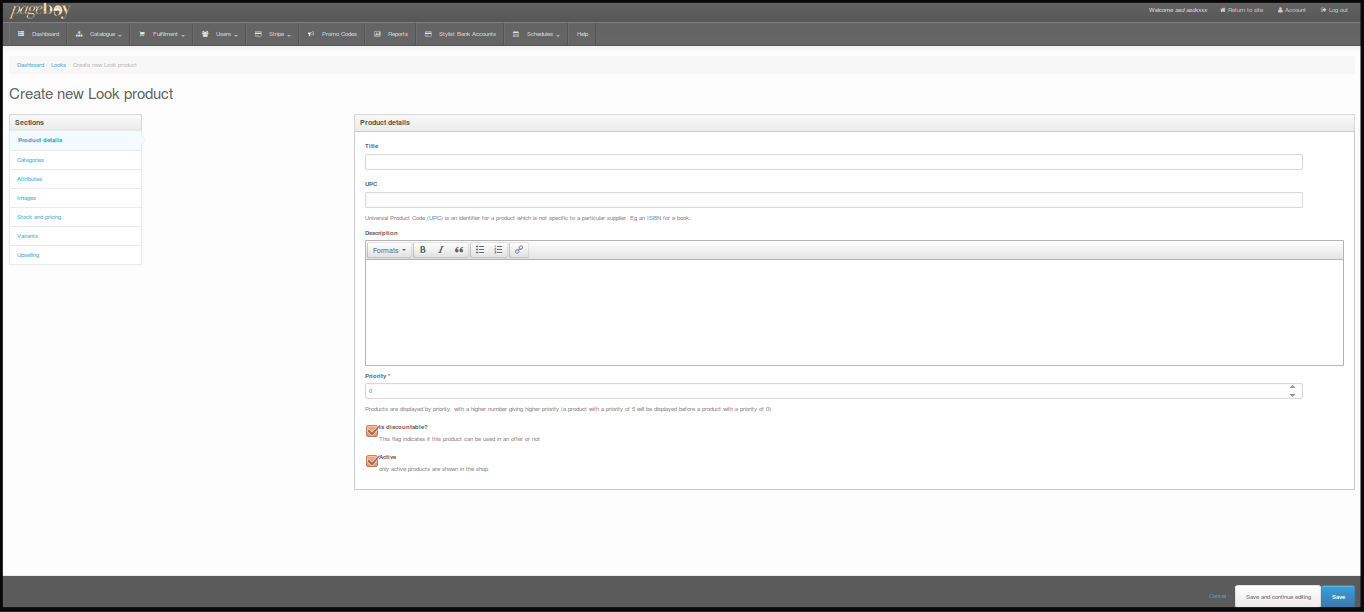
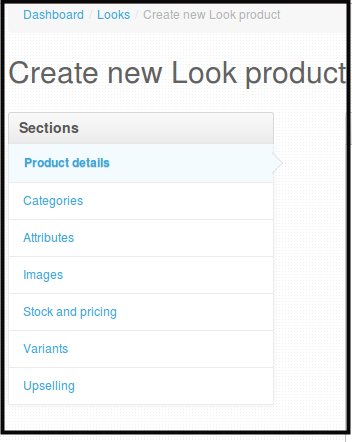
Note: There are 7 sections in creating new products, that will need to be filled out first before you can save and create a new product.
-
Product Details - This is where you put in details for your products.
-
Categories - This is where you put in which category your product will be put in.
-
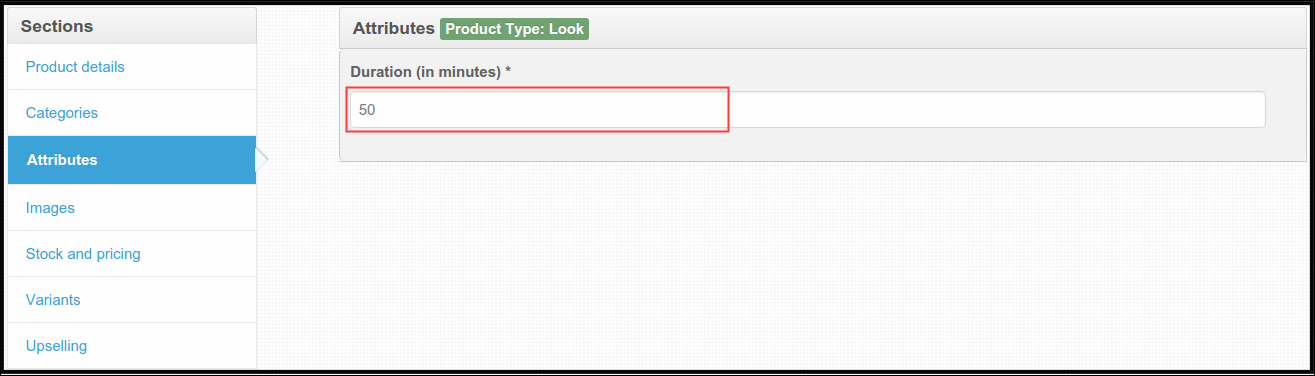
Attributes - This is where you put in how many minutes the hair style or service duration is.
-
Images - This is where you add photo/s of the product/services offered.
-
Stock and Pricing - This is where you put prices to your product.
-
Variants - (For Future Use)
-
Upselling - (For Future Use)
-
-
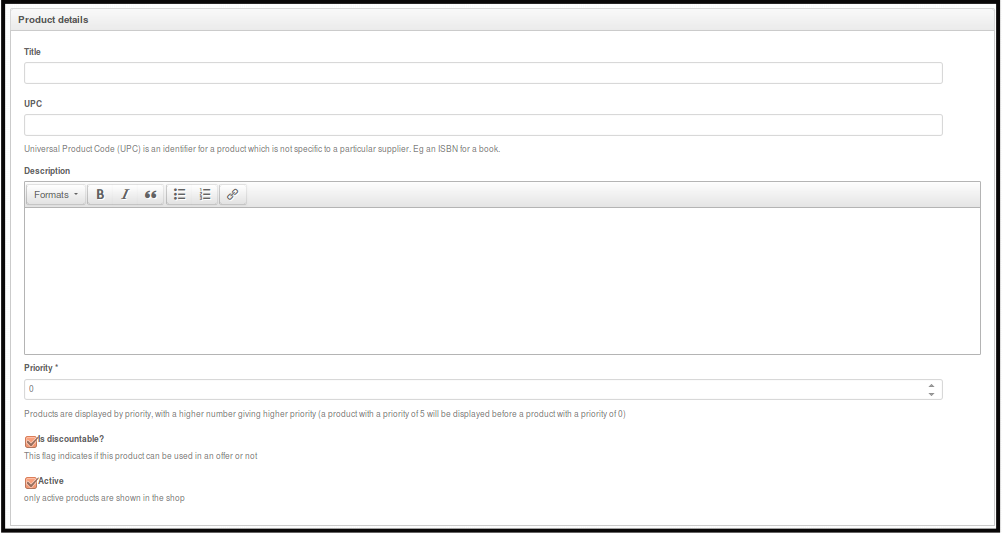
Fill out Product Details section.
-
Title- name that referred to product.
-
UPC- or Universal Product Code, this is very useful in creating barcode symbol. Make sure to put in UPC without spaces this can be used when creating product/service promotions when you want to put this on discounted price or sale. Make sure to put in unique UPC on every service/product you will create.
-
Description- refers to product description. This is the right venue to describe the look.
Important Note: Refrain from copy pasting from web straight to this section, this results to rendering of style copied from online. To avoid this, paste your copied words to a text editor tool first, for Mac users use TextEdit. From a text editor tool, copy the words and then you may now paste it on this section.
-
Is Discountable?- this means you're allowing your product to participate on promotions that the site has to offer. If you think this applies to your product then toggle this option.
-
Is Active- this means your product can be seen on the app.
-
-
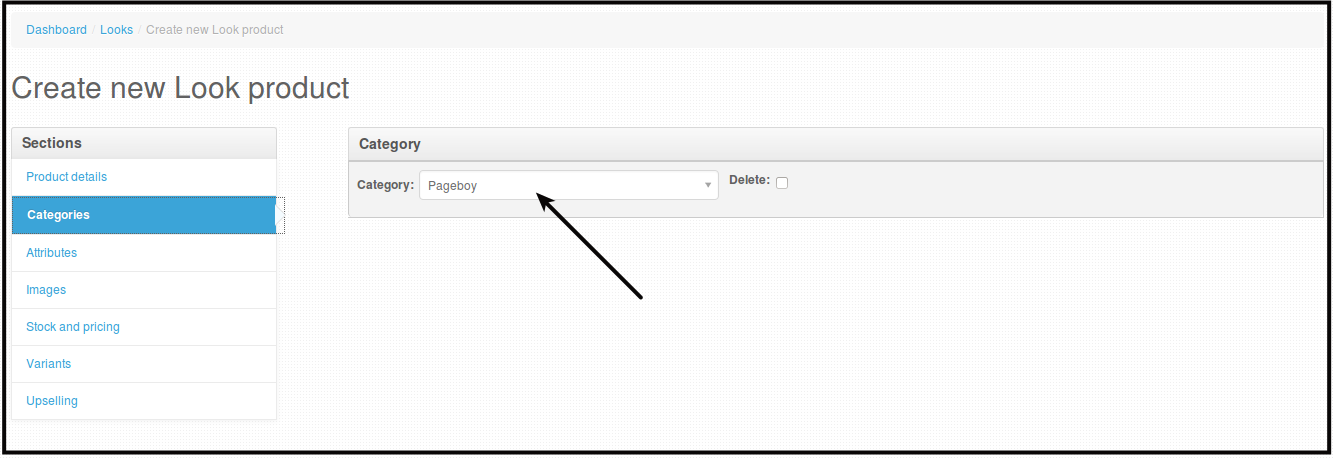
Click Categories, select one category from the dropdown beside category. As of now the default that you should select is Pageboy.
-
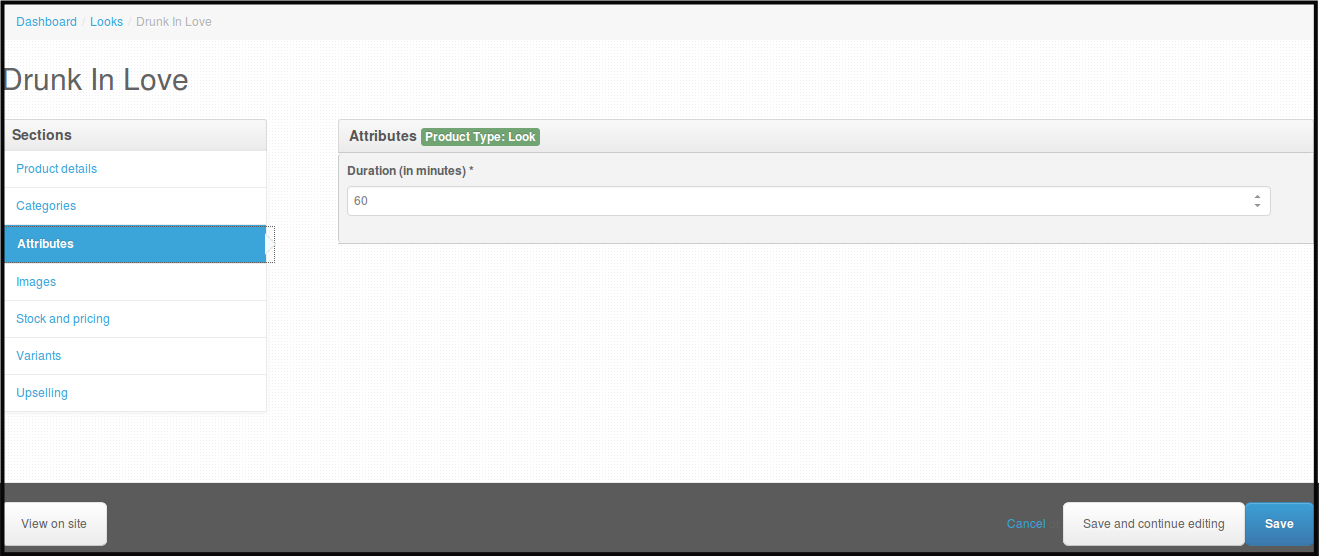
Click Attributes, input the duration or the time span to accomplish the certain service/product.
-
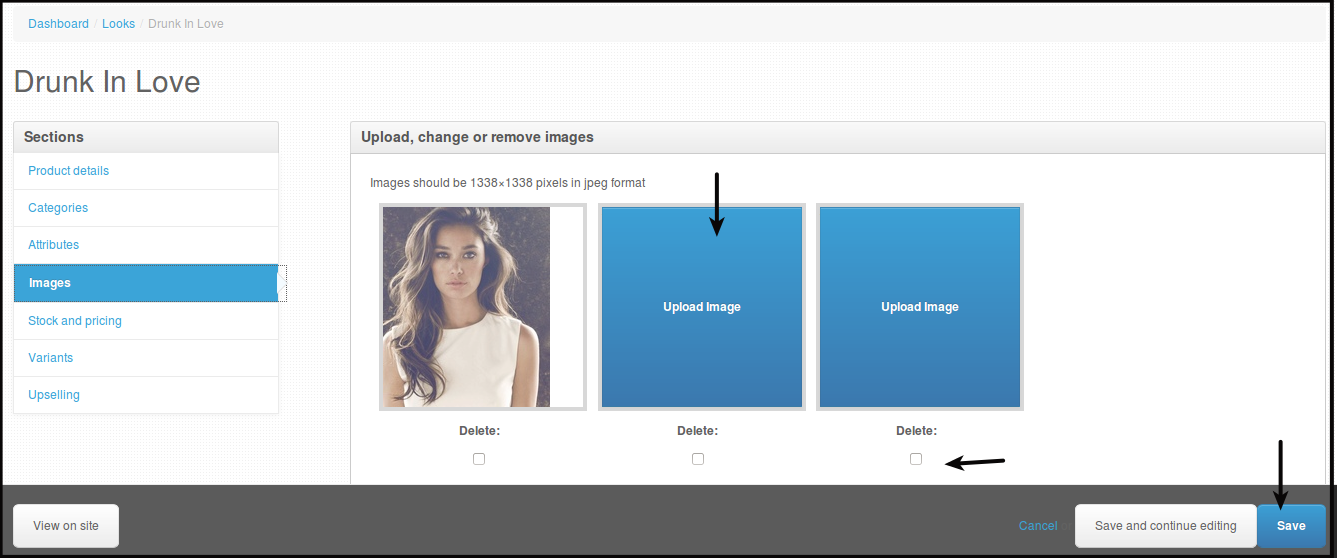
Click Images, click Upload Image and locate the photo of your product that you want to be posted.

-
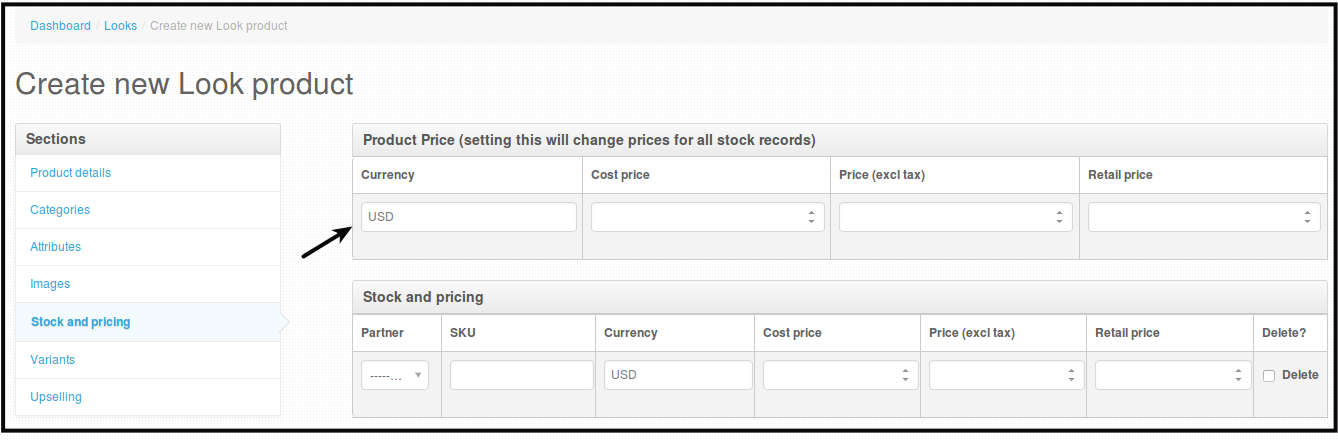
Click Stock and Pricing, fill in all the required fields:
Fill out the following fields.
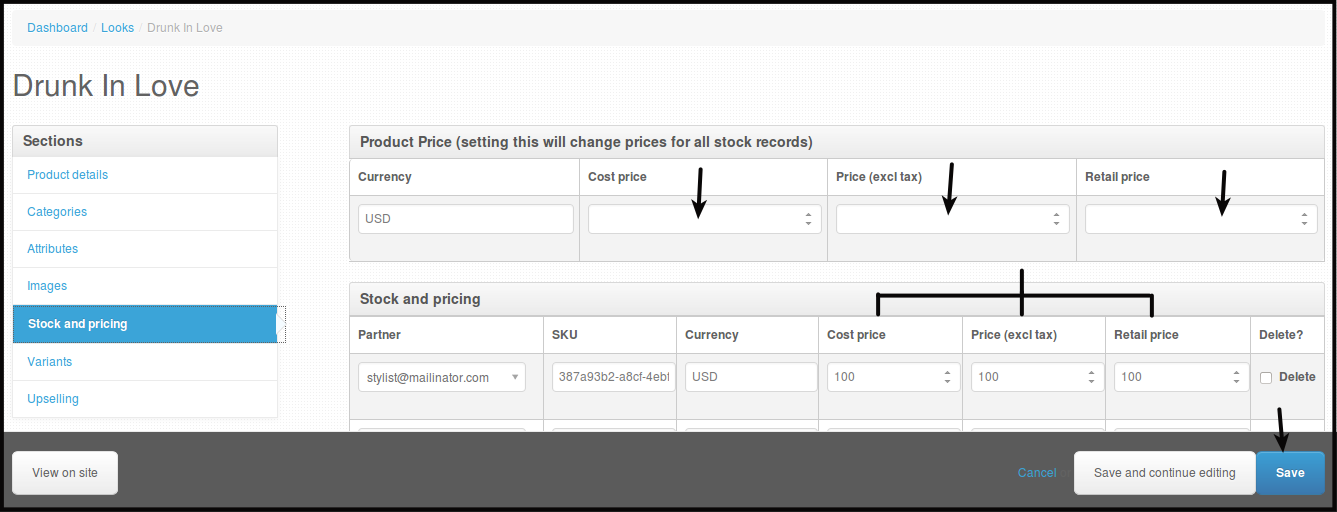
- Cost Price- product gross price (including tax).
- Price (excl tax) - product net price.
- Retail Price- means recommended price of the product, this will serve as comparison of price only with existing similar products in the market.
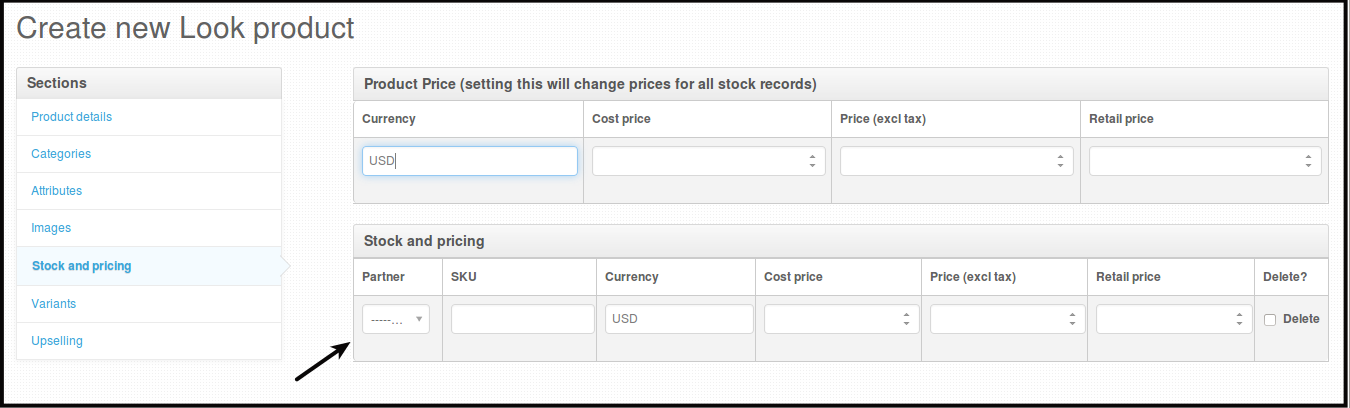
Optional fields that will be automatically filled out by te system:
- Partner- refers to the available stylist. Simply choose one from the choices.
- SKU- or Stock Keeping Unit, this is a code that consists of letters, numbers or symbols that uniquely identifies the product. Normally used in inventory data management.
- Cost Price- product gross price (including tax).
- Price (excl tax) - product net price.
- Retail Price- means recommended price of the product, this will serve as comparison of price only with existing similar products in the market.
-
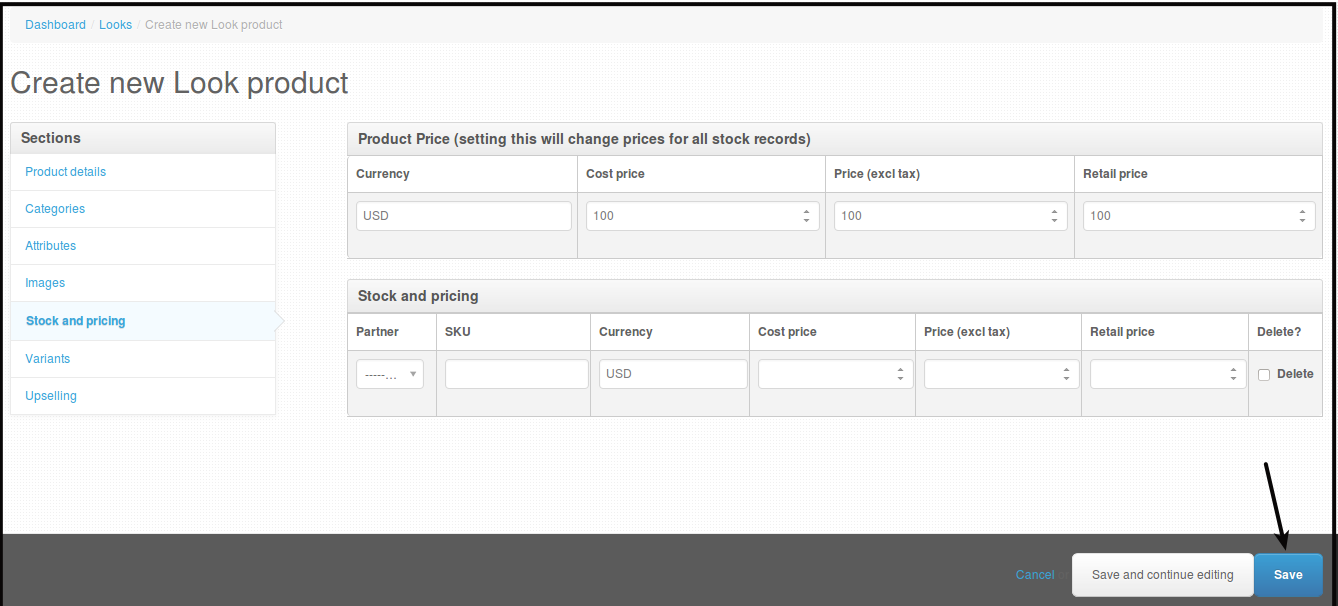
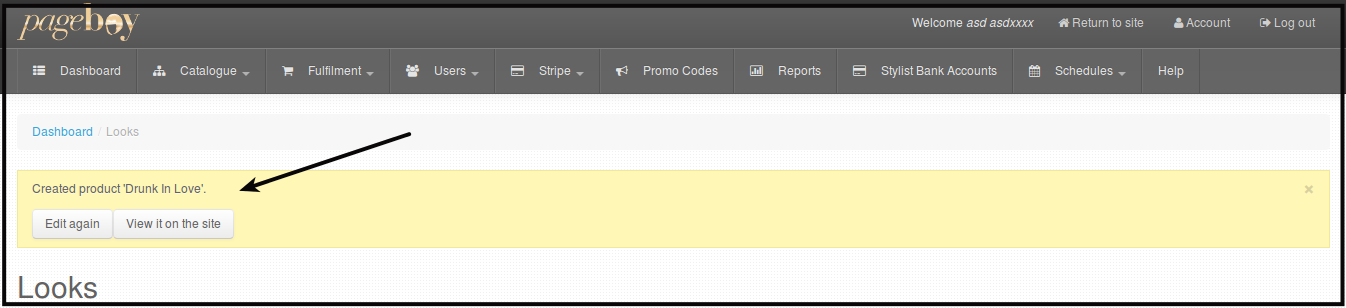
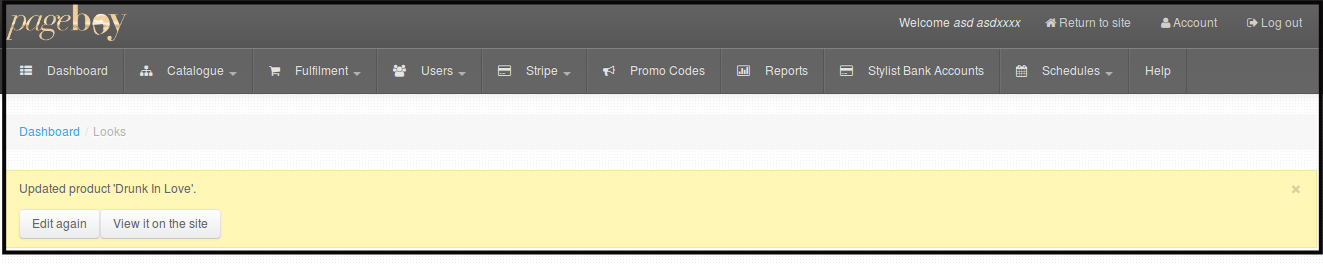
Click Save. A message will appear to confirm that your product is created, it must now added under Products table and also visible on the app.
Note: Along with confirmation message are the two different useful buttons such as:
-
Edit again- if you missed something, click this one.
-
View it on the site- to scan the product on main page, click this one.
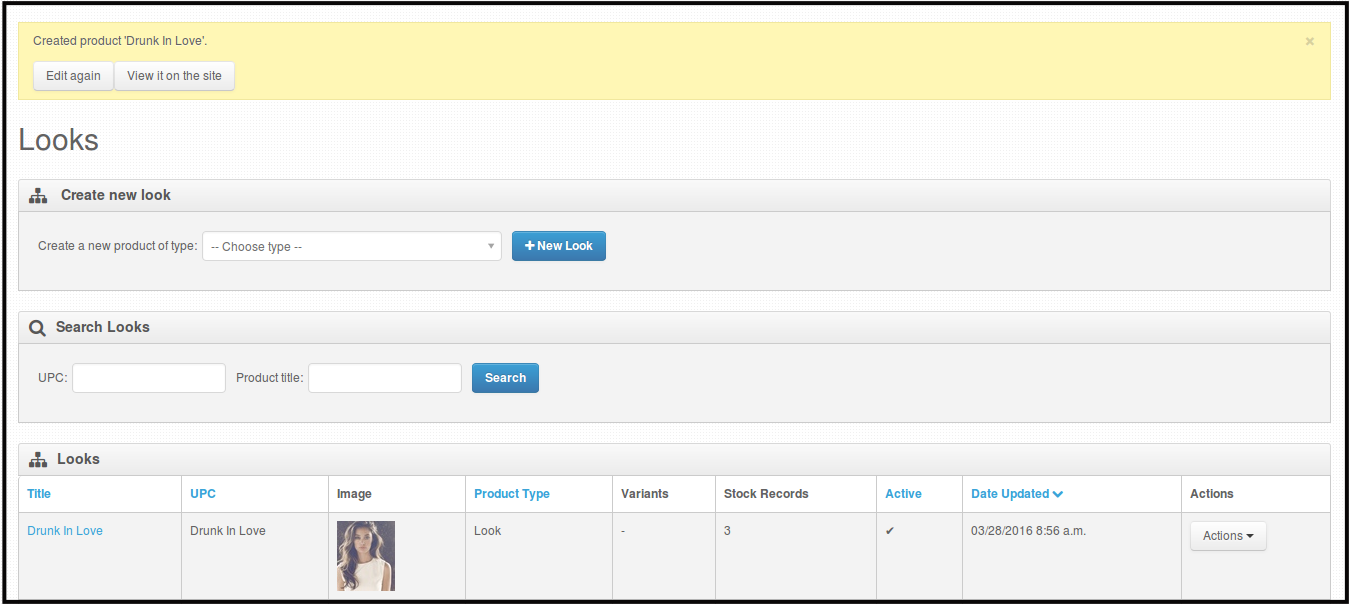
Below is how your new product on this web.
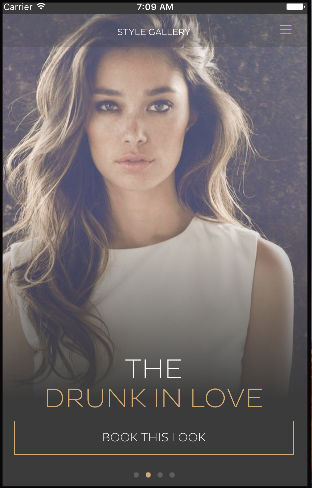
Below is how it will look on Pageboy IOS app.
-
How to Edit Product Information
-
Click Catalogue then Click Looks, you will be directed to the image below.
-
Click Action beside the service/product you want to edit information.

-
Click Edit

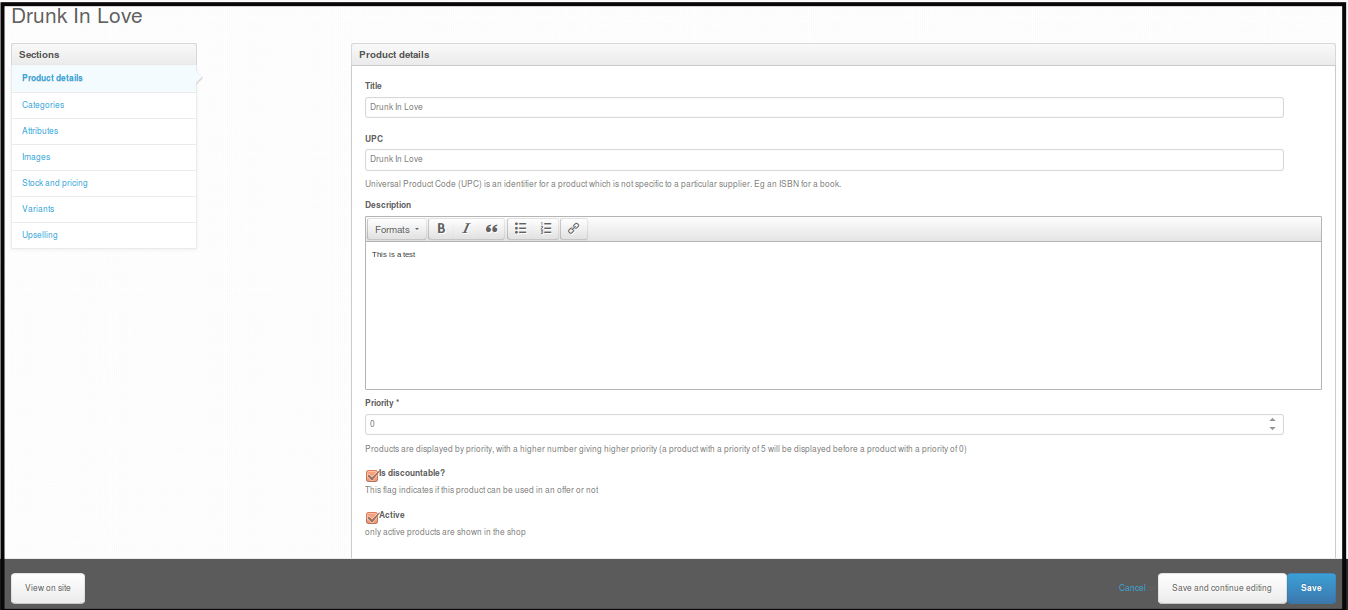
You will be directed to this page.
-
Here you can edit what section/s you want to edit. Just by clicking the section you want to edit.
Edit Product Details
Attributes (Duration of service/product)
Images , to add picture just click on Upload Image, browse the image you want to add then click Save. To Delete picture, just click on the check box below Delete then click Save.
Stock and Pricing , Edit Price of your product by filling out the the boxes under Product and Price. Previous price will be see below it, Stock and Pricing.
-
Click Save to save all the changes made on any sections edited. Once saved, all changes will be uploaded to your Pageboy IOS app.

How to Delete Product/Service
-
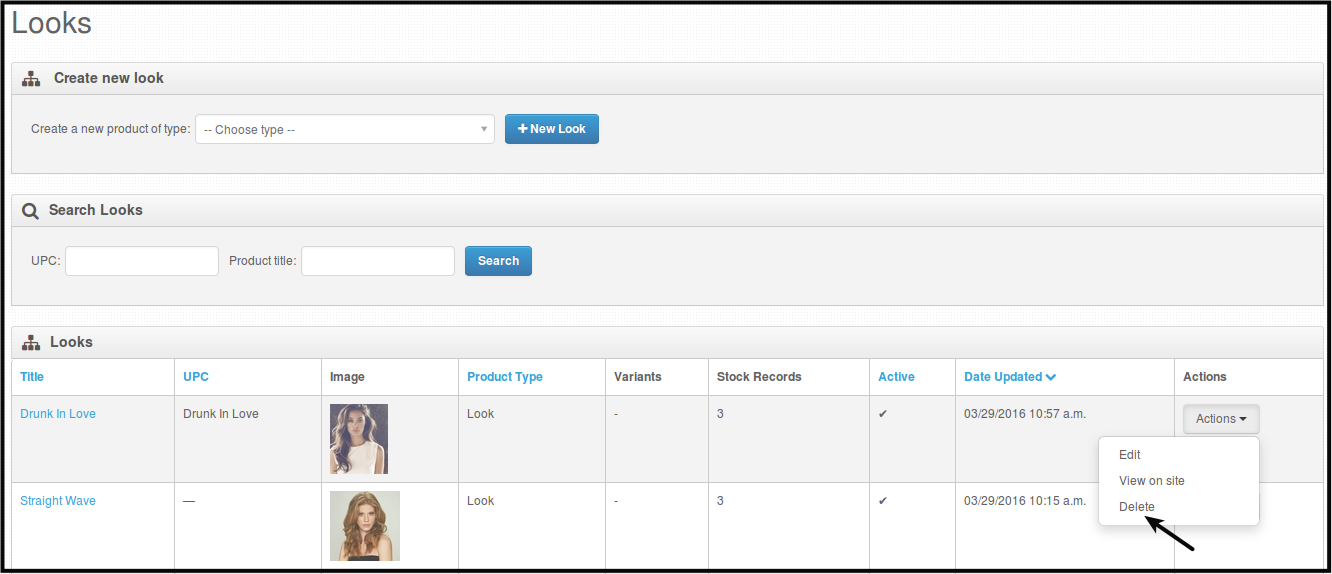
Click Catalogue then press Looks, you will be directed to the image below.
-
Click Action beside the service/product you want to Delete.
-
You will be directed to a confirmation page wherein you have to click Delete if you want to delete the product.
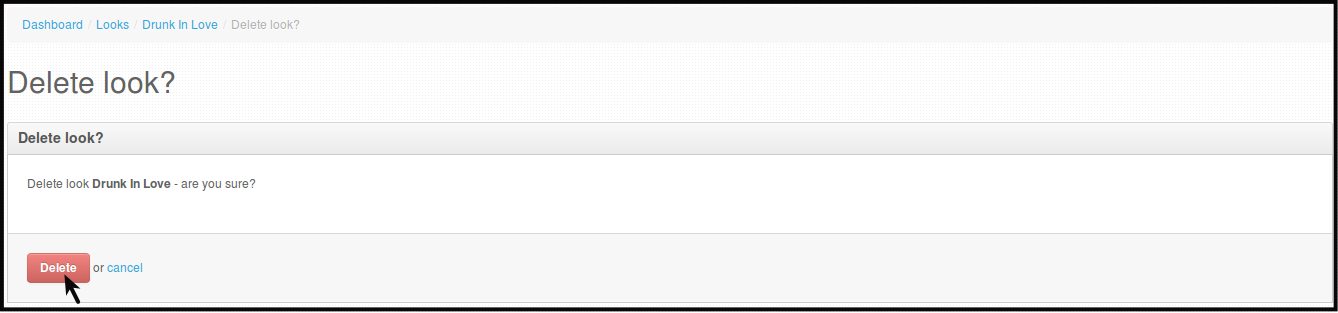
After clicking Delete, the product/service you deleted will be permanently removed from the web and Pageboy IOS app. You will see a confirmation like the picture below.
