How to send Push Notification for Promotions
-
Click Promos.

-
Click Push Notifications.

You will be directed to this page.

-
Click +Create new scheduled push notification.

You will be directed to this page.
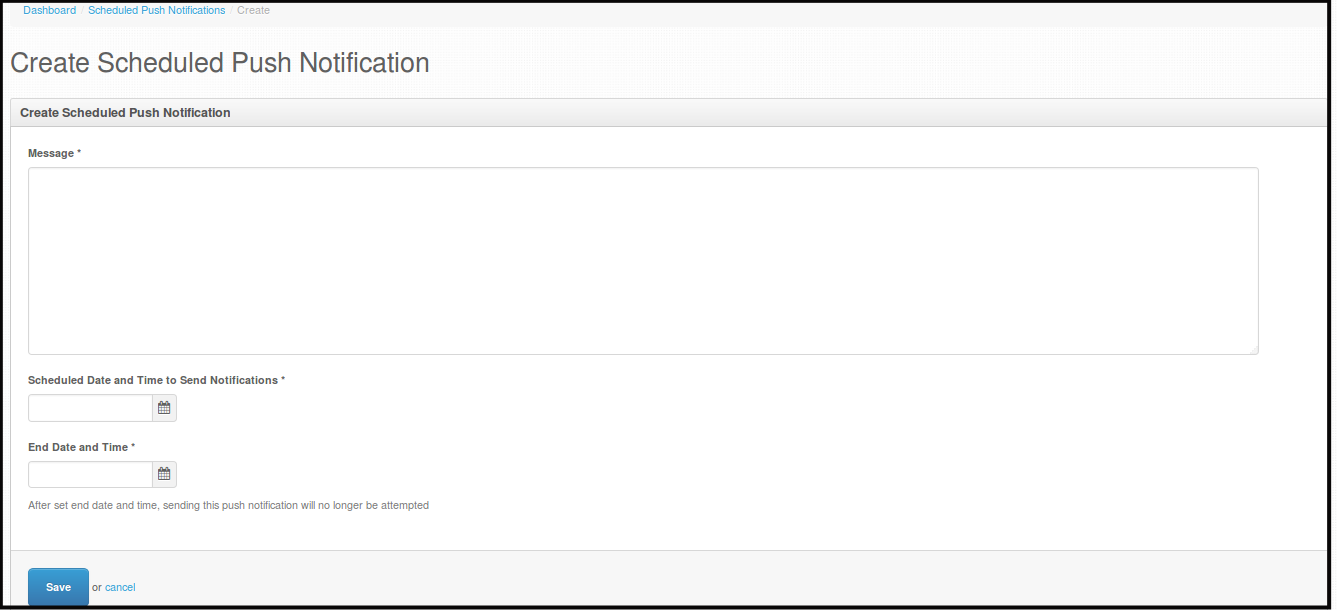
-
Fillout Message, Schedule Date and Time when to send the push notification and the end date and time.
NOTE: The Message you will put in on the Message box will be the message all of Pageboy users will receive as push notification.
-
Click Save.
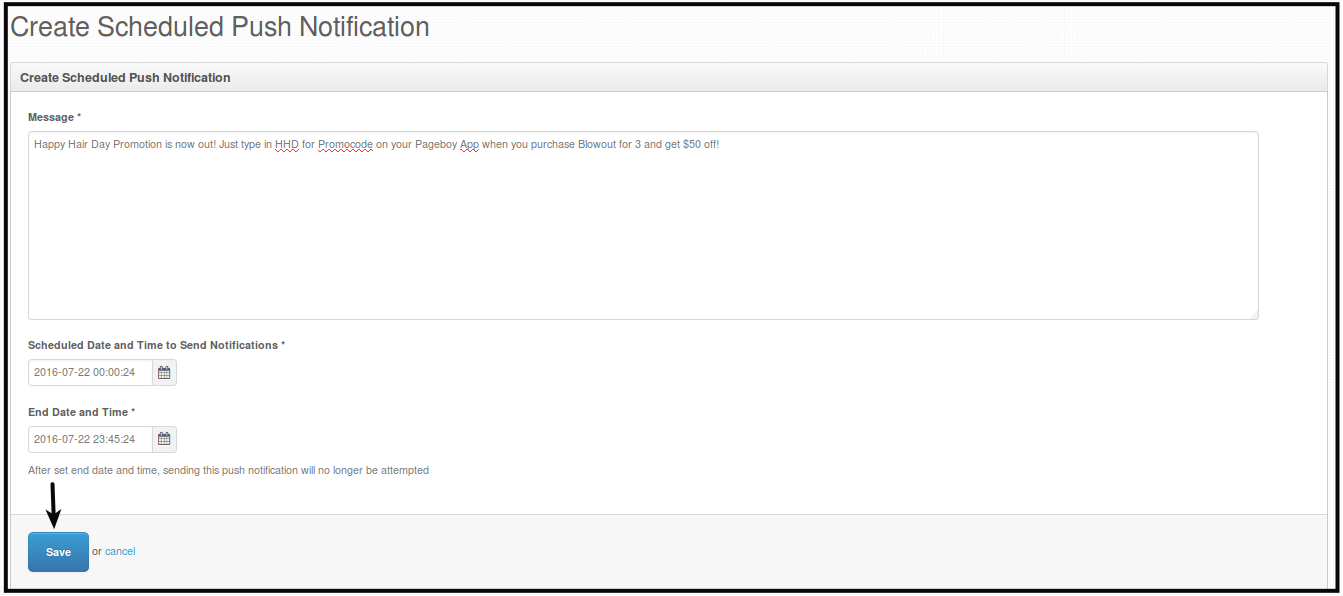
You will be directed to this page.

How to Edit Push Notification for Promotions
-
Click Promos.
-
Click Push Notifications.
You will be directed to this page.
-
Click Actions.

-
Click Edit.
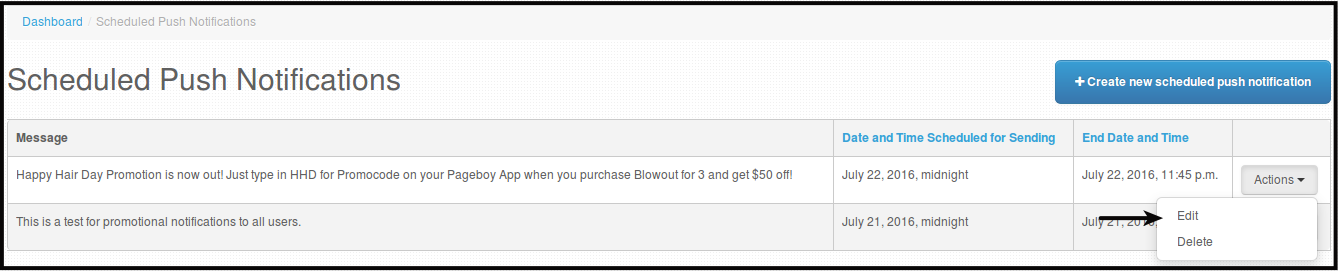
You will be directed to this page.
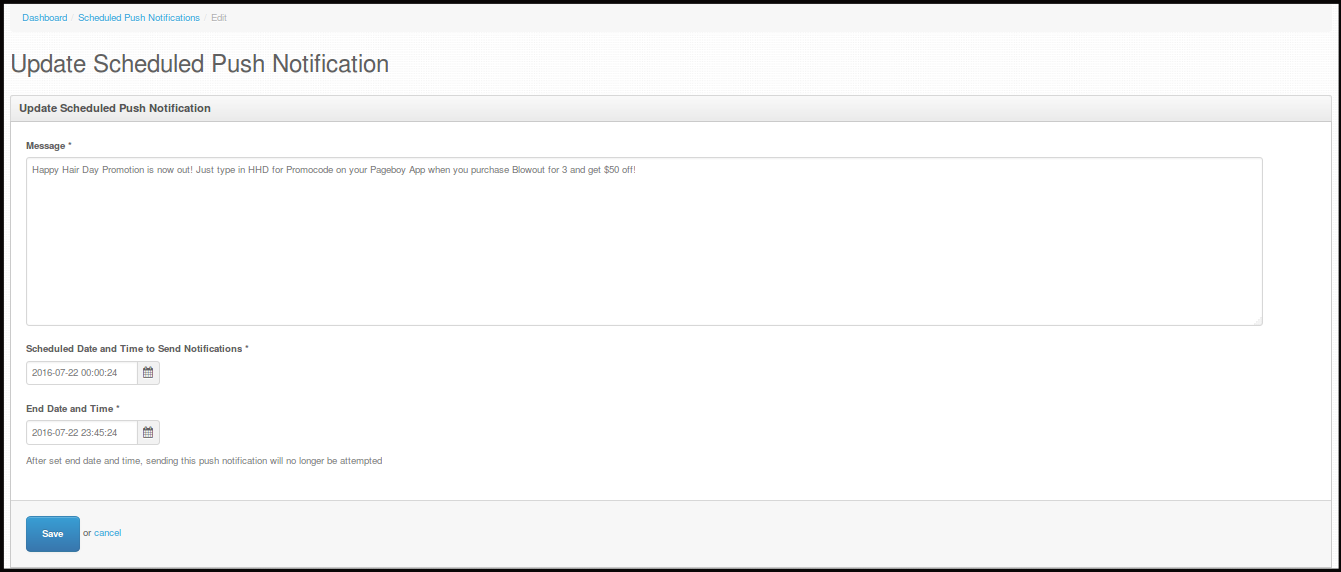
-
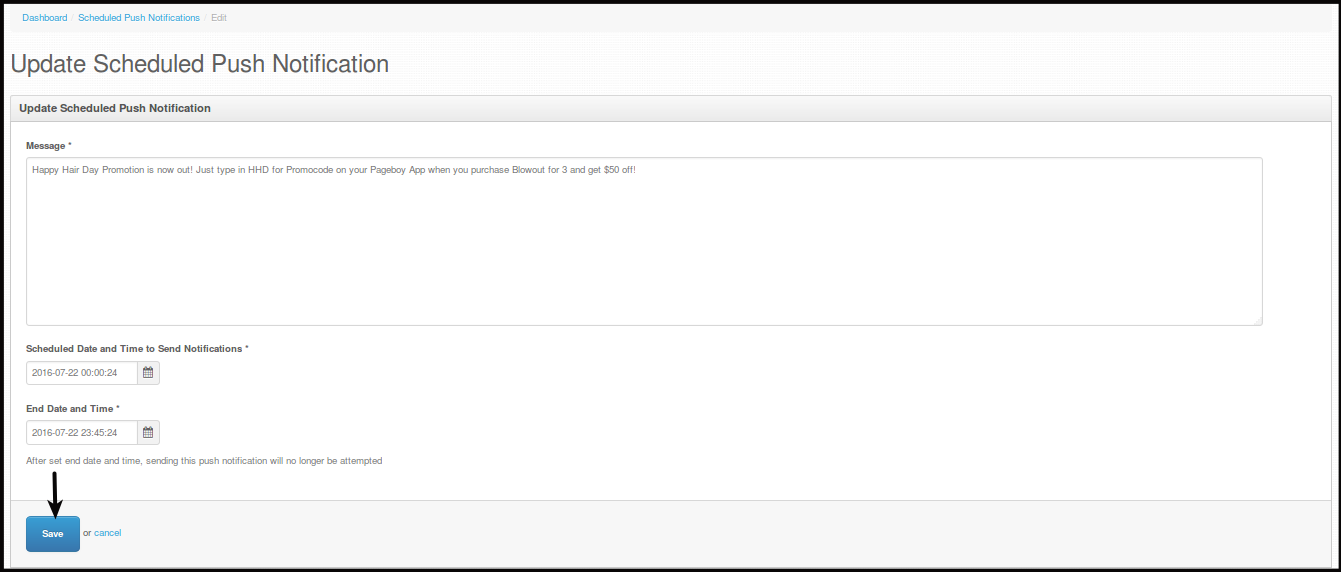
Edit the Message or the start date and time or the end date and time of this notification, anything that you want to edit.
-
Click Save.
You will be directed to this page.

How to Delete Push Notification for Promotions
-
Click Promos.
-
Click Push Notifications.
You will be directed to this page.
-
Click Actions.
-
Click Delete.
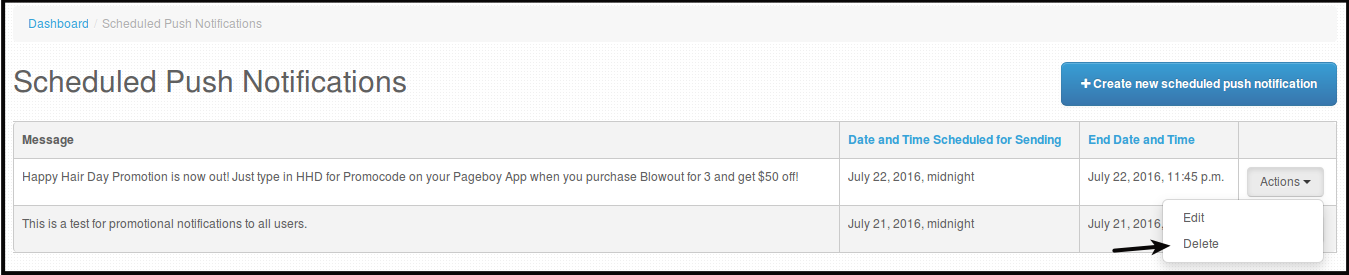
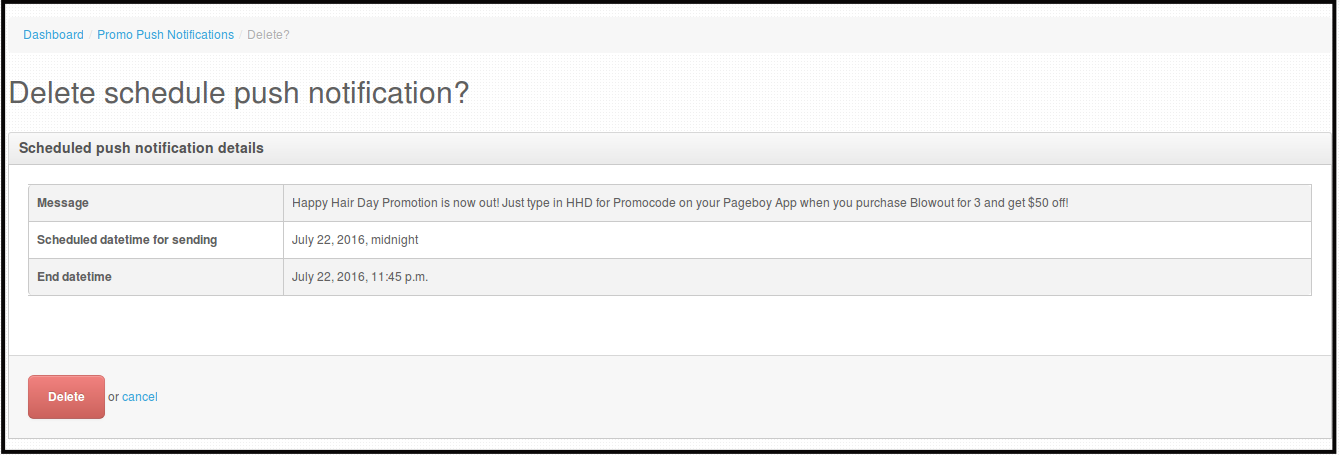
You will be directed to this page.
-
Click Delete.
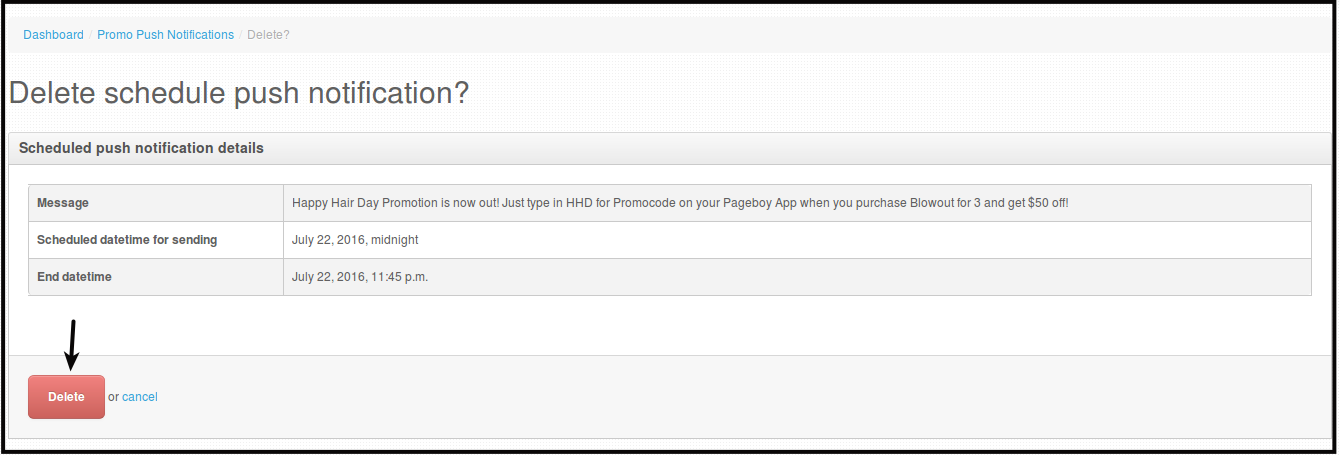
You will be directed to this page.
