Admin Schedule Override Feature
This feature is used to override all appointments that are not yet finished or started. Admin can edit the following items using this feature:
-
Time of appointment.
-
Address of the appointment.
-
Stylist of the appointment, regardless if the stylist is on off or is under unavailable schedule and regardless if the stylist have conflicting schedule.
-
Notes are also shown on the order to show who edited the appointment, just follow How to View Order Details of Specific Order
How to use Override Feature
-
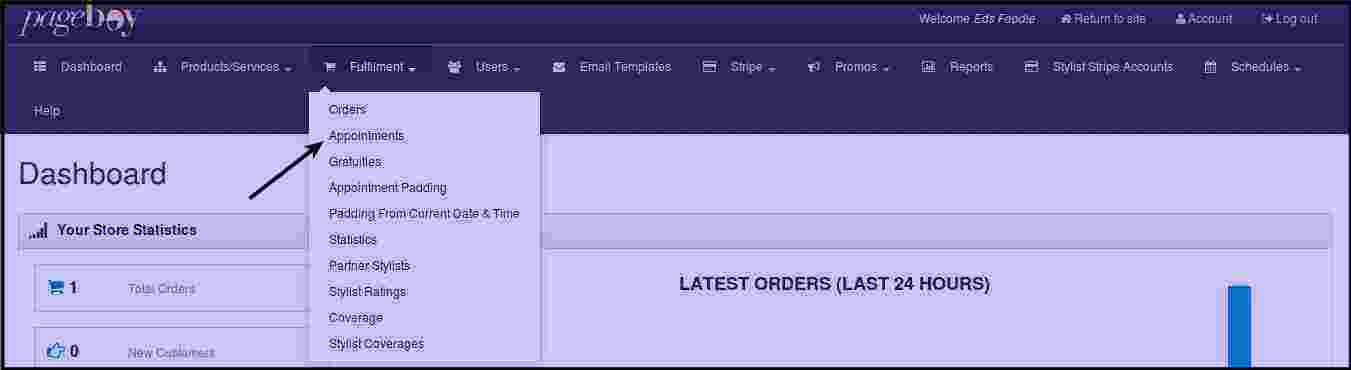
Click Fulfillment.

-
Click Appointments.
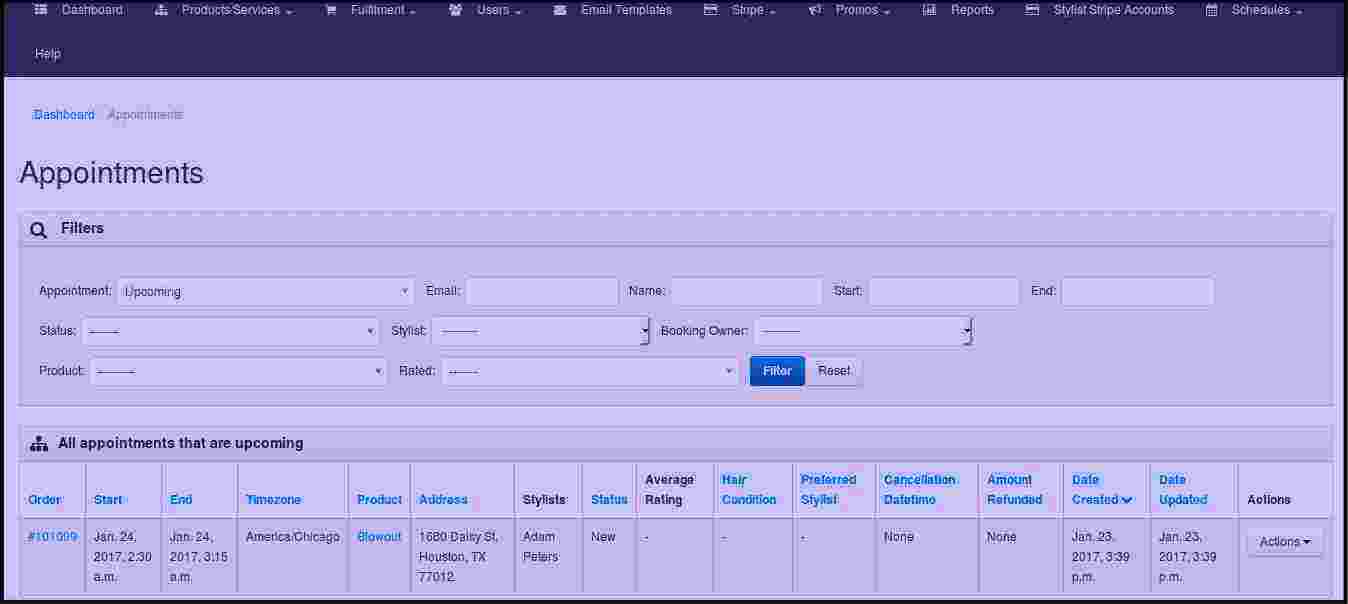
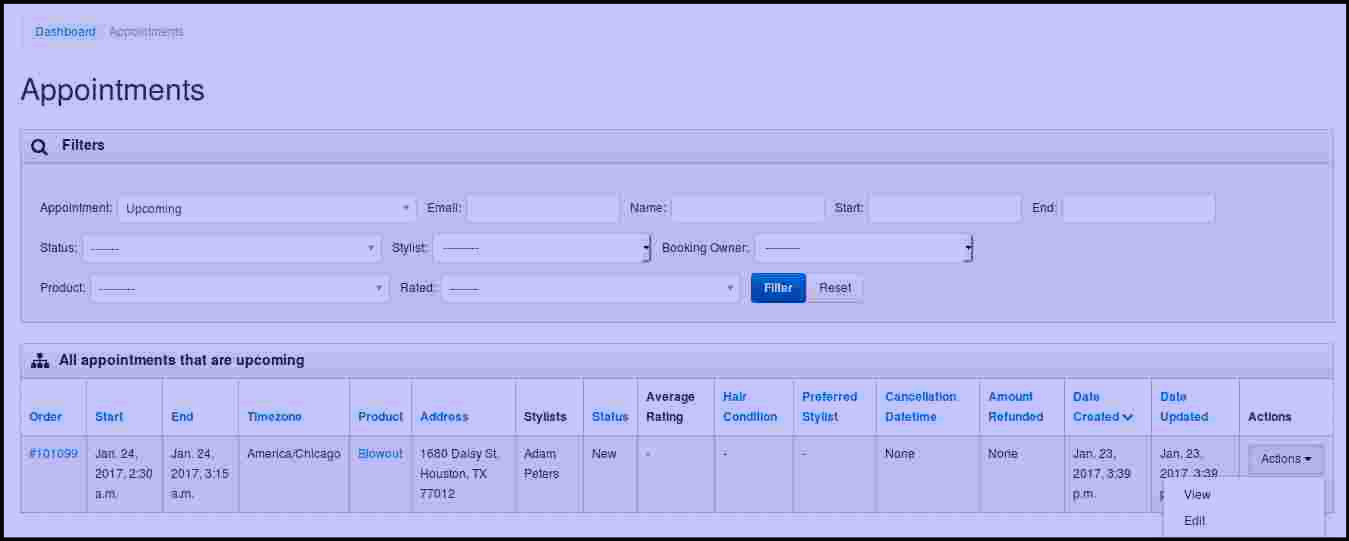
Then you will be directed to this page.
-
Make sure to have the Appointment filter to Upcoming. Click Actions.
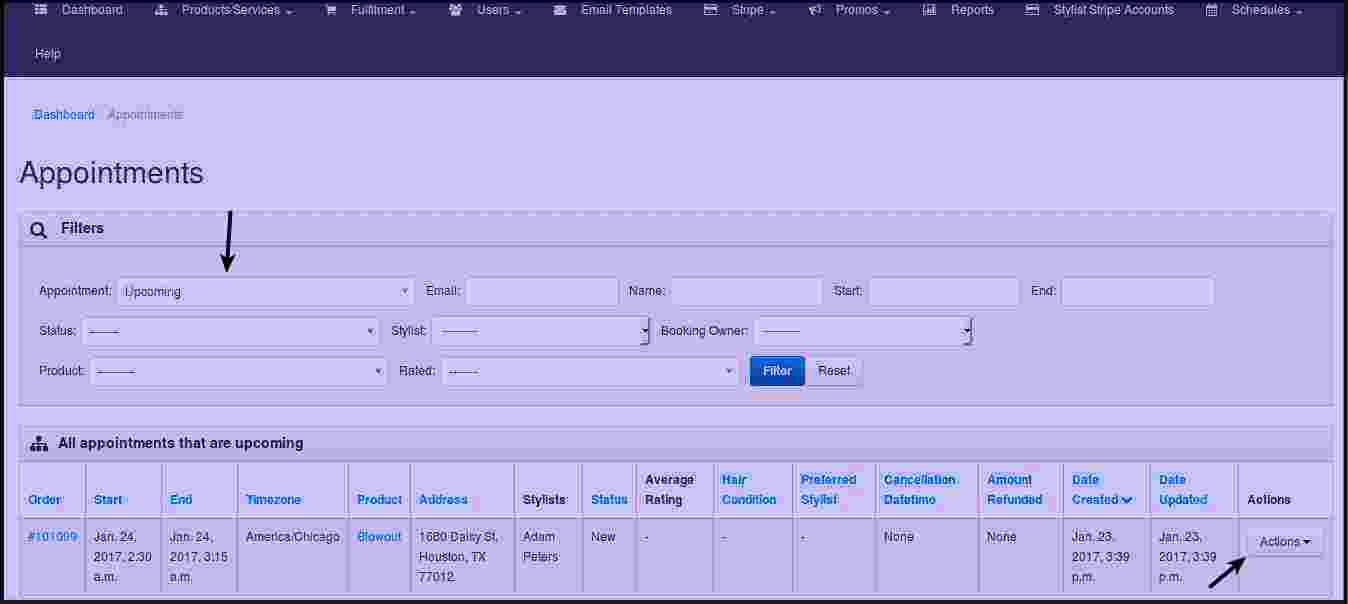
You will see the following choices: View and Edit.
-
Click Edit.
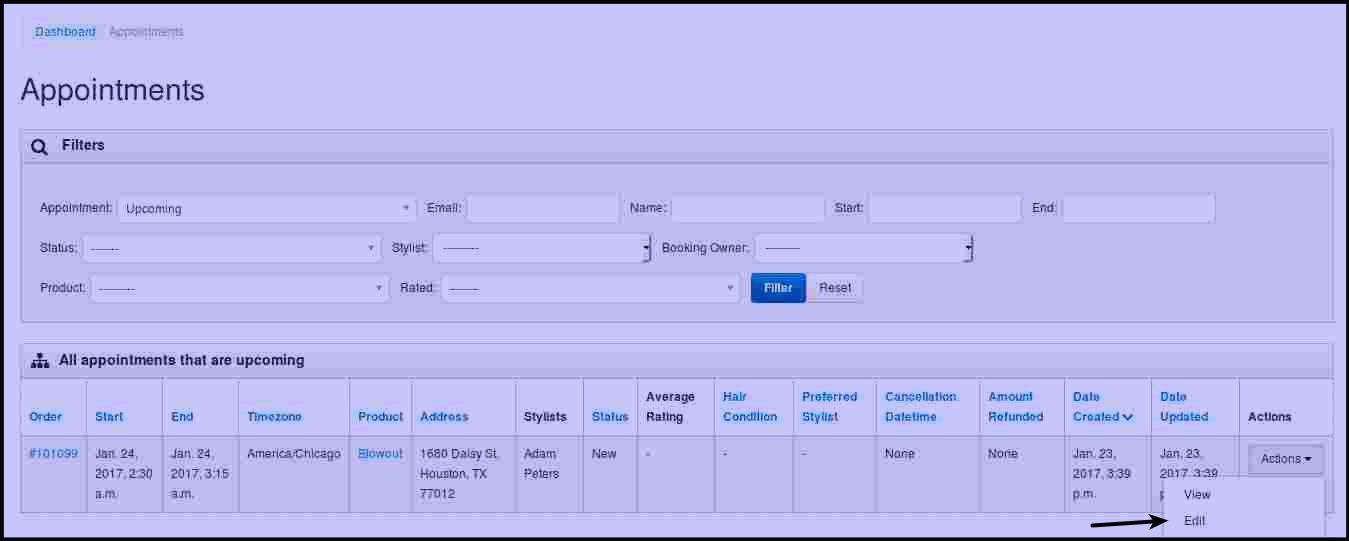
Then you will be directed to this page.
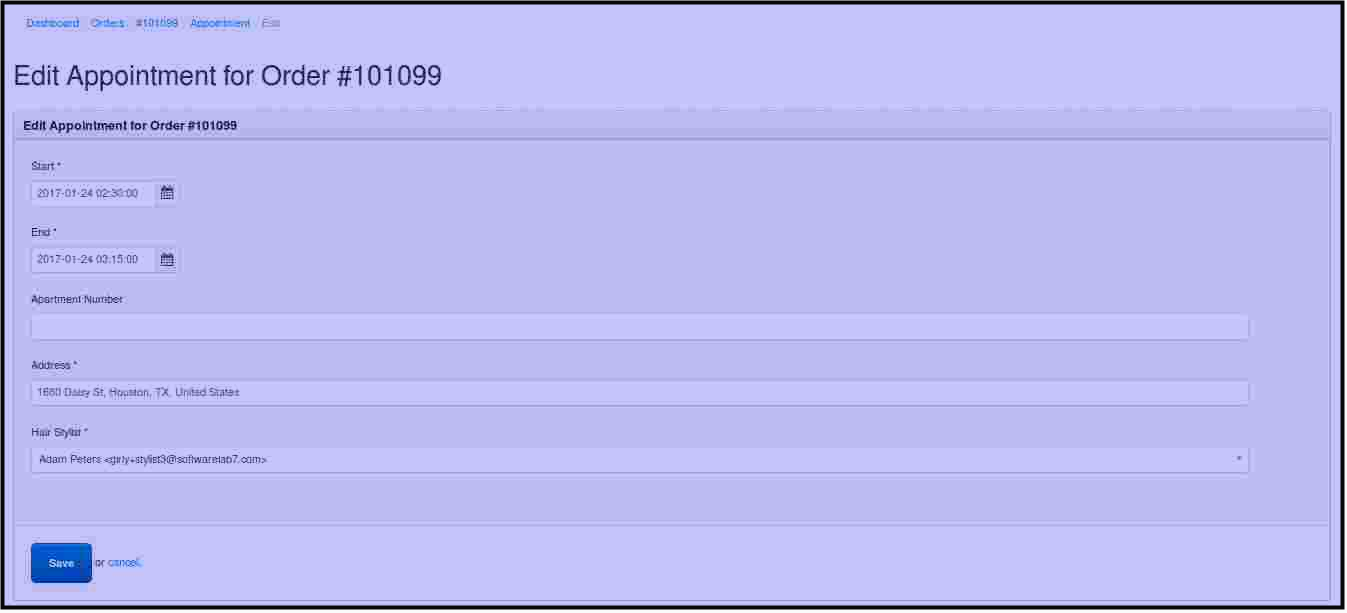
From this page you can edit the time of the appointment Start and End. You can edit the address of the appointment and the stylist.
NOTE: You will see the following when you are editing an appointment and there is a conflict with the stylist schedule indicating that there will be conflict of schedule for stylist.
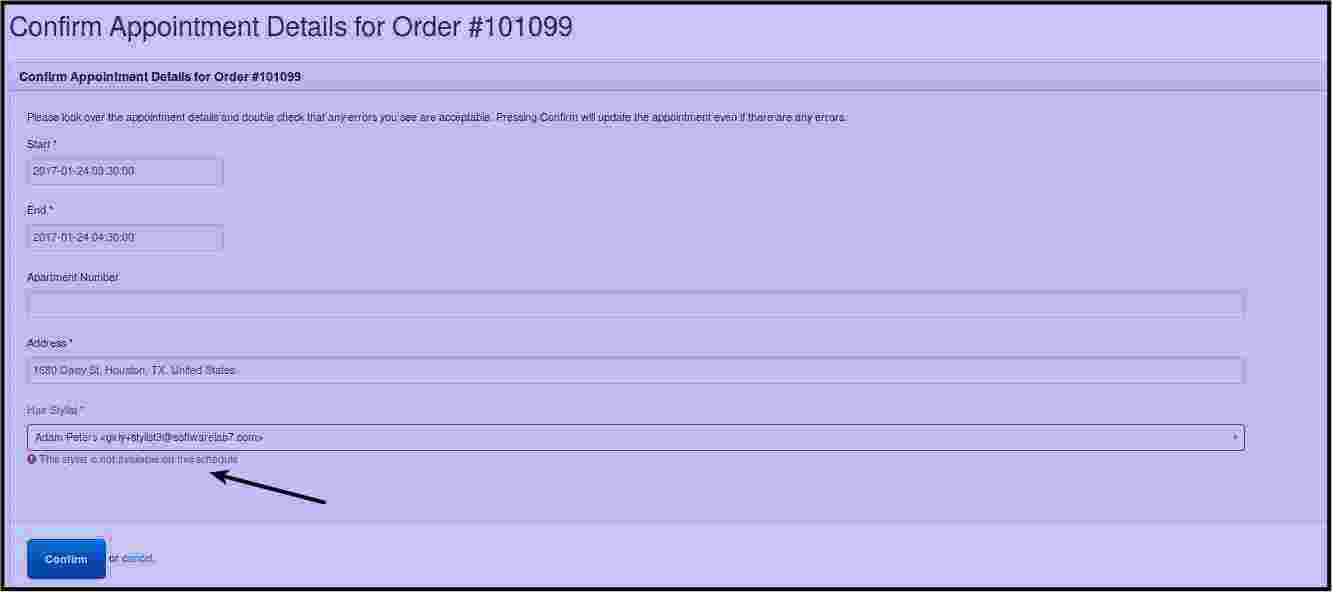
Please be careful in assigning stylist, you will only see this warning if the stylist have conflicting schedule. Stylists choices are based on their skill, regardless if the stylist is on off or filed an unavailable schedule
-
Click Submit to confirm the changes.
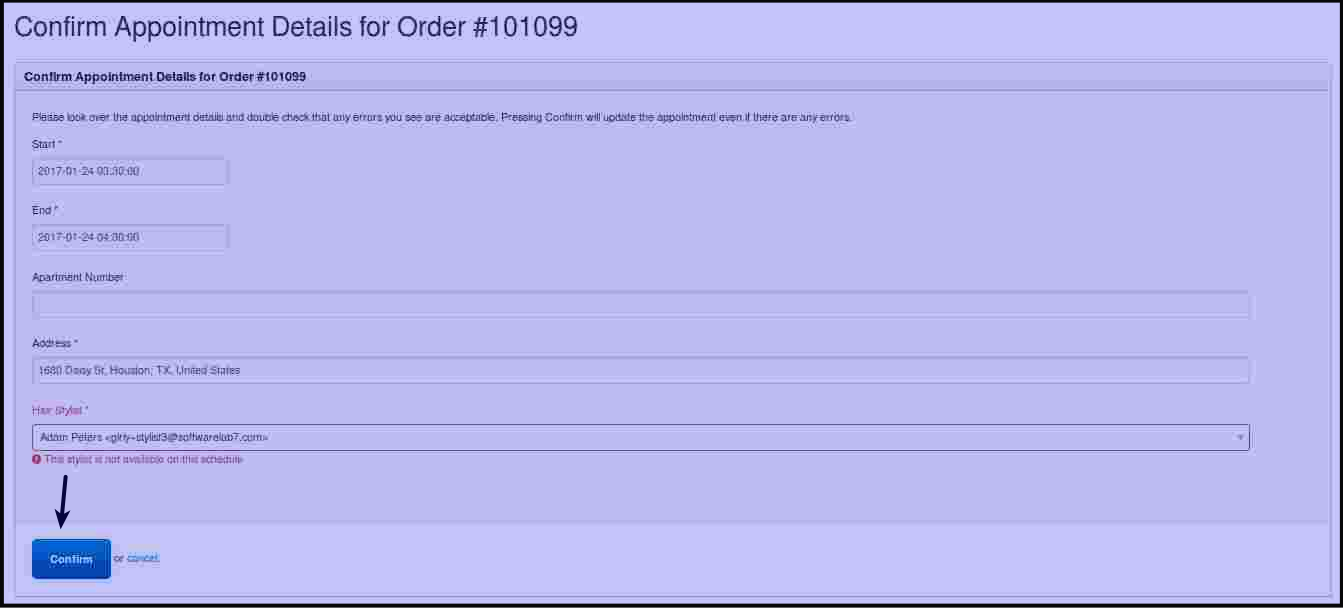
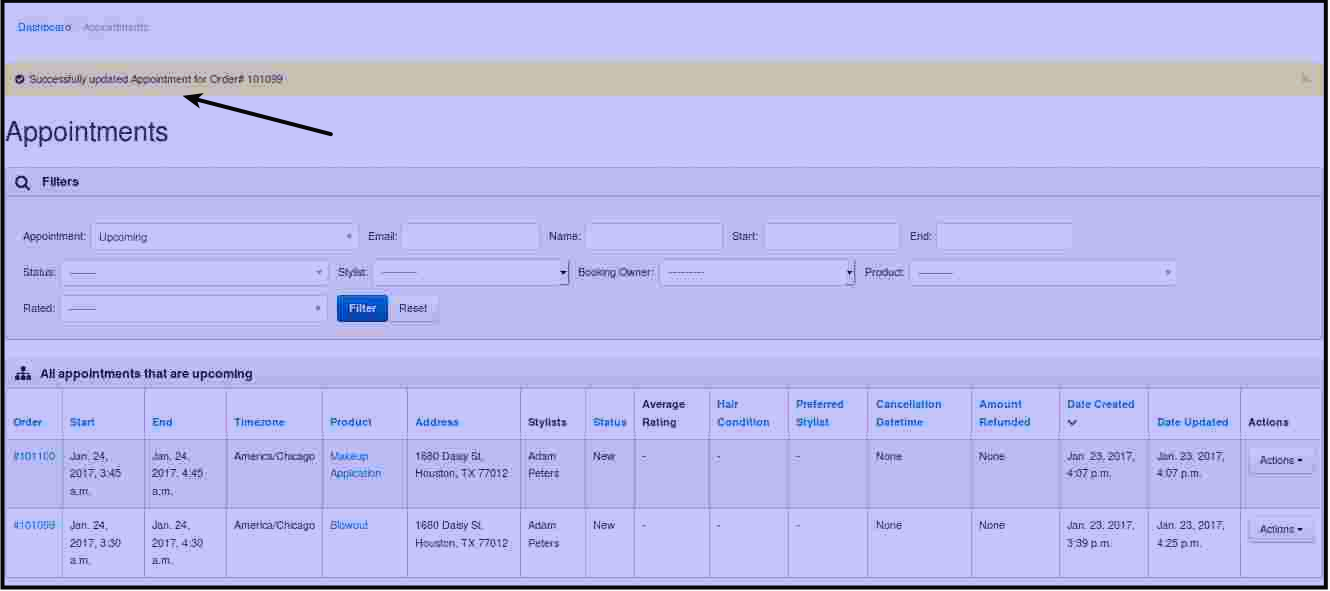
Then you will be directed to this page.