Pre-requisite
-
Install Pageboy App.
-
Register through Facebook or Register using your email address.
How to Register through Facebook Account
-
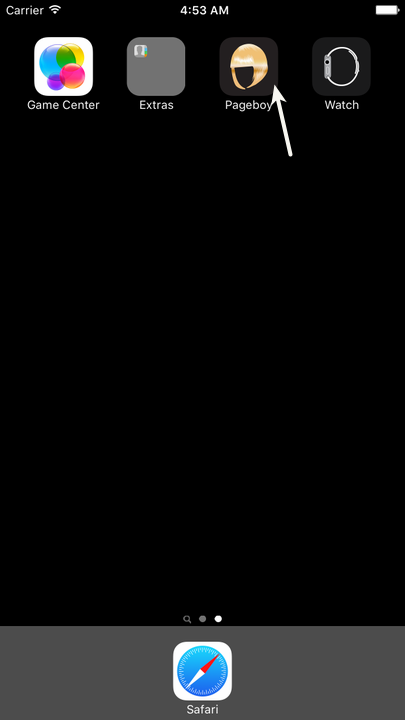
Download Pageboy App using your IOS Phone. Then install it.
-
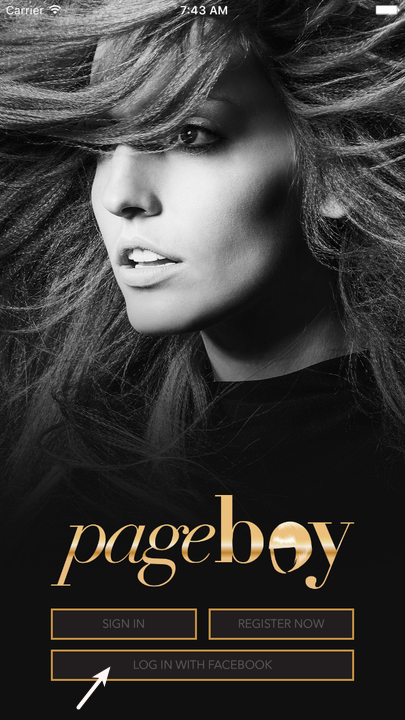
Press LOG IN WITH FACEBOOK.
-
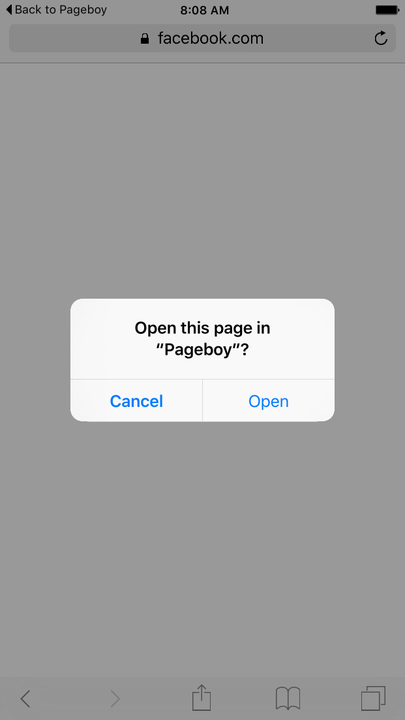
You will be directed to a page where you are asked if you will authorize Pageboy to access your information via Facebook. Press Accept, you will be directed to a page where you are asked if you want to open the page in Pageboy.
-
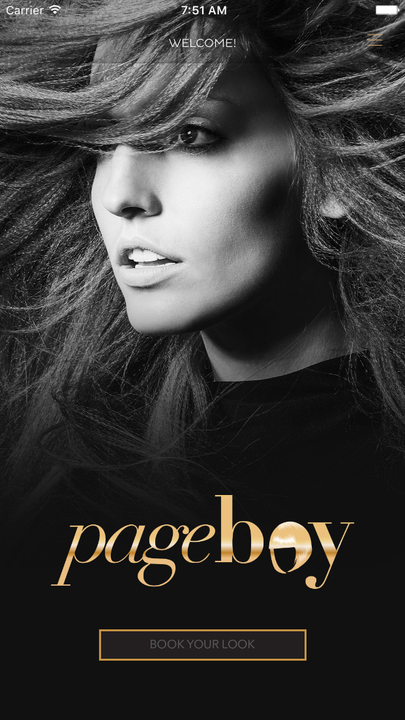
Press Open to open the go to the landing page.
How to Register Using Email Address
-
Download Pageboy App using your IOS Phone. Then install it.
-
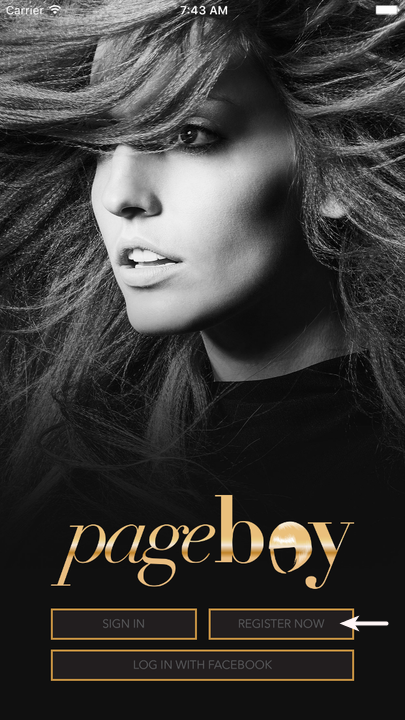
Press Register Now.
-
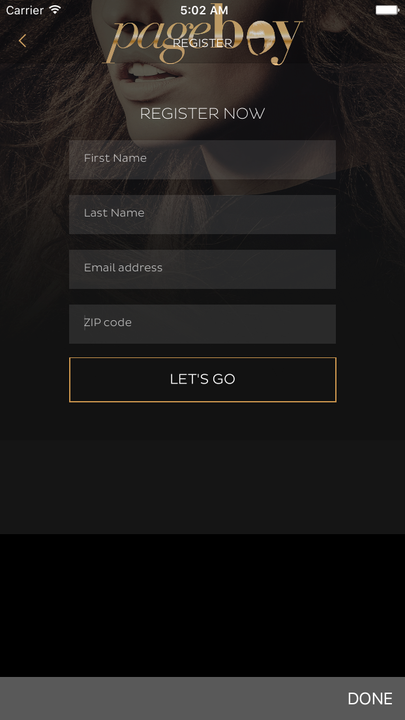
Fill out the information needed for registration.
-
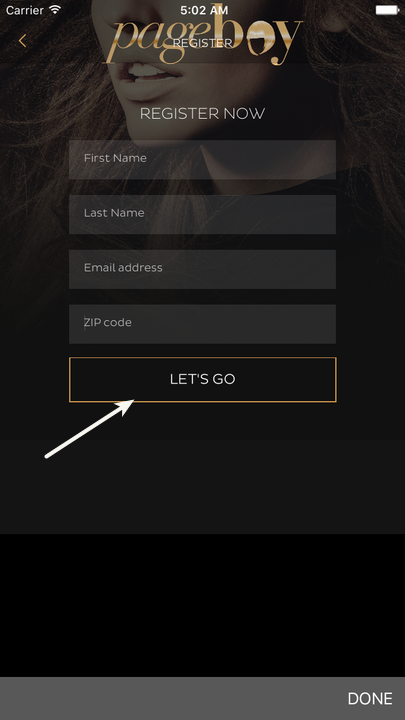
Press Let's Go.
-
There are 2 output that will be seen on your IOS App. If you are under service coverage you will see the image below.
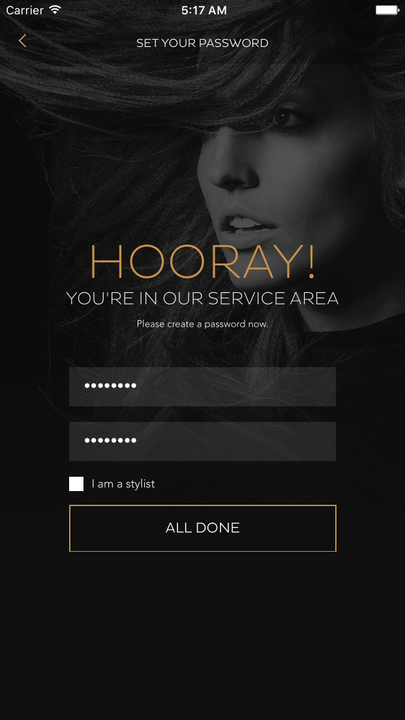
If you are out of service coverage, you will see the image below.
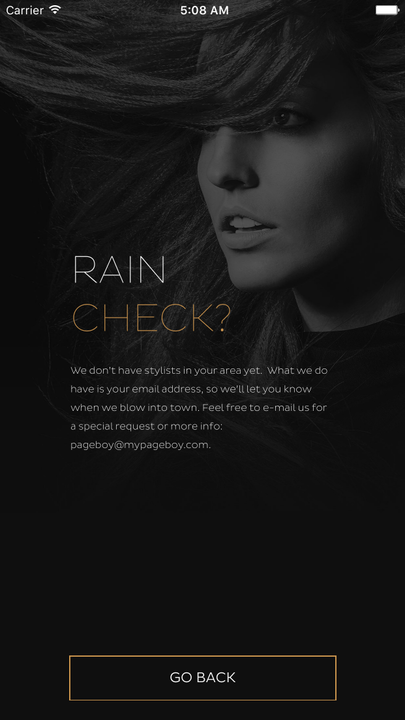
- Note: If the registration is successful you will see the landing page.
- Note: If the registration is successful you will see the landing page.
Understanding Pageboy Menu
-
Sign In to Pageboy App.
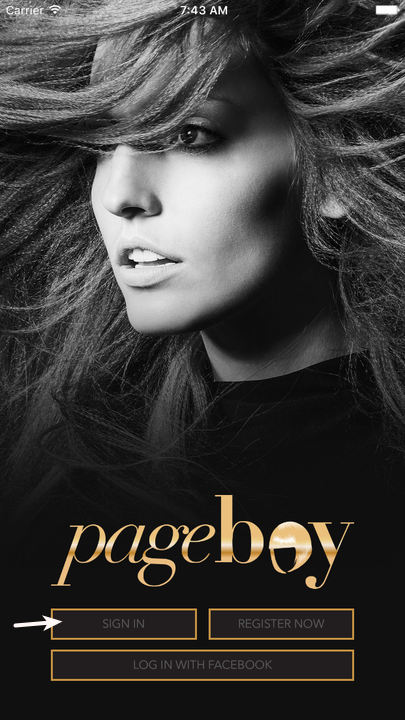
You will be directed to this page.
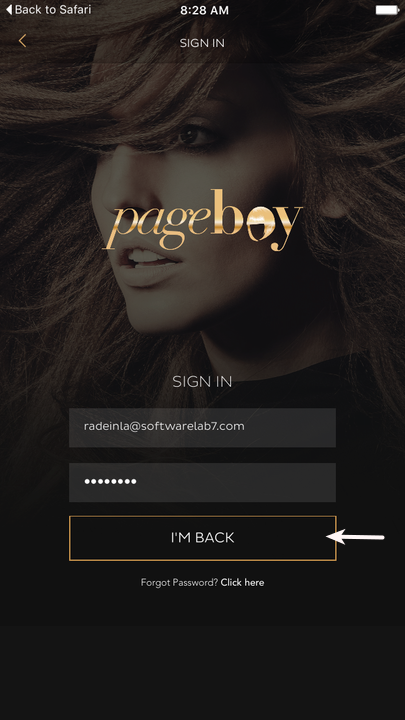
-
Press I'M BACK.
You will be directed to this page.
-
Press = on the upper right hand corner of the app.
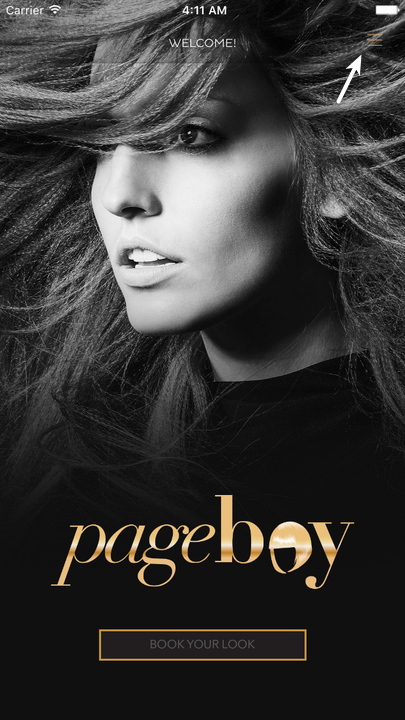
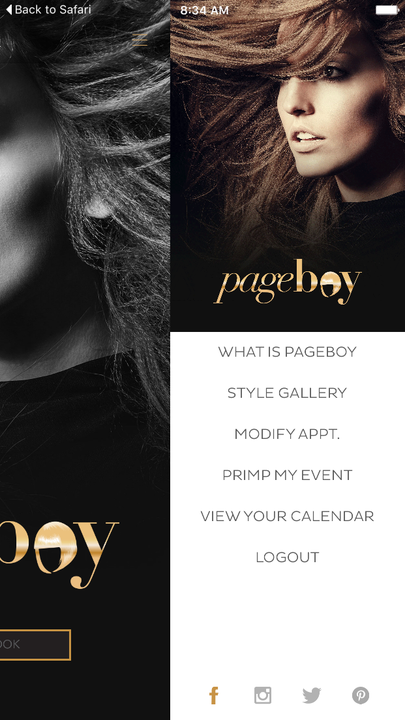
Here you will see the Menu of Pageboy App.
-
Menu Content.
- WHAT IS PAGEBOY - this will tell you all about Pageboy.
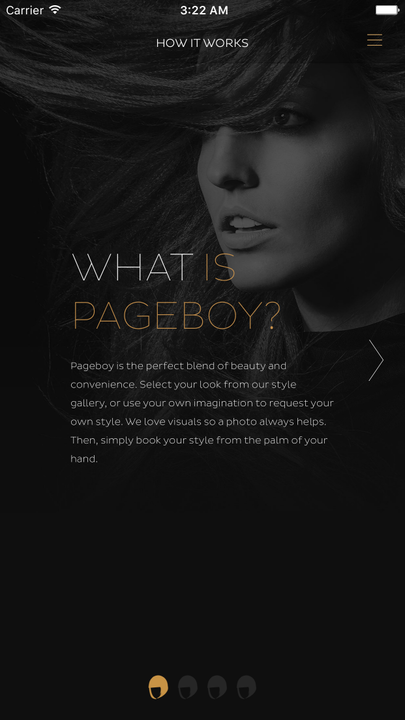
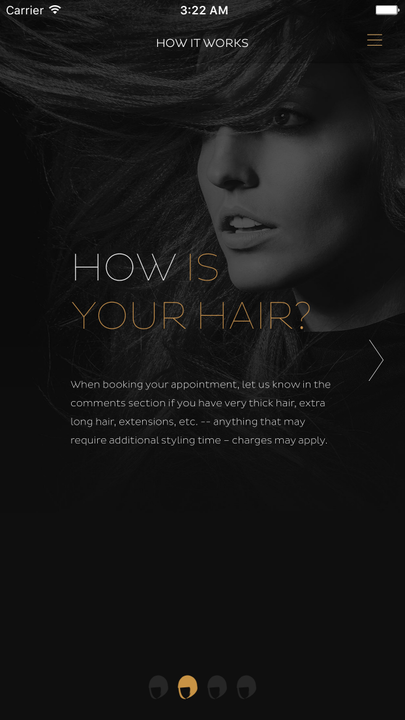
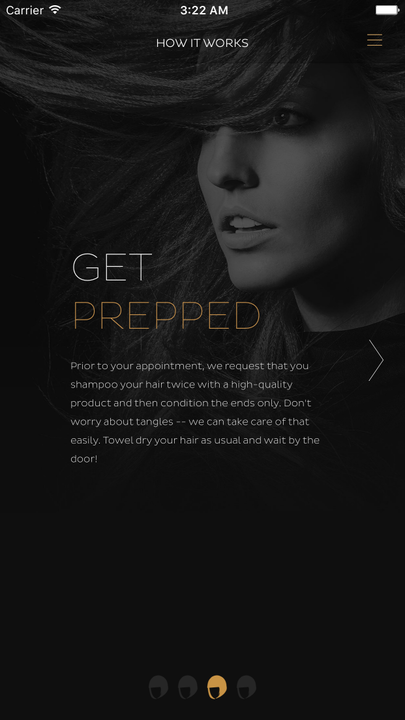
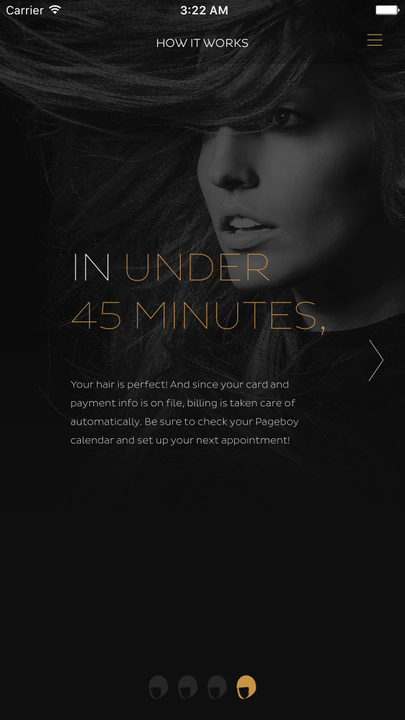
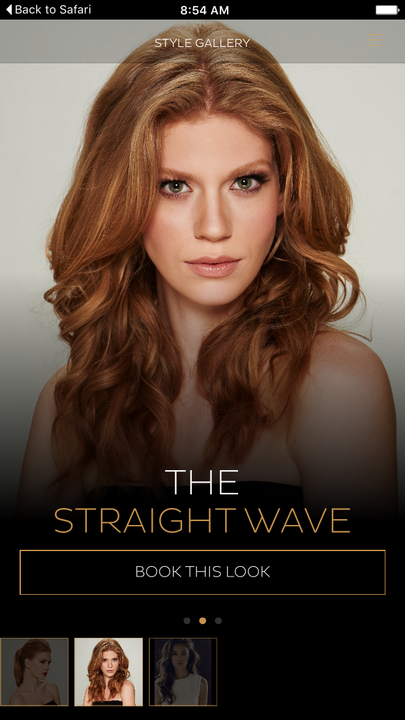
- STYLE GALLERY - you will see here all the hair styles offered by Pageboy.
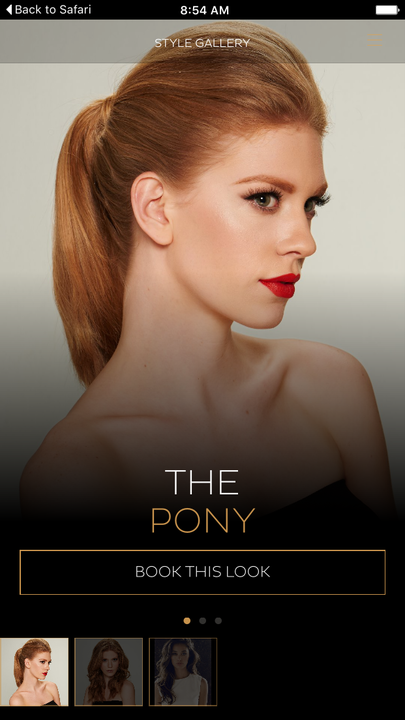
Slide to the left to browse styles

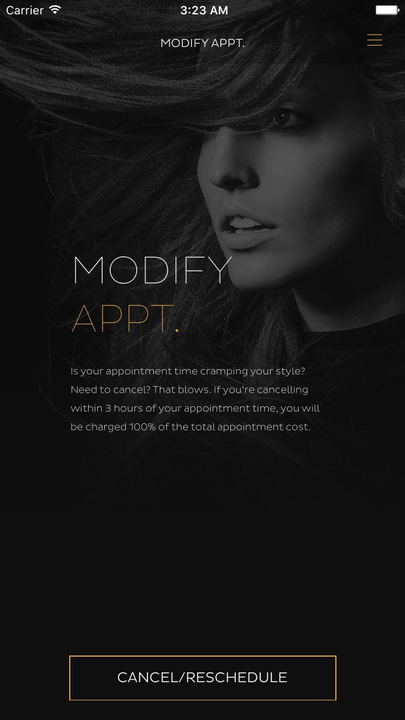
- MODIFY APPT - this is where you can cancel your booked appointment.
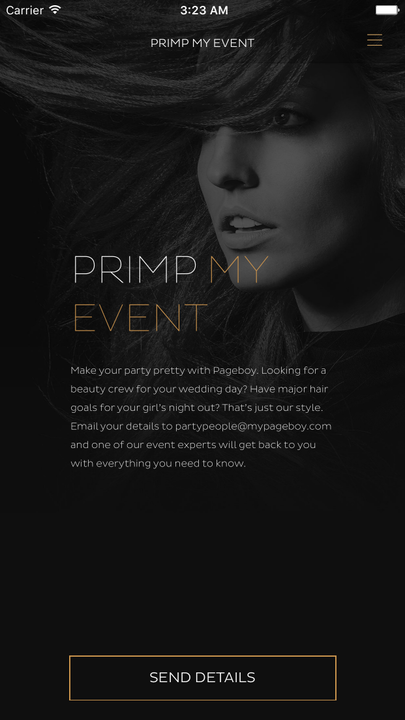
- PRIMP MY EVENT - this is where you can email Pageboy about your Event if you want to get their services.
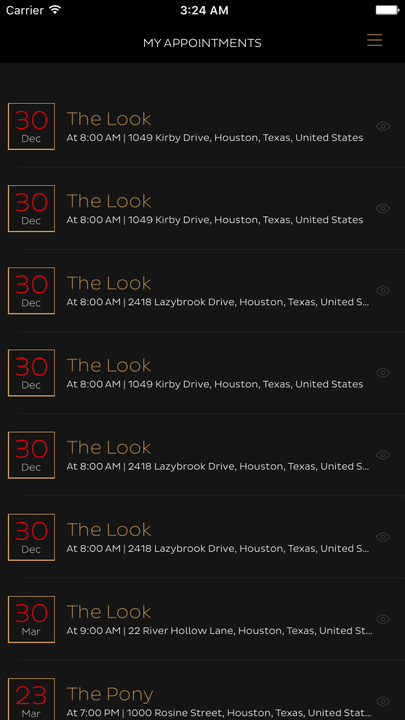
- VIEW YOUR CALENDAR - this is where you will see all the schedules you booked using this app, cancelled or confrimed.
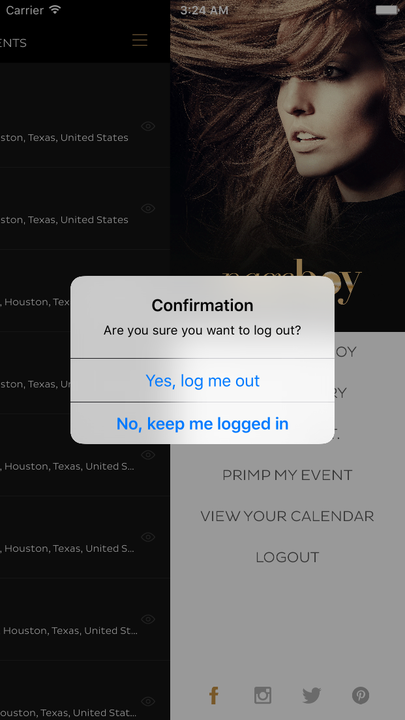
- LOGOUT - this is where you can logout from the app.
- WHAT IS PAGEBOY - this will tell you all about Pageboy.
How to Browse Styles
-
Sign In to Pageboy App.
You will be directed to this page.
-
Press I'M BACK.
You will be directed to this page.
-
Press = on the upper right hand corner of the app.
Here you will see the Menu of Pageboy App.
-
Press Style Gallery.
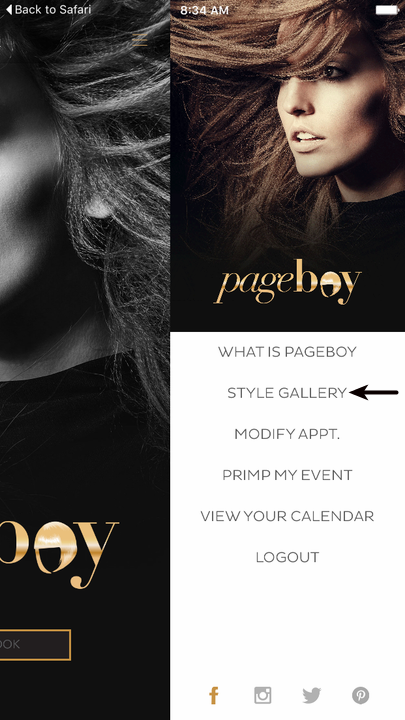
You will be directed to this page.
-
Swipe to from Right to Left to browse Styles.
How to Book an Appointment
-
Browse a Look you want to book. See How to Browse Styles
-
Click BOOK THIS LOOK.

-
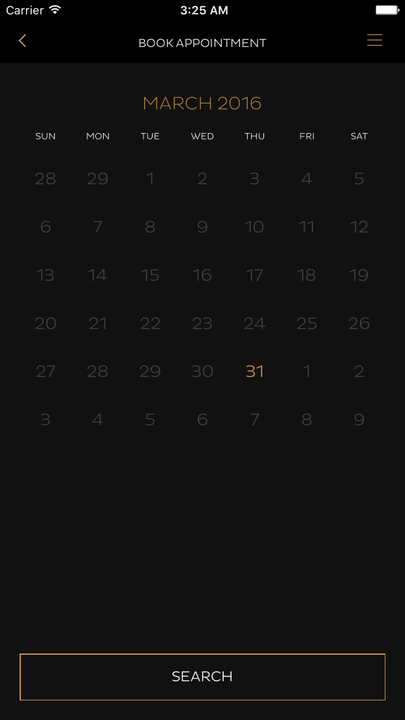
You will be directed to a Calendar, Now Choose a Date you want the style to be delivered.
-
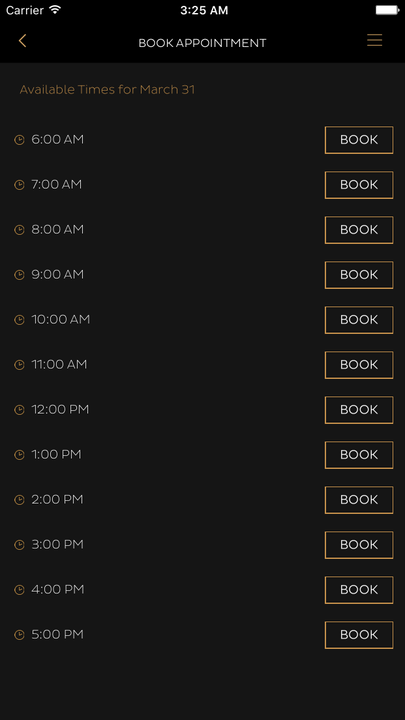
Press Search, you will be directed to a page where you can see all the available time slots on the system.
-
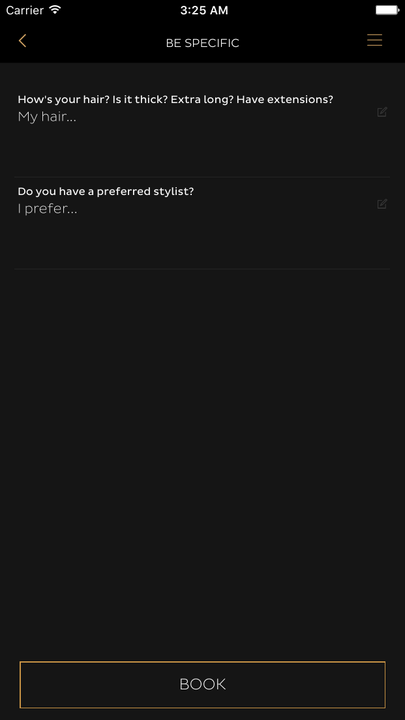
Press BOOK then you will be directed to this page where you will be asked about your Hair Details and if you have any preferred stylist.
-
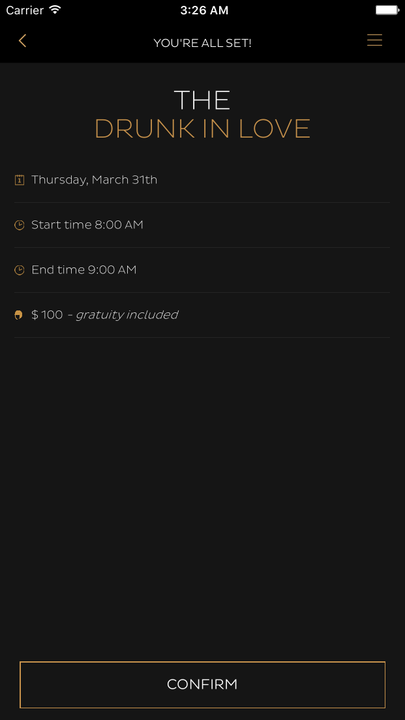
Press BOOK again to be able to see your booking details. Here you will see the Style you are ordering, the appointment Date and Time and How much it will be, gratuity included.
-
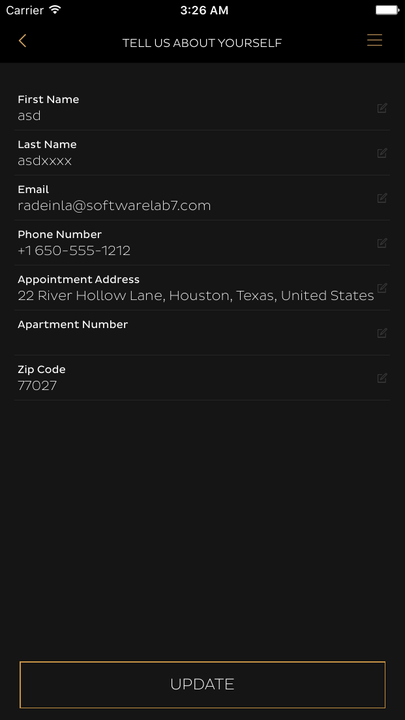
Press CONFIRM, to confirm the appointment. You will be directed to this page.
-
Fill out your Personal Information. Then Press UPDATE.
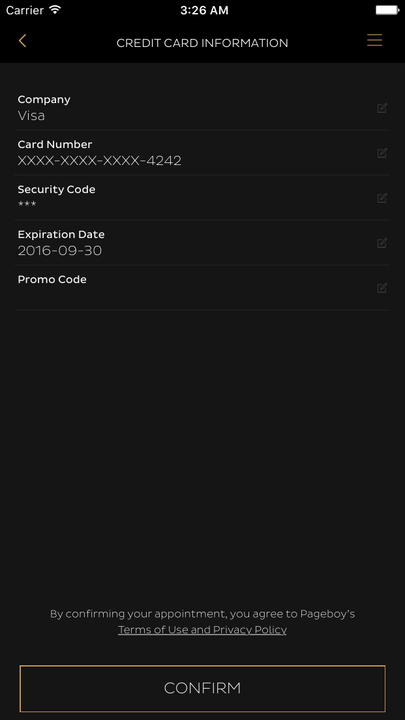
-
You will be directed to Credit Card Information, Enter your credited Card details and the Promo Code for style you are ordering if there are ongoing promotions you want to avail. Press CONFIRM.
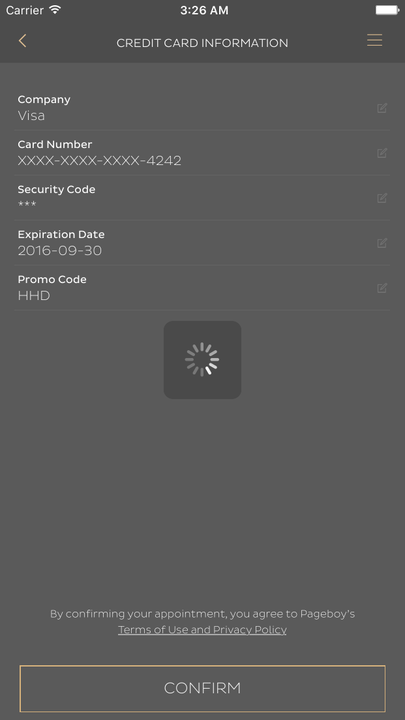
Your booking is now Successful, you will see this page.
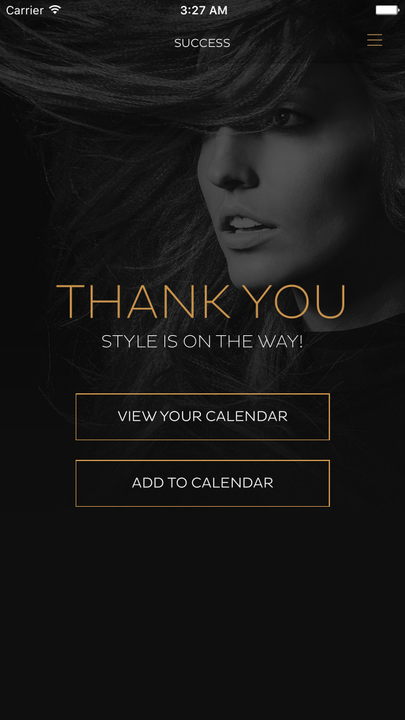
How to View Your Calendar
-
Sign In to Pageboy App.
You will be directed to this page.
-
Press I'M BACK.
You will be directed to this page.
-
Press = on the upper right hand corner of the app.
Here you will see the Menu of Pageboy App.
-
Press VIEW YOUR CALENDAR. You will be directed to this page.
All that are red are past or cancelled appointments.
-
Press Eye Icon or the Schedule itself to be able to see the appointment details.
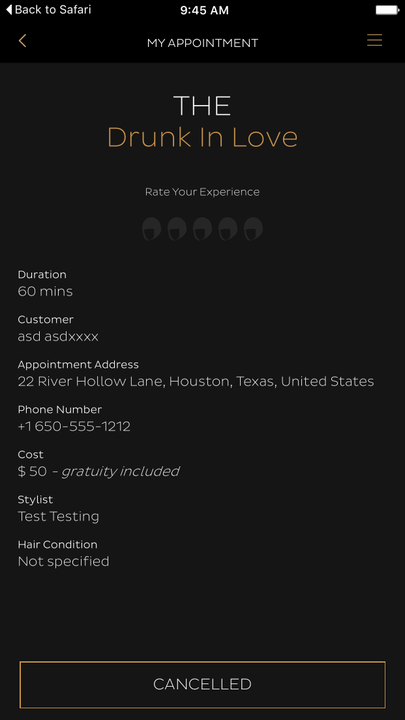
How to Cancel or Modify an Appointment
-
Sign In to Pageboy App.
You will be directed to this page.
-
Press I'M BACK.
You will be directed to this page.
-
Press = on the upper right hand corner of the app.
Here you will see the Menu of Pageboy App.
-
Press VIEW YOUR CALENDAR. You will be directed to this page.
All that are red are past or cancelled appointments.
-
Press Eye Icon to be able to see the appointment details.
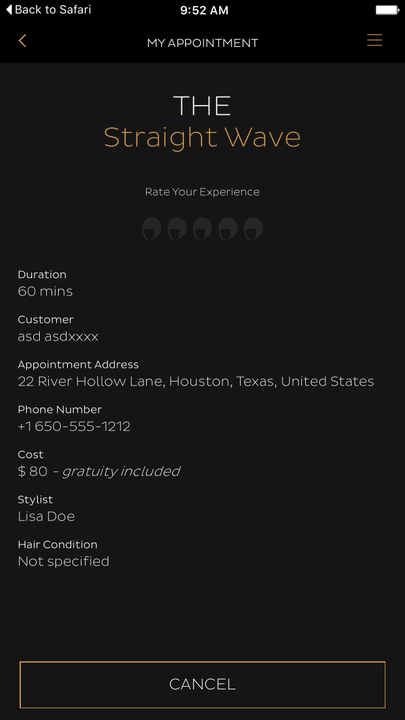
-
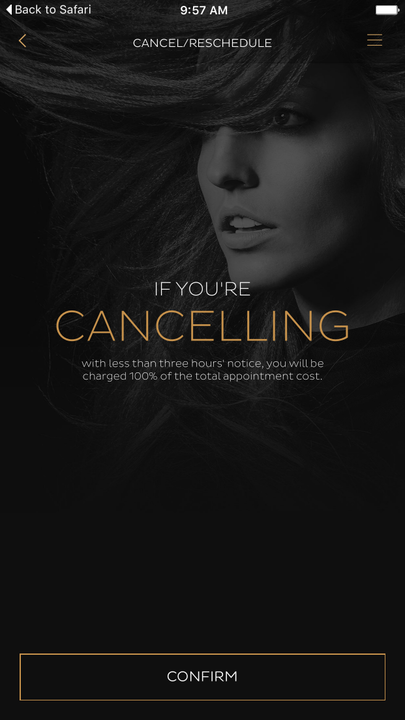
Press CANCEL to cancel the appointment.
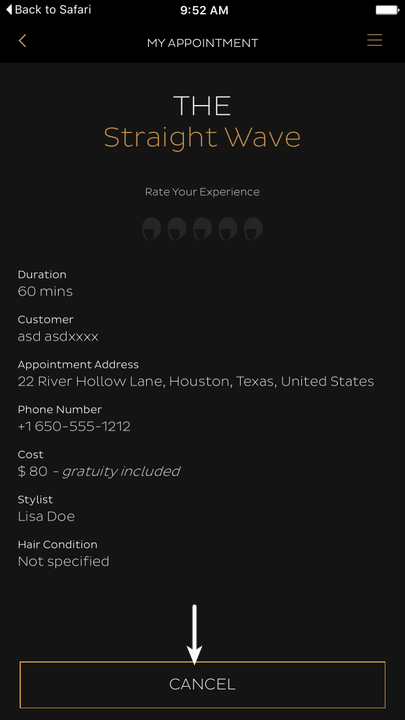
You will be directed to this page.
-
Press Confirm to cancel the appointment.
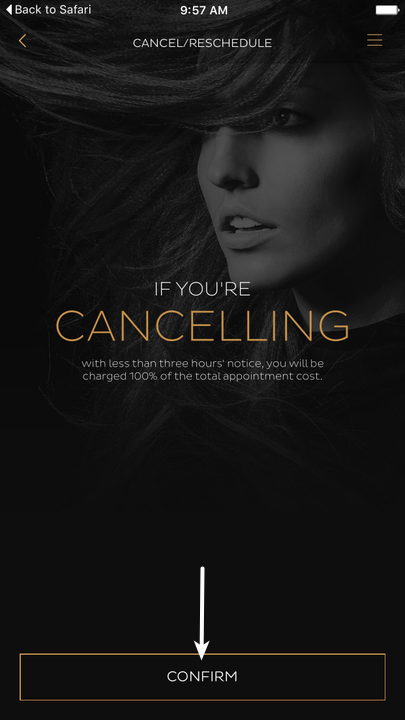
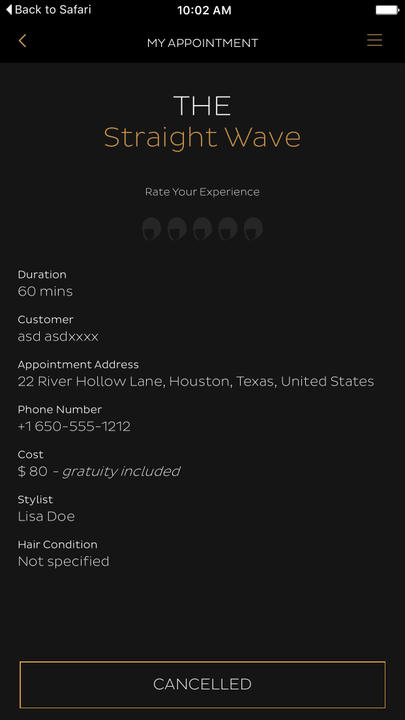
You will be directed to this page confirming that the appointment is cancelled.
How to Take the Survey
-
Sign In to Pageboy App.
You will be directed to this page.
-
Press I'M BACK.
You will be directed to this page.
-
Press = on the upper right hand corner of the app.
Here you will see the Menu of Pageboy App.
-
Press VIEW YOUR CALENDAR. You will be directed to this page.
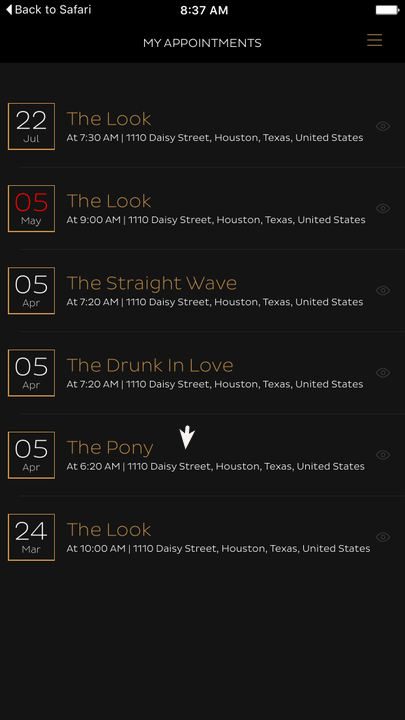
All that are red are past or cancelled appointments.
-
Press Eye Icon or the Schedule itself of the finished appointment you want to take a Survey of.
You will be directed to this page.
-
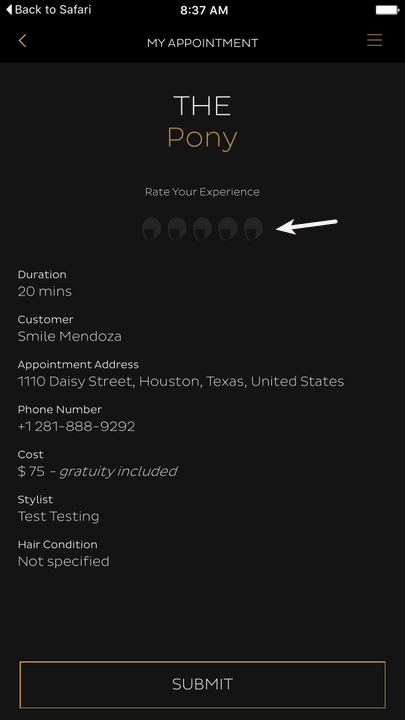
Here you can rate your Stylist by pressing the Hair Icon in the middle of your screen. The highest rating is 5 Hair Icons while the lowest is 0 to 1 Hair Icon.
-
4.1-5.0 rating should have a weight of 4 - Gold
-
3.1-4.0 rating should have a weight of 3 - Somewhat of a Premium Partner.
-
2.1-3.0 rating should have a weight of 1.5 - Must have better chances still.
-
1.1-2.0 rating should have a weight of 1 - Must have better odds than worst offenders.
-
0.0-1.0,no ratings should have a weight of 0.5 - Even the worst offenders should have a chance.
-
-
Press Submit to submit the survey.
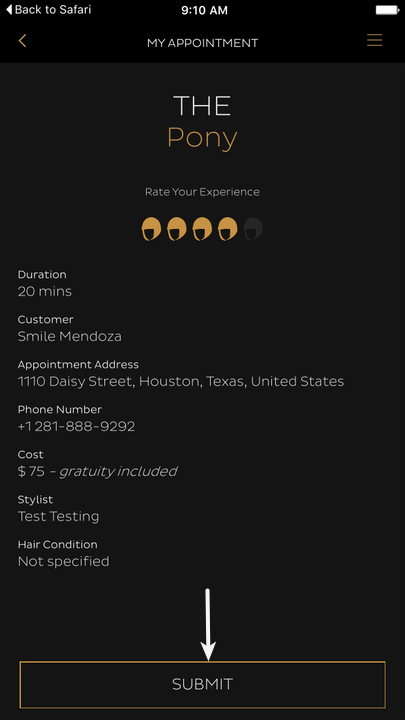
You will be directed to this page.